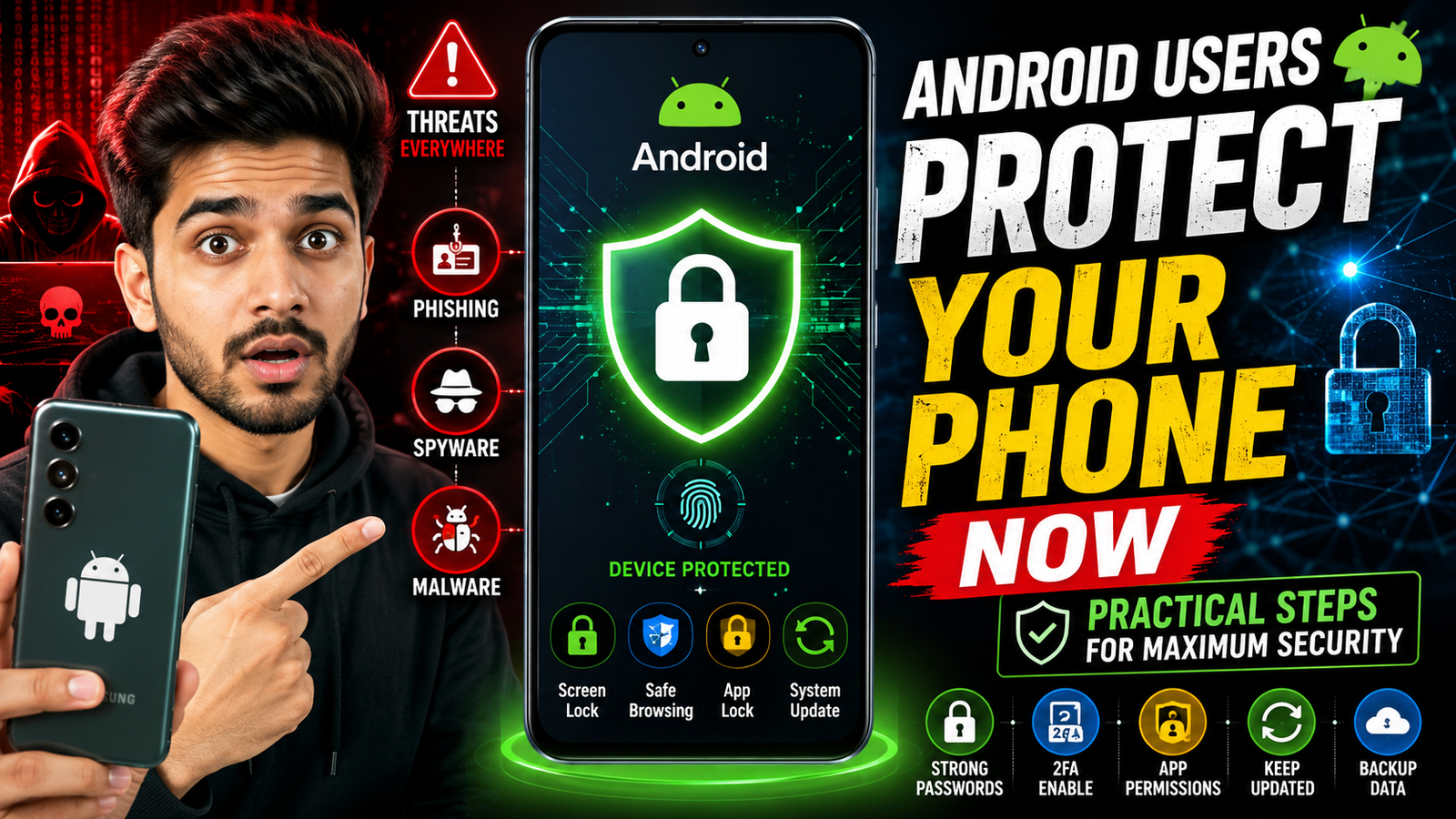
Android security is strongest when several protections work together: a strong screen lock, current system and app updates, verified software sources, limited permissions, account recovery, backups, and a way to locate or erase a lost device. No single antivirus app replaces these controls.
Start with the device’s built-in Security, Privacy, Accounts, and Google settings. Menu names vary by manufacturer and Android version, so use Settings search and confirm guidance against the phone maker’s support page before changing an unfamiliar option.
For banking, email, social, and work accounts, use unique passwords or passkeys where supported, enable multi-factor protection, protect recovery methods, and hide sensitive lock-screen notifications. Never approve a sign-in prompt or share an OTP because a caller or message creates urgency.
The practical review below covers lock screen, loss recovery, updates, app installation, permissions, account protection, backups, and warning signs that require the bank, employer, carrier, or device maker’s official support.
Related Resource
Third-party WhatsApp link: The DOWNLOAD NOW button opens a channel post, not an Android, Google, phone-maker, bank, or security-provider page. Do not install files, grant remote access, share OTPs, or change security settings solely on a channel’s instructions.

1. Set a strong lock and protect notification previews
If your phone is unlocked anyone can read your messages, reset your passwords, and access your banking apps within seconds. So the first job is to secure the lock screen properly and in a way that still feels usable for you.
Choose a lock that is strong and usable
- Use at least a 6 digit PIN if biometrics fail.
- Avoid simple patterns like straight lines or shapes that are easy to guess.
- Use fingerprint or face unlock if your device supports it and you are comfortable with biometric data storage.
On most Android phones open Settings then search for Screen lock or Lock screen. Check settings that hide notifications on the lock screen especially for messages and banking apps so others cannot read codes or private information when your phone is on the table.
2. Prepare location, recovery, and remote erase
Many users only think about tracking after the phone is lost which is too late if you never enabled anything. Android has a built in Find My Device service that can show your phone on a map, ring it, or remotely erase data when needed.

Go to Settings then Google then Find My Device. Make sure it is switched on and that Location is enabled for it. On some brands this may appear under Security or a vendor account like Samsung or Xiaomi, so check both the Google and vendor options if available.
Real case example: A user forgets their phone in a ride share car. Because Find My Device was already on, they could make the phone ring at full volume and display a message with a backup contact number on screen. Without it, their only option would be hoping the driver calls the SIM provider number on the card, which rarely happens.
3. Install supported security and app updates
Most dangerous exploits are fixed quietly through system and app updates. Skipping these updates for months leaves old holes open. Yes updates take time and data but not updating is one of the biggest security mistakes.
Back up, charge, and schedule updates safely
- Turn on automatic updates for Play Store apps on Wi Fi only.
- Schedule system updates to install overnight when the phone is charging.
- Check for any vendor security patches once a month in Settings under System updates or Software update.
If your phone is stuck on very old Android versions with no security patches for years it might be time to move to a newer model, at least for primary accounts like banking and work email.
4. Review built-in protection before adding a security app
The Play Store is full of antivirus and cleaner apps. Some are helpful, others mostly show ads or duplicate features that Android already has. Android users protect your mobile phone more effectively when you pick tools carefully and keep them minimal.
| Tool Type | Main Benefit | Risks Or Drawbacks | When It Makes Sense |
|---|---|---|---|
| Reputable antivirus app | Extra scanning, web protection, warnings for malicious links | Can reduce battery, constant notifications, subscription cost | If you install many third party apps or often click random links |
| VPN app | Encrypts traffic on public Wi Fi, hides IP from some tracking | Slower speeds, untrustworthy free VPNs may log your data | When using public Wi Fi for email, banking, or work accounts |
| Cleaner or booster app | Clears cache, claims to speed phone | Many are heavy on ads, duplicate built in storage tools | Usually not needed, prefer built in Storage or Files app |
| Authenticators | Generate one time codes for accounts | Need careful backup so you do not lose access | For email, social media, banking, and work accounts |
Focus on one trustworthy security app rather than installing many overlapping tools. Always read reviews, check download counts, and visit the developer website before installing.
5. Limit permissions and block unknown app sources
Many malicious apps do not look dangerous, they simply ask for more permissions than they need. A flashlight app should not need your contacts and microphone. A casual game should not need full access to SMS.
Permission-review checklist
- Open Settings then select Privacy or Security and privacy.
- Look for Permission manager.
- Review sensitive permissions like Location, SMS, Call logs, Camera, Microphone, Files and media.
- Change access to Allow only while using or Deny for apps that do not need constant access.
Also review Install unknown apps settings. Make sure only trusted apps such as your browser or file manager can install APK files and even then disable the option when not needed. Installing cracked games or modified apps from random websites is still one of the fastest ways to end up with malware.
6. Strengthen important accounts and recovery methods
Your phone holds the keys to your online identity. If someone gets into your email or main messaging app they can reset many other passwords. So accounts need extra layers of protection beyond just the lock screen.
Account baseline for high-value services
- Turn on two factor authentication using an authenticator app when possible.
- Use a unique password for email, banking, and main social accounts.
- Use the built in App lock feature provided by some brands for banking apps and galleries.
Case study style example: A user’s social media account gets taken over after they enter a code in a fake login page sent through direct messages. Because email had two factor authentication with an app based code the attacker could not take over the email as well, which limited the damage and helped them recover access faster.
7. Verify links, chargers, networks, and support contacts
Technology helps but small daily habits have a huge impact. Many attacks rely on people rushing, skipping checks, or trusting any message that looks urgent.
- Do not tap links in random SMS or WhatsApp messages that claim urgent delivery issues, tax refunds, or security alerts.
- Double check app names and developer names before installing anything that claims to be from your bank or government.
- Avoid logging into sensitive accounts on public Wi Fi without a trusted VPN.
- Use a screen protector and a strong case, physical damage can lead to rushed repairs with untrusted shops that might access your data.
- Back up photos and important files regularly to Google Drive or another trusted cloud or local storage.
Android users protect your mobile phone more effectively when protection is treated as part of normal use, not as a one time setup task. A quick monthly review of installed apps, permissions, and updates is usually enough for most people.
A monthly Android security checklist
Protecting an Android phone is not about chasing every new security app or scary news story. It is about covering the basics well, then adding a few smart layers where they matter. A reliable lock screen, Find My Device, regular updates, and strict permissions will block most common threats long before they become real damage.
If you handle online banking or work data on your phone, add two factor authentication, stronger passwords, and maybe one trusted security tool or VPN for risky connections. Avoid unknown APK files, review what your apps can access, and slow down whenever a message or login request feels a bit off.
Use this article as a checklist. Take ten minutes today to adjust your settings, then set a reminder to review them again in a month. With steady habits and honest awareness, Android users protect your mobile phone in a way that fits daily life without turning the device into a locked box.
Common Android security questions
Is an antivirus app required on Android phones
For many users who only install apps from the Play Store and avoid random links the built in Google Play Protect is often enough. An extra antivirus app can help if you sideload apps, click many unknown links, or share the phone with others who install random content.
How often should I update my Android phone
Keep automatic app updates on and install system security updates as soon as they appear, preferably within a week. A quick monthly manual check in Settings for Software update or System update is a good routine.
Is it safe to root my Android phone
Rooting can give more control but also removes built in protections, breaks some banking and payment apps, and can open more security holes if not managed carefully. For most normal users it is safer to avoid rooting entirely.
What is the safest way to back up my Android data
Use the built in Google backup for app data, contacts, and settings, then add regular photo and file backups to Google Photos, Drive, or another reputable cloud service. For very private data you can also keep an encrypted local backup on a computer or external drive.
How can I tell if an app on the Play Store is fake
Check the developer name, spelling of the app name, logo quality, download count, and recent reviews. Official banking or government apps usually have many downloads, clear branding, and a link from the official website. If anything looks slightly wrong, do not install it.
Thank you for reading and taking time to secure your phone. Stay tuned to this blog for more latest tech news, useful Android apps, smart AI tools, and practical updates that keep your devices safer and easier to use every day.