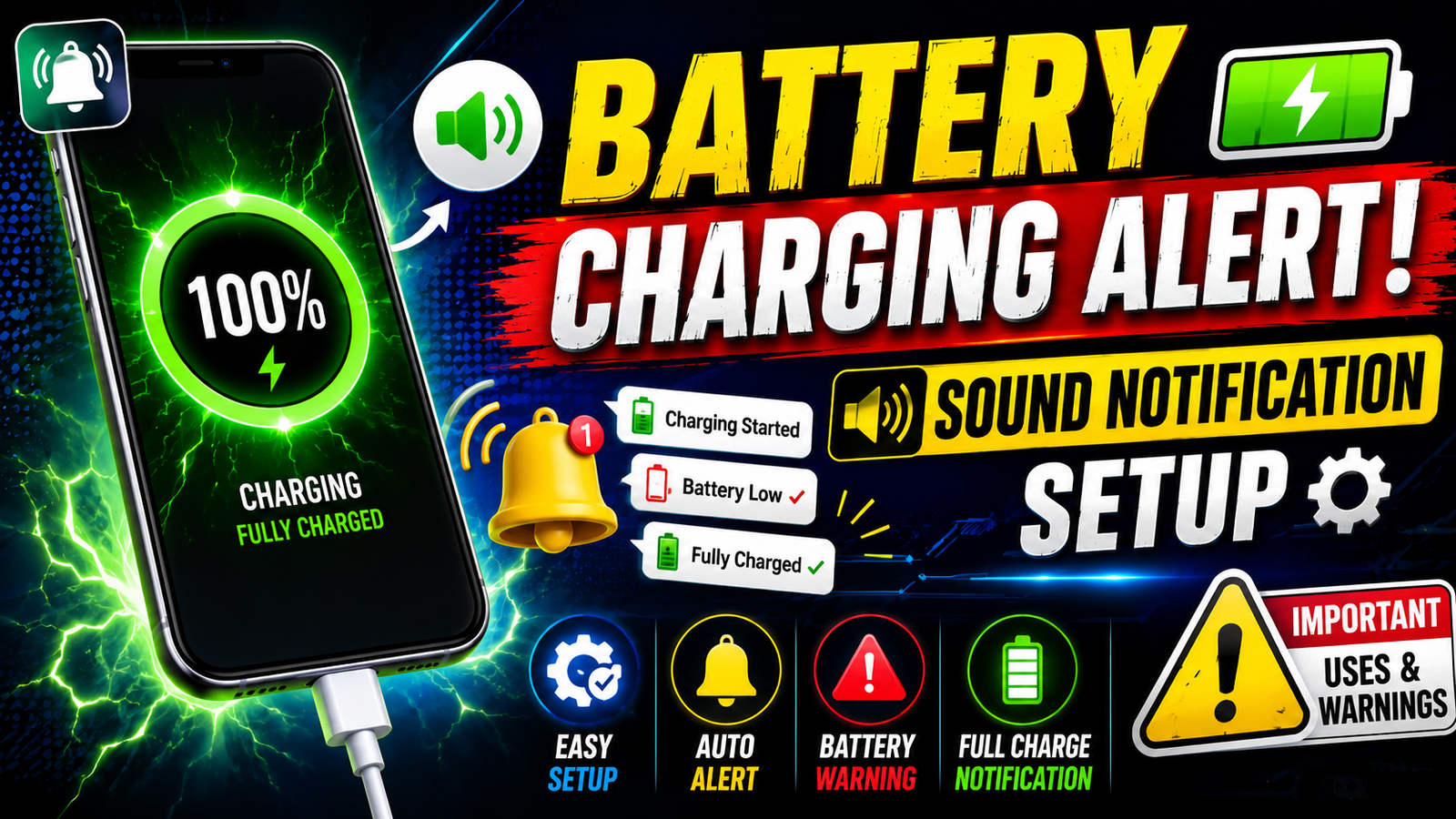
A charging-alert app listens for Android battery events and plays a sound, vibration, or notification when a selected condition is reached. Useful triggers include charger connected, charger disconnected, a chosen battery percentage, or an unusual temperature warning.
Check the phone’s built-in charging sounds and battery-protection settings before installing another app. Built-in options vary by manufacturer, but they generally require fewer permissions and are less likely to be stopped by background restrictions.
An alert does not control the charger or repair a damaged battery. Stop charging and inspect the phone, cable, and adapter if there is swelling, liquid damage, a burning smell, repeated extreme heat, or a loose connector. Use compatible certified charging equipment rather than relying on a notification as a safety device.
The sections below compare built-in settings, dedicated apps, and automation tools, then cover permissions, battery optimisation, test steps, false alarms, and safe alert levels.
Related Resource
Third-party Telegram link: The button above opens a Telegram post, not a verified app-store listing. Inspect any app destination, developer, permissions, and file type independently. Do not install an APK from an unknown source merely because it appears in a channel.

How charging alerts work on Android
At the simplest level, these apps listen for battery and charger events from the Android system and then play a sound, vibrate the phone, or show a custom message. Typical triggers are charger connected, charger removed, battery full, battery high, battery low, or temperature warning where supported.
On many Android phones you only get a very short system beep when you plug in, and nothing else. A dedicated notification app lets you choose a louder tone, a spoken message, or even a custom music file. Some apps also show a floating window with charge rate, estimated time to full, and battery health hints, although the accuracy of those extra numbers can vary by device model.
Built-in setting, dedicated app, or automation
Before you install anything, it helps to know your options. In some brands like Samsung or Xiaomi, the built in software already offers richer battery alerts, while stock Android might be more basic.

| Method | Main idea | Pros | Cons | Best for |
|---|---|---|---|---|
| Dedicated charging sound app | Standalone app only for battery and charging alerts | Easy setup, custom sounds, level based alerts | Needs permissions, may show ads, can use battery if poorly made | Most users who want simple plug in or full alerts |
| Built in phone settings | Brand specific options inside system settings | No extra install, usually light on battery, safer by default | Limited sounds, not available on every brand or Android version | Users with newer phones and simple needs |
| Automation tools | Apps like MacroDroid or Tasker to build custom rules | Very flexible, combine with Wi Fi, time, or apps | Learning curve, more permissions, easy to misconfigure | Power users who like advanced control |
Set up and test one alert first
The exact screens will differ by developer and Android version, but the basic setup flow is similar. Use this as a checklist when you install any mobile battery charging sound notification app from the Play Store.
- Check install source. Use Google Play or your official brand store, avoid random download links from social media or unknown websites.
- Review permissions. A reliable app usually asks for notification permission and battery status access. Be more careful if it asks for location, contacts, or unrelated access.
- Pick trigger events. Enable only what you really want, for example charger connected, battery full at 100 percent, or battery high at 80 percent.
- Select the sound. Choose a short and clear tone that is different from your message or alarm sound so you can recognize it quickly.
- Allow background activity if needed. Some phones aggressively kill apps in the background, so you may need to exclude the app from battery optimization for consistent alerts.
- Test with a real charger. Connect and disconnect the cable a few times to confirm the sound actually plays and the volume is correct.
Practical situations for connection and level alerts
Example 1, student sharing limited power outlets
Imagine a student in a library where only a few wall sockets are available. They plug in the phone, leave it in the backpack near the table, and start working. With an alert set at 80 percent, the app plays a short sound through the phone speaker when the battery reaches that level, so the student can unplug, free the outlet for someone else, and still have enough battery for the rest of the day.
Example 2, driver using fast charging at a roadside cafe
A driver stops for a short break and connects the phone to a fast charger. Instead of staring at the battery bar, they set a quick alert for 50 percent. Once the app plays the selected sound, they know they have regained enough charge for navigation and music for the next part of the trip, without waiting for a full charge that could stress the battery if the car is hot.
One-week alert review and adjustment
Consider a remote worker who spends time between home, coworking space, and short trips. They configure a mobile battery charging sound notification app with three main alerts, start charging, charge completed, and battery low at 20 percent. During a week of normal use, a few patterns appear that are useful.
At home, the full charge sound around 80 or 90 percent prevents the phone from staying on 100 percent all night, which can reduce long term battery wear on some devices. In the coworking space, the connect sound confirms that the cable and power strip actually work, which avoids the situation where the phone slowly discharges during long video calls. On travel days, the 20 percent warning sound helps avoid last minute panics when maps and tickets are needed.
This kind of setup shows the strength and also the limits of these apps. They improve awareness and habits but they do not repair an already damaged battery or replace basic rules like avoiding very high heat during charging.
False alerts, background limits, and excess permissions
One frequent mistake is enabling too many alerts at once. For example, a sound at 10, 20, 30, 40, 50, 80, 90, and 100 percent will quickly become annoying. Most people only need one or two key levels, usually a low battery warning and an upper limit if they want to unplug before full.
Another issue is ignoring battery optimization rules. Some phone brands silently stop background apps to save power, which means your charging sound app may not fire reliably. If you notice that alerts stop after some days, open system settings, search for battery optimization or auto start, and allow the app to run in the background. Keep in mind that this can slightly increase stand by drain, so check if the extra convenience is worth it.
Finally, some users pick a long song or loud ringtone as the alert. That seems fun at first but can be embarrassing in meetings or late at night. Short and soft system tones usually work better for long term use.
Battery, charger, and app-safety checks
A charging sound app mainly works with battery status and system events, so it should not need personal data. If you see permissions for contacts, camera, microphone, or precise location and there is no clear feature that explains it, consider another app. Also read a few recent Play Store reviews to see if there are complaints about aggressive ads or strange pop ups.
Remember that exact behavior can change over time as Android security rules and background limits evolve. After major system updates, recheck your alert settings because some permissions can reset or the app may behave differently until you open it again.
Keep the alert simple and testable
A mobile battery charging sound notification app solves a very common but often ignored problem. It helps you know when the charger is actually working and when it is time to unplug, without staring at the screen. When set up carefully with only a few key alerts and a sensible sound, it can improve your charging habits and reduce simple mistakes.
The best approach is to first check if your phone already offers battery alerts in system settings, then only add a dedicated app if you need more control. Stick to trusted sources, keep permissions lean, and test the alerts in real situations like your desk, car, or bedside. If you like tweaking Android, you can also explore automation tools to build more advanced rules later.
Common questions about charging sounds
Does a charging sound app damage the battery?
No, the app only listens to system events and plays sounds. Battery health is affected more by heat, deep discharges, and long periods at 100 percent, not by the alerts.
Can these apps work when the phone is on silent?
This depends on your Android version and the app design. Some respect the silent profile and only show a notification, others can use alarm type sounds. Check the app settings and do a quick test.
Will the app increase battery drain?
A well written app uses minimal power because it reacts to events that the system already produces. Poorly optimized apps with extra features or constant monitoring can use more battery, so monitor usage in system settings.
Is this available on iPhone?
iOS is more restricted and does not allow the same level of background access for third party apps. Some shortcuts and automation tricks exist, but they are less flexible than typical Android apps.
What if my alerts stop working after a while?
First open the app again and check that it is enabled. Then review battery optimization or background limits in your phone settings and exclude the app if needed. Also confirm you are on the latest version from the official store.
Thank you for reading this guide. If you found it helpful, keep following this blog for more latest tech news, useful mobile apps, AI tools, and daily tech tips that actually make your devices easier to use.