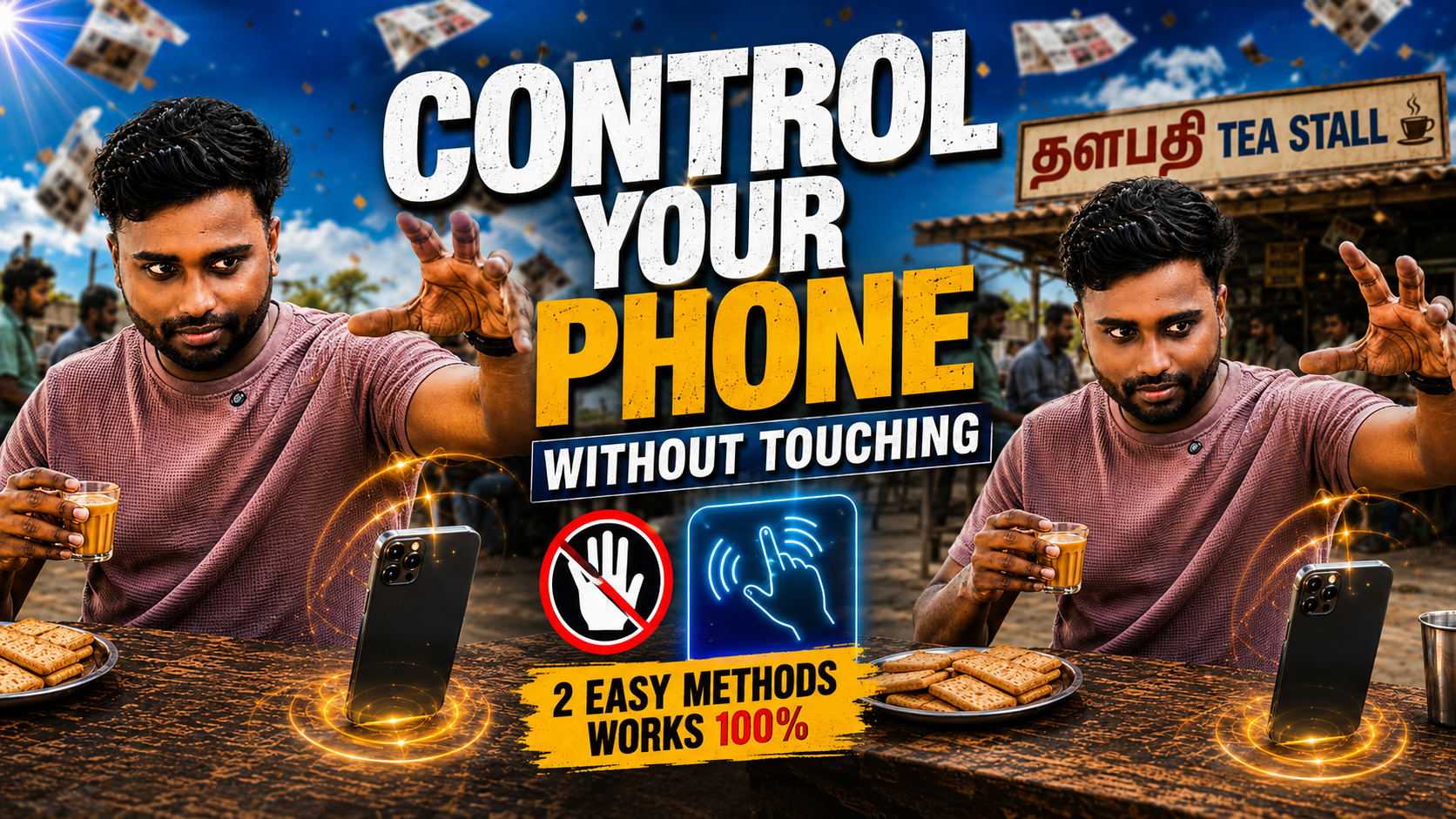
Touch-free phone control can come from built-in motion features, accessibility tools, voice control, or a third-party app that reads sensors such as proximity and movement. Available actions vary by phone model, Android version, and whether an app is allowed to run in the background.
Check the phone’s own Settings and Accessibility menus first. A built-in option is easier to audit and may use less battery than keeping another app active. Typical functions include silencing a call by turning the phone over, waking the screen, controlling media, or assigning an accessibility gesture.
A downloaded gesture app may request notification, accessibility, microphone, camera, or background permissions depending on its design. Grant only what the selected feature requires, test the behaviour while the phone is unlocked and locked, and remove permissions if the app does more than expected.
Hands-free controls can help while cooking or working, but they do not make phone use safe while driving. Set navigation and media before moving and follow local road rules rather than experimenting with gestures behind the wheel.
Related Resource
The button above opens the Google Play listing for the specified wave-control app. Confirm its developer, update date, data-safety information, permissions, advertisements, and recent reviews before installing; availability and compatibility can vary by device or region.

How touch-free controls detect an action
The phrase command your phone with a wave usually describes two kinds of features. First, built in motion or proximity gestures that phone makers add in their settings. Second, third party apps that use the proximity sensor, accelerometer, or sometimes the camera to detect a hand movement in the air.
On many Android phones, especially mid range and flagship models, you already have gesture options in the Settings app. These are often tucked under labels such as Motions and Gestures, Advanced Features, or System Gestures. The exact vocabulary changes by brand and Android version, so expect some differences from what you see here.
Check built-in and accessibility controls first
Before you install anything, always start with native features. They are usually more stable and kinder on your battery.

Gesture types and their practical limits
- Wave to wake or check notifications, some devices let you pass your hand over the screen to light it gently.
- Lift to wake, lifting the phone from a flat surface wakes the lock screen.
- Flip to mute or silence, turning the phone face down mutes incoming calls or alarms.
- Raise to ear to answer, bringing the phone to your ear automatically picks up a call.
- Shake or gesture for camera, double twisting or lifting the phone based on brand opens the camera quickly.
To find these options, open Settings, search for words like gesture, motion, quick launch, or advanced features, then explore every entry slowly. Many people miss useful tricks just because they never scroll to the bottom of these pages.
Compare third-party gesture apps by sensor and permission
If your phone is light on features, third party apps can add extra air controls. Below is a simple comparison of common gesture style tools. Names and availability may change, so always check your local Play Store and recent reviews.
| Type | Typical Features | Pros | Cons and Risks |
|---|---|---|---|
| Proximity sensor based apps | Wave to skip track, pause media, answer or reject calls, toggle flashlight | Works even with screen off on some phones, no camera needed | Depends on sensor quality, can misfire in tight pockets or bags |
| Camera based gesture apps | Detect open palm, closed fist, specific hand shapes | More complex gestures possible, works without special sensors | Uses more battery, may keep camera active, raises privacy questions |
| System wide launcher gestures | Swipe patterns, double taps, edge gestures for apps and shortcuts | Flexible custom actions, can replace some navigation keys | Not always true wave control, may conflict with stock navigation |
Whichever app style you choose, watch for red flags such as unnecessary access to contacts, messages, or microphone. A gesture app should mainly need sensors, screen draw permission, and sometimes accessibility services if it controls other apps.
Set up and test one action safely
Here is a realistic workflow using a typical proximity based gesture app from the Play Store. Names may change but the overall steps are very similar.
- Open the official app store on your phone. Search for gesture control or wave to control and filter results by rating and recent updates.
- Open the app listing, read the description, check screenshots, then scroll to the permissions section. Make sure the claimed features match the permissions requested.
- Install the app, then open it. Most tools will ask you to enable a service or grant draw over other apps permission, confirm only if you are comfortable.
- In the app, pick a basic action, for example wave once over the top of the phone to skip to the next music track.
- Test your gesture with a running music app. Hold your hand five to ten centimeters above the top sensor, move it across, pause a moment, then pull back.
- Adjust sensitivity or distance in the app settings if the action does not fire reliably or triggers too often while you move the phone around.
Spend at least ten to fifteen minutes living with the new gesture before adding more. Too many triggers at once will confuse you and increase accidental actions.
Where touch-free control may be useful
Example 1, hands wet in the kitchen
You are following a recipe on YouTube, both hands are covered in dough. With a wave control set to pause and play, you can stop the video to rewatch a step without touching the display. This reduces smudges and also protects your phone from water damage or oil on the screen.
Example 2, phone on a car mount
Your phone is fixed on the dashboard for navigation. A simple wave to answer feature lets you pick up an important call on speaker without leaning forward to hunt for a tiny on screen button. You still need to respect local driving laws, but it can reduce distraction when used carefully.
Example: reducing interruptions at a desk
Imagine a remote worker who keeps their phone slightly away from the keyboard to avoid constant checking. They set one wave to mute notifications and double wave to start a focus timer. During work blocks they simply wave once to silence the phone without breaking eye contact with the monitor. Over a week they notice fewer micro interruptions and less temptation to scroll social media.
This kind of setup shows that gesture control is not just a novelty trick. When you connect specific movements with habits, like silencing or starting a timer, you can protect your focus without reaching for the device every few minutes.
Setup mistakes and false triggers
- Turning on every gesture at once, this causes random triggers and users then disable everything in frustration. Start with one or two key actions only.
- Ignoring battery impact, sensor polling and screen overlays can use more power. If your battery begins to drain faster, reduce gesture sensitivity or limit background access in system settings.
- Granting all permissions blindly, a simple wave tool should not need your full contact list or SMS. If it asks for more than sensors and basic system control, reconsider the install.
- Forgetting that cases can block sensors, thick covers or wallet cases near the top of the phone can confuse proximity detection. Test gestures with your normal case on before you blame the app.
Permission, battery, and road-safety checks
If an app depends on the front camera to see your hand, treat it like any camera centric app. Avoid unknown developers, read the privacy policy, and check if the camera runs permanently or only when you open the app.
On Android, you can open Settings then Privacy and then Permission manager to see which apps use sensors, camera, and microphone. Disable access for anything that feels excessive. It is better to lose one fancy gesture than to leak personal data silently in the background.
Keep only gestures that work reliably
To truly command your phone with a wave, start simple. Explore built in gestures from your phone maker, pick one or two that match daily problems, then only extend with external apps when the native options fall short.
Waving to control music, calls, and alerts can reduce distraction and protect your phone from messy hands, but it also adds another layer between you and the device. The best result is a small set of clear, reliable motions that feel natural, not a long list of clever but forgotten tricks.
Take time to test, adjust sensitivity, and clean up permissions. If a gesture saves you a few seconds several times a day without surprising you, keep it. If it confuses you or drains the battery, turn it off and try another approach.
Common questions about touch-free phone control
Does gesture control work on every Android phone
No, older or very budget phones may miss some sensors or software support. You can still try third party apps, but accuracy and reliability will vary a lot.
Can I command my phone with a wave on iPhone
iOS does not offer the same air gesture flexibility as many Android skins. You can use tap back, accessibility features, and Siri, but true wave based air control is very limited.
Will gesture apps drain my battery quickly
Sensor based apps usually have a moderate impact. Camera based gesture tools tend to use more power. Monitor battery usage in system settings during the first few days.
Are gesture control apps safe to use
Many are safe, but only if you install from the official store, check permissions, and avoid apps that request unrelated access such as SMS or full contact data.
Can gestures replace the power or volume buttons
Some apps try to mimic power or volume controls with gestures, but they are not perfect. Keep your hardware buttons as your main backup in case the app crashes or the phone restarts.
Thank you for reading. If this helped you command your phone with a wave in a more practical way, feel free to follow the blog for more latest tech news, useful apps, AI tools, and honest setup tips.