Sony camera owners should choose a companion app from the exact camera model’s support page, because app compatibility differs across Alpha, ZV, and older models. Search results may still surface Creator’s App, Imaging Edge Mobile, or older PlayMemories guidance even when only one applies to the device.
Before pairing, update the camera and phone only through official instructions, enable the required Bluetooth and Wi-Fi permissions, and keep both devices charged. If the camera was paired to another phone, remove the old connection from both sides before creating a new one.
Wireless transfer and remote shooting depend on the camera, firmware, mobile operating system, region, file type, and network conditions. A feature listed for one Sony model should not be assumed to work on another, and large videos may transfer slowly or require a different workflow.
This guide explains how to identify the correct app, prepare pairing, troubleshoot repeated disconnections, and protect location, account, and media permissions during transfer.
Related Resource
Third-party WhatsApp link: The button above opens a WhatsApp channel post; it is not Sony’s official support page or app-store listing. Use Sony’s model-specific support page to identify and download the required companion app.

Choose the app listed for your exact Sony model
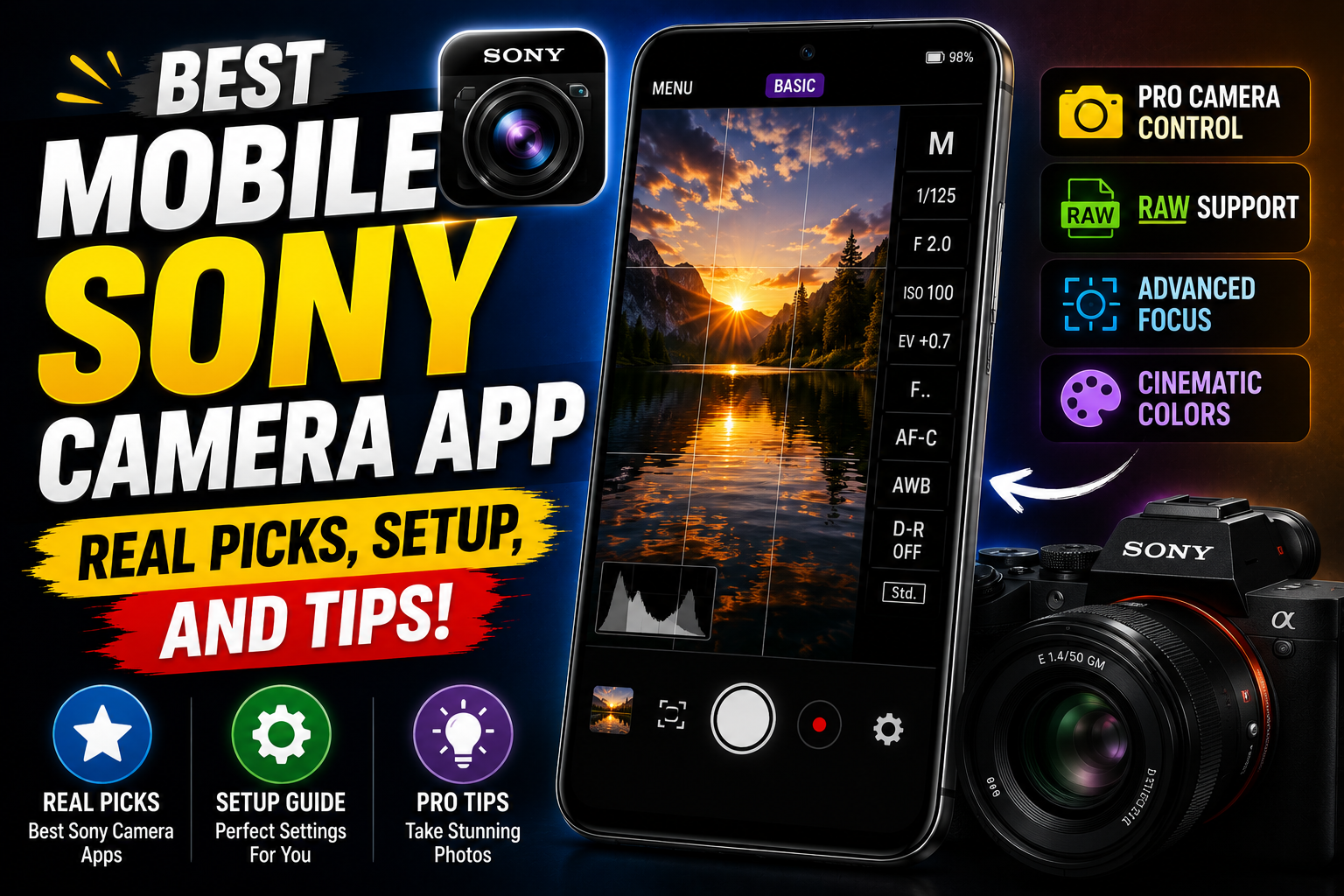
Right now the best choice for most users is Sony Creator’s App. This is Sony’s newer companion app for many Alpha and ZV cameras. It combines wireless transfer, remote live view, camera settings control, and cloud related features in a cleaner package than the older tools.
The catch is that Creator’s App only supports certain newer cameras and some firmware versions. Many older bodies still need Imaging Edge Mobile. On some phones both apps can be installed at the same time, which is another reason people feel lost.
Why multiple Sony app names appear
Use this table as a starting point. Exact support can change with updates, so always check the latest device list in the Play Store or App Store description.

| App | Main purpose | Typical supported cameras | Remote shooting | Transfer speed | Who it suits best |
|---|---|---|---|---|---|
| Creator’s App | Newer Sony camera control, transfer, cloud link | Recent Alpha and ZV models with updated firmware | Yes, full live view and settings on many bodies | Fast when Wi Fi direct is set correctly | Current Alpha and ZV owners, hybrid photo plus video users |
| Imaging Edge Mobile | Legacy Sony camera control and file transfer | Older Alpha, RX, Handycam and some Action Cam | Yes, usually basic but reliable when paired right | Medium, depends on camera Wi Fi standard | Owners of pre Creator’s App models who still want remote control |
| Imaging Edge Mobile Plus | Limited support, some cameras only | Certain compact or vlog cameras in some regions | Partial, depends heavily on model | Medium | Users guided by QR code in camera menu to this app |
| Sony Imaging Edge (desktop) | PC and Mac remote shooting and tethering | Various Alpha models | Yes, but not a mobile app | High over USB | Studio and home creators filming to computer |
First-time pairing checklist
Creator’s App is usually the best pick when your camera supports it, but the first setup can be frustrating. Follow these steps on Android or iPhone and you will avoid most pairing failures.
- Install Creator’s App only from the official Google Play Store or Apple App Store. Avoid any clone or modified versions from random sites since these can create security risks or simply not work.
- Update your camera firmware if Sony recommends it for Creator’s App. Firmware can affect which app works. Check Sony’s support page for your exact model, for example A7 IV or ZV E10 II.
- On the camera open Network or Smartphone connection menu. Look for an entry that mentions Smartphone or Creator’s App. On many newer models you see a QR code for easy pairing.
- Open Creator’s App and follow the on screen pairing guide. When the app asks for Wi Fi permission, allow full permission and location if needed. Many phones will not show Wi Fi SSIDs without location permission, so the app cannot find the camera properly.
- Use Wi Fi direct when possible for transfers. This is usually faster than relaying through your home router and gives more stable live view while recording video.
If you still see repeated disconnects, try disabling battery optimization for Creator’s App in your phone settings. Many Android skins, especially on budget phones, aggressively kill background apps which breaks long remote sessions.
Example: transferring selected travel clips
Imagine you are traveling with a Sony ZV E10 and a mid range Android phone. You want to record clips on the camera but upload Reels and Shorts from cafes during the day. With Creator’s App you can mark your best clips in camera, connect when you find Wi Fi, then batch transfer just the selects to your phone in medium size instead of dragging over every single file.
This workflow saves storage on your phone and avoids heavy 4K uploads on slow hotel internet. The main mistake many creators make is trying to send huge XAVC files over basic 2.4 GHz Wi Fi while the phone is also downloading social feeds. Switching to smaller proxy files in the app and pausing other downloads gives a more realistic balance between quality and speed.
Event workflow with backup and transfer checks
Consider someone covering a three day conference with a Sony A7 series camera. They shoot stills and short interview clips, then need to send quick previews to a social media manager who is off site. With Creator’s App they can create a simple routine.
- During breaks they connect the camera to the phone and import only rated or locked images at 2 megapixel size for fast upload to chat apps.
- For a few key interviews, they use the remote control function to monitor framing from the phone while the camera sits on a tripod at the back of the room.
- At night they transfer a batch of full resolution JPEG or HEIF files for archive, then back those up to a cloud drive from the phone.
This type of workflow is where the best mobile Sony camera app really matters. If the app is slow, buggy, or keeps losing connection every five minutes, it wastes real time during a paid job. In that case, tuning Wi Fi channels on the camera, disabling crowded office networks, and keeping the phone close to the body can significantly reduce interference.
Pairing, permission, and transfer problems
There are a few repeating problems that show up across forums and reviews of Sony camera apps. Most of them have practical fixes.
- Installing multiple Sony camera apps and pairing to each one. This often confuses the camera and the phone. If your model supports Creator’s App, start with only that. Install Imaging Edge Mobile only if the manual clearly says so.
- Ignoring the QR code in the camera menu and trying manual Wi Fi input. The QR code usually sets the correct security and SSID in one step. Typing passwords by hand leads to errors and unstable profiles.
- Using 5 GHz Wi Fi in very crowded venues. In some regions 5 GHz channels can be more saturated than 2.4 GHz. Try switching band in the camera network menu if live view keeps freezing.
- Expecting live remote 4K monitoring from far across a hall. These apps are great for nearby monitoring, not full broadcast level control. Accepting that range and throughput are limited makes them less frustrating to use.
Media, location, cloud, and account privacy
Sony sometimes links Creator’s App to a Sony account for cloud functions and certain community services. You can usually use basic Bluetooth pairing and local transfer without sending files to Sony servers, but some advanced integrations may sync metadata online.
If you handle sensitive client work, take a few minutes to review the privacy settings inside the app. Disable automatic cloud upload if you do not need it, clear cached previews on shared phones, and avoid pairing client cameras to personal accounts. Also, always download the app from the official stores, not APK mirror sites, to reduce the risk of tampered versions.
Use the model support page as the source of truth
For most people in 2026 the best mobile Sony camera app is Creator’s App, as long as your camera is supported. It has the most modern interface, better remote control, and quicker transfers when Wi Fi direct is correctly set up. If your body is older, Imaging Edge Mobile is still the right companion and there is no real benefit in forcing a mixed setup.
Your next step is simple. Check your exact camera model on Sony’s support page, see which app is officially recommended, install only that app from the official store, then follow the QR based pairing flow. Spend five minutes tuning transfer size, Wi Fi band, and battery settings on your phone. That small setup time usually turns these apps from annoying to actually useful in daily shooting.
Common Sony camera-app questions
Which Sony app should I install first
Check your camera manual or Sony support page. If it lists Creator’s App, install only that first. If it lists Imaging Edge Mobile, use that instead. Avoid installing all Sony apps at once.
Why does my Sony camera keep disconnecting from my phone
This often happens due to phone battery optimization, crowded Wi Fi, or walking too far from the camera. Disable battery optimization for the app, keep the phone closer, and try a different Wi Fi band in the camera menu.
Can I shoot video remotely from my phone
Yes, many supported cameras allow starting and stopping video recording from Creator’s App or Imaging Edge Mobile. Live view quality may drop slightly to keep the connection stable.
Is it safe to use Sony camera apps over public Wi Fi
Local Wi Fi direct links between camera and phone do not pass through public routers, which is safer than open networks. Avoid using public Wi Fi for cloud uploads of sensitive client work.
Do I need a Sony account to use the app
You can usually pair and transfer files without a Sony account. Some cloud features, backup, or community options may require sign in.
Thank you for reading this guide. If you found it useful, keep following this blog for more practical tech news, app suggestions, AI tools, and step by step updates for your mobile and camera gear.