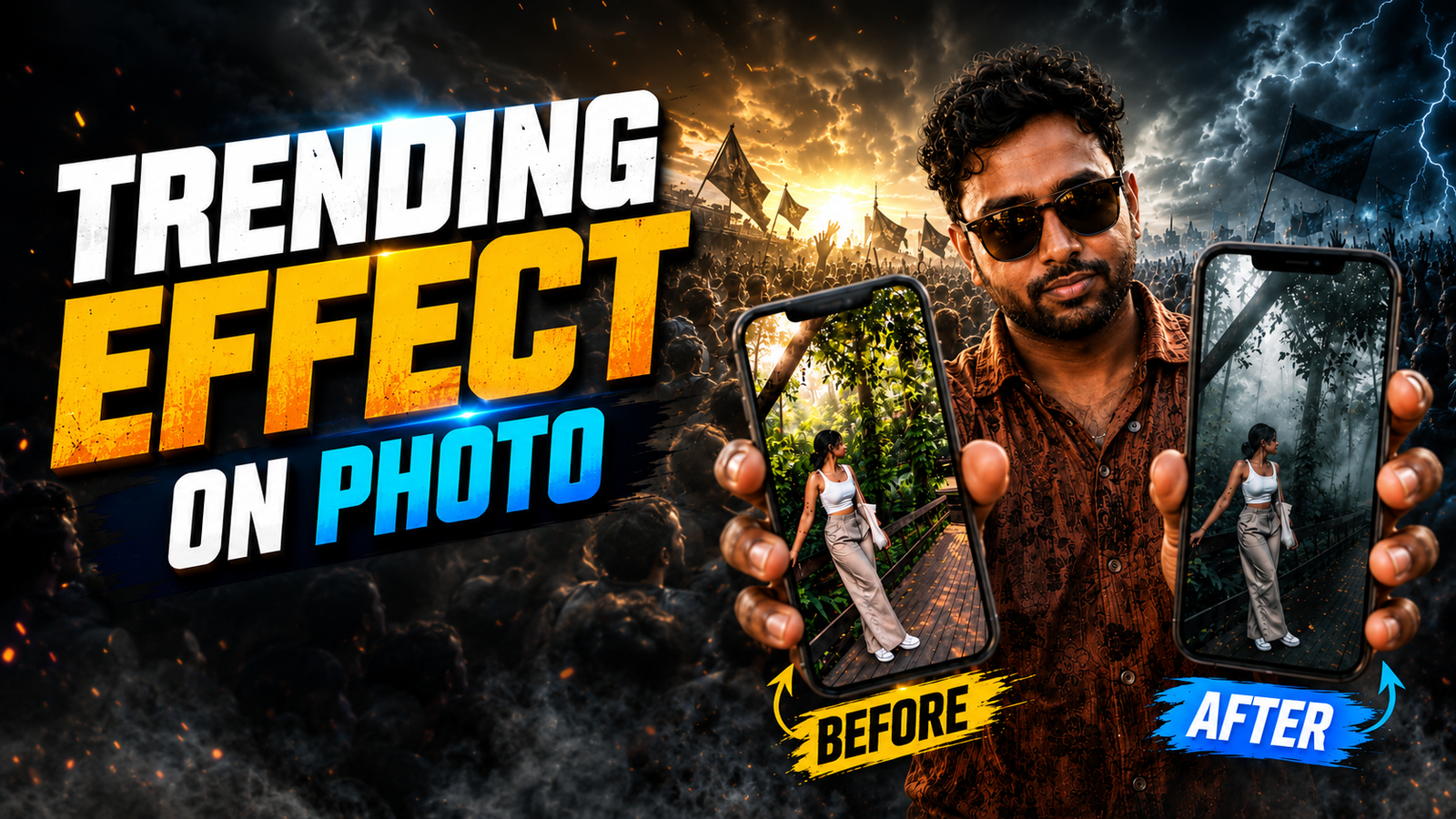
A convincing moody edit keeps the subject readable while using darker shadows, restrained colour, and controlled highlights to create atmosphere. Simply lowering brightness usually destroys detail and produces a flat result, especially on phone screens.
Start with a sharp, correctly exposed photo. Make small exposure and white-balance corrections first, then shape contrast with curves and adjust individual colours with HSL controls. Portraits need extra care because aggressive teal, green, or orange grading can make skin look unnatural.
This workflow works in browser-based editors as well as mobile and desktop apps. Tool names and free-plan limits can change, but the editing order remains useful: prepare the base image, build the tone, check the subject, and export at the size required by the destination platform.
The steps below explain the controls, two practical starting recipes, recovery from an over-edited image, and privacy checks to make before uploading personal photos to an online service.
Related Resource
The Prompt Link button above opens the related resource for Trending Moody Effect Online. It is included so readers can reach the mentioned page directly.

What creates a moody look
The phrase trending moody effect online usually points to a dark, cinematic style that keeps skin tone soft but pushes the background into deeper shadows and cooler colors. You often see this look in street portrait edits or rainy city photos where the sky, buildings, and clothes have low saturation, and only one or two colors pop.
Right now the most common combinations are teal and orange, brown and green forest tones, or grey blue city tones. Highlights stay controlled, black areas are deep but not crushed, and there is often a little noise or grain for a film feeling. The trick is to change color and contrast more than exposure so you keep texture in hair, clothes, and sky.
Choose an editor with the right controls
You can use almost any decent photo editor, but some make the job easier because they give you curves and HSL panels directly in the browser. Below is a quick comparison of common options people use. Exact features can change with updates, so treat this as a general orientation.

| Tool | Good For | Main Pros | Main Cons |
|---|---|---|---|
| Photopea | Advanced manual control | Curves, HSL, layers, works like desktop editor | Interface can feel complex for beginners |
| Pixlr E | Quick moody edits in browser | Simple layout, has curves and filters, mobile friendly | Free version shows ads, some tools behind login |
| Canva Photo Editor | Social media posts and text | Easy interface, templates, basic color sliders | Limited fine control on curves and HSL |
| Fotor / similar AI editors | One click looks and presets | Fast filters, simple to use, AI enhancement | Less control, results can look over processed |
If you like total control and already know basic editing words, Photopea or Pixlr E is a good choice. If you want to combine moody photos with text for posters or stories, Canva is convenient. Try not to rely only on one click dramatic presets because they often push contrast too far and destroy detail in shadows.
A controlled editing workflow
You can follow this general workflow in most online editors. The slider values are not fixed numbers, they are only starting points. Always adjust according to your original image and taste.
Step 1: Choose The Right Base Photo
- Pick a photo with some natural contrast, like side light on the face or a bright window behind.
- Avoid very low quality or fully blurred images because the moody effect will just make them muddy.
- Portraits, street scenes, coffee shop photos, rainy windows, and forest paths work especially well.
Step 2: Basic Light Correction
- Reduce exposure slightly if your image is bright, usually around minus 0.2 to minus 0.5 stops.
- Increase contrast a little, around plus 10 to plus 20, but watch the face so it does not become too hard.
- Lower highlights so bright areas keep detail, then lift shadows just a bit so you still see clothing folds.
- Set black and white points, move the blacks slider down a little for depth, but do not kill all texture.
Step 3: Add Color Mood With HSL
- Desaturate overall color slightly, maybe minus 10 to minus 20 on the saturation slider.
- Inside HSL, target greens and yellows, shift them closer to olive or dark green, reduce their saturation.
- Cool down blues and aqua with a little hue shift, then lower saturation of bright sky if it feels distracting.
- Keep red and orange saturation moderate so skin tone still looks human, not grey or over orange.
Step 4: Shape Contrast With Curves
- Add a gentle S curve, pull down the lower part for richer shadows, lift the mid upper part for clarity.
- For a faded film look, lift the very bottom of the curve a tiny bit so pure black becomes dark grey.
- Check the histogram if your editor shows it, avoid clipping large areas to pure black or pure white.
Step 5: Finishing Touches
- Add a small amount of clarity or structure on the subject only if your editor has local brushes.
- Apply subtle grain, low amount and small size, to avoid plastic looking skin.
- Use a vignette, darken the edges slightly so eyes move to the center of the frame.
Two practical starting recipes
Example 1: Street Portrait At Night
Take a photo of a friend standing under a street light, with cars and buildings behind. In the editor, reduce overall saturation, push blues and greens darker, and keep orange tones of the street light warm. Add a vignette, lift black point very slightly, then apply fine grain. The result is a cinematic frame where your friend stands out against a moody city background.
Example 2: Cafe Table Flat Lay
Start with a top view of coffee, notebook, and phone on a wooden table. Cool down the white balance a bit, pull saturation of yellow and orange down so the wood becomes muted brown, and lower highlights on white cups. Add a soft fade on the curve and a light vignette. This gives a calm, rainy day feeling that works well for story posts or blog thumbnails.
Recovering an over-edited photo
Imagine you edited a park portrait and pushed everything too far. The background is almost black, skin is grey, and the entire image looks noisy. This is a common issue when people chase dramatic mood without control.
To repair it, first reset the HSL panel and curves, keep only basic exposure changes. Bring saturation back to near normal. Then reduce contrast slightly and lift shadows so face detail returns. Next, carefully darken only the greens using HSL and shift them toward a deeper tone. Finally, add a smaller S curve and lighter vignette. The picture keeps atmosphere but no longer looks crushed and dirty.
Editing mistakes that destroy detail
- Overdark faces Many beginners drop exposure globally. Instead, keep subject well lit and darken background with curves or local tools.
- Too much clarity Heavy clarity and sharpening creates rough skin and halos around edges. Stay gentle, especially on portraits.
- Color banding Strong curves on low quality images create ugly lines in sky or walls. Work in the highest resolution available and export with decent quality.
- Relying only on presets Free moody presets online can be a nice start, but they never fit every photo. Always tweak white balance and HSL after applying.
Privacy And Safety Tips For Online Editing
Many moody edits use personal portraits. When you upload to any online tool, read their terms briefly and avoid sending private or sensitive photos to sites that look spammy or that ask for strange permissions. Use official websites, do not click copycat domains from random ads, and prefer editors that clearly state how they handle uploaded images.
If you edit client work or family photos, test the workflow on a non sensitive image first. Also export and keep original files offline. Some web editors compress heavily, so keep a backup before you start heavy editing.
Final export and quality check
The trending moody effect online is less about making everything dark and more about controlled color and contrast. With a browser editor that gives you exposure, HSL, and curves, you can build this look step by step without buying premium software.
Start with a suitable base photo, correct light, sculpt color with HSL, and then fine tune contrast with curves and vignettes. Practice on a few different scenes, like street portraits and indoor shots, and you will quickly understand how far you can push before the image breaks. From there you can build your own signature moody style instead of copying the same preset as everyone else.
Common questions about moody photo editing
Which online editor is best for moody photos on a low spec laptop
Pixlr E or Canva photo editor usually runs smoother on low spec devices compared to very advanced tools. Start there, use basic sliders, and only open HSL or curves if performance feels ok.
Can I create moody effect directly on mobile browser
Yes, many online editors have mobile friendly layouts. For heavy work, a dedicated app like Snapseed or Lightroom mobile may feel faster. The same color and contrast ideas from this article still apply.
What image format should I export for social media
JPEG with medium to high quality is usually fine. Keep the long side around 1080 to 2048 pixels so platforms do not compress your image too aggressively.
How do I keep skin tone natural in a dark edit
Be careful with orange and red sliders in HSL. Do not reduce their saturation too much, and avoid extreme white balance shifts. If your editor supports local tools, protect the face while darkening the background.
Is grain always needed for moody effect
No, grain is optional. It can help when the image feels too clean or digital, but overuse creates a messy look. Add just enough to feel like subtle texture when you zoom out.
Thank you for reading this guide. If it helped, keep visiting our blog for more practical tech tips on editing apps, AI tools, and the latest trends in mobile and online creation.