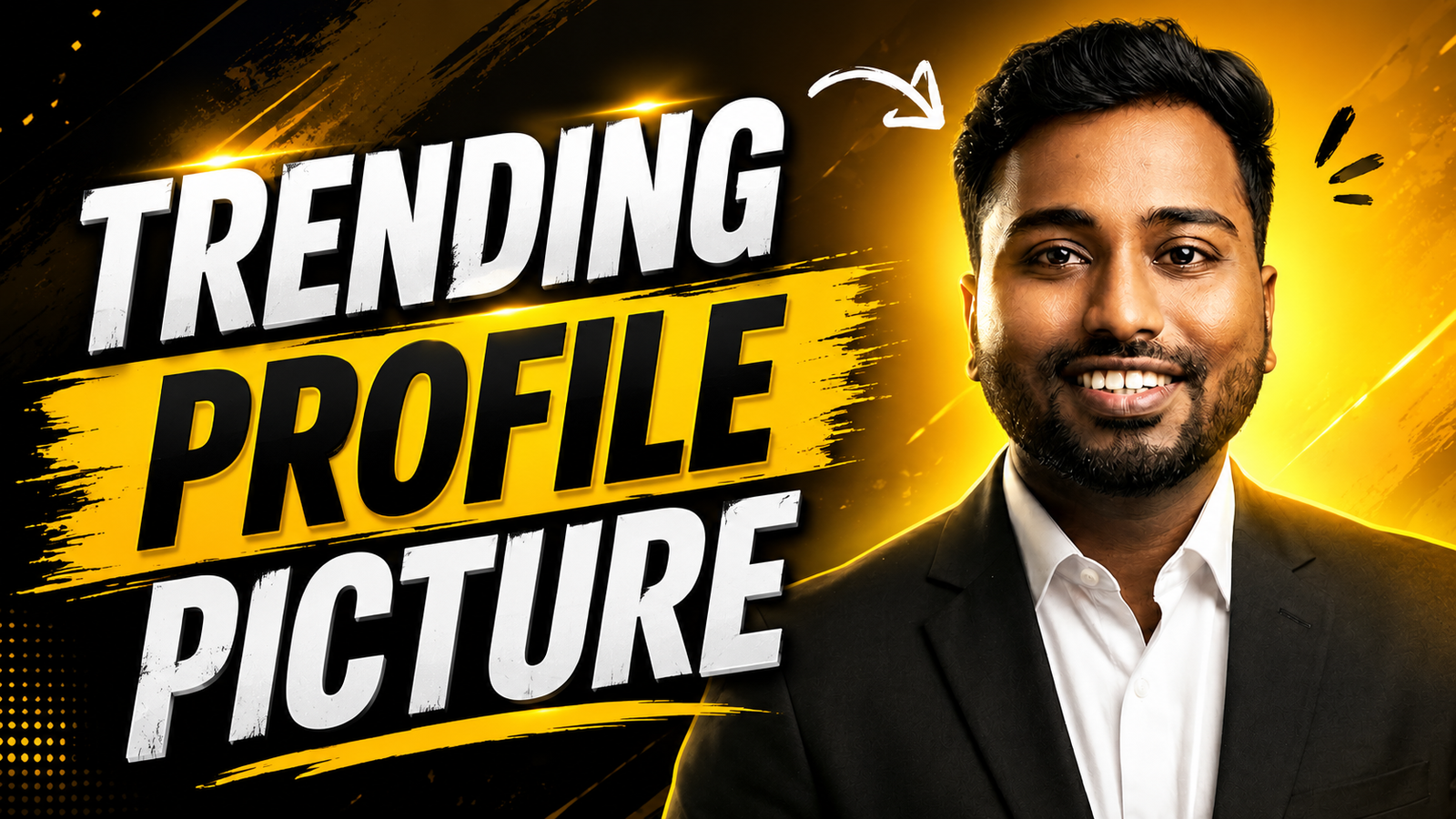
A profile picture has to remain recognisable after a platform crops it into a small circle or square. Start with the destination: a job profile, creator account, community forum, business page, and private messenger may require different clothing, expression, background, and identity rules.
Use a sharp source image with even front or side light, a clean lens, eye-level camera, space around the head and shoulders, and a background that does not merge with hair or clothing. Keep an uncropped original so several platform-safe versions can be exported.
Edit exposure, white balance, crop, and distractions lightly. Avoid changing facial structure, skin identity, age, uniform, credentials, or other details in a way that misrepresents the person—especially on employment, education, financial, dating, or verification services.
Online background removers and AI portrait tools may retain uploads or use them for service improvement. Review privacy, deletion, training, and commercial-use terms, obtain consent for anyone else’s face, and test with a non-sensitive copy when possible.
Related Resource
The PROMPT LINK button opens a Google Docs resource. A prompt may help describe lighting, crop, or background, but it cannot guarantee identity preservation or platform acceptance. Remove personal details and verify every generated change before use.
Step 1: check the platform and audience
Before you open any editor, decide the main place you will use the image. Different platforms favor different styles and sizes. A fun cartoon avatar might work for Discord, but look odd on a job portal or a banking support chat.
- For LinkedIn or job sites, go for a clear head and shoulders photo with neutral background.
- For Instagram, TikTok, or YouTube, you can use brighter colors and a bit more personality.
- For gaming and forums, illustrated or AI styled avatars are more accepted.
A very common mistake is using a single heavily cropped image everywhere. It might look sharp in a round WhatsApp bubble, then appear pixelated and unclear on a big monitor. It is often worth exporting two sizes from the same base image.
Step 2: capture a clean, well-lit source
If you want a realistic photo and not just an AI avatar, start with a decent base picture. You do not need a DSLR camera. A mid range phone is enough if you pay attention to light and framing.
- Stand facing a window or sit outdoors in shade, avoid strong backlight that turns you into a silhouette.
- Ask a friend to hold the phone a little above eye level, or use a tripod or stack of books.
- Leave some space above your head and around your shoulders so online tools can crop correctly.
- Avoid busy patterns or heavy logos in clothing that will distract in a tiny circle.
Example: A student preparing for internship applications records a short video in front of a window, then grabs a sharp frame where they are smiling naturally. This frame becomes the base photo used in all the editing steps below.
Step 3: compare privacy and required controls
Now you can move to the browser. There are many online editors and profile image generators. The goal is not to try them all, but to pick one that matches your skill level and budget.
| Tool type | Good for | Typical cost | Main caution |
|---|---|---|---|
| Online photo editor | Manual tweaks, cropping, filters | Free with optional upgrades | More time required, some ads |
| Profile photo generator | Automatic background cleanup and presets | Free trial, then per export or subscription | Quality and styles can be inconsistent |
| AI avatar creator | Stylized portraits and cartoon like images | One time pack or credits | May look less like you, privacy of uploads |
Most readers who want to create profile picture online with minimal stress do well with a profile photo generator that can remove backgrounds and apply simple color presets in one click.
Step 4: remove distractions and protect the crop
After uploading your base image, use the remove background or cutout feature if the site offers it. This replaces a messy room or office with a plain color or subtle gradient. Check the edges around your hair and shoulders. If they look too sharp or artificial, lower the strength of the effect or switch to a softer background.
Then adjust the crop. Most platforms show the avatar as a circle even if you upload a square, so keep your eyes near the upper third of the frame and avoid placing important details in the corners. A head and upper shoulders crop usually works best.
Case study style example: A freelance designer uses a free editor to remove a cluttered bookshelf behind them, then adds a light gray background. They crop to a square with enough margin so LinkedIn, Behance, and Gmail all show the face clearly without cutting off hair or chin.
Step 5: make small tonal corrections
Most online tools include sliders for brightness, contrast, saturation, and clarity. The goal is to correct, not completely transform. Over editing is one of the most common mistakes and it can make your photo look fake on professional platforms.
- Increase brightness until your face is clear, but keep some detail in hair and clothing.
- Add a tiny bit of contrast to avoid a flat look.
- Use subtle skin smoothing if offered, but avoid heavy beauty filters that erase texture.
- Increase sharpness slightly and zoom out to check how it looks at small size.
If the tool has specific presets for LinkedIn or business photos, they can save time, but do not rely on them blindly. Always toggle the before and after view and judge whether it still looks like you.
Step 6: label or avoid synthetic identity where required
Some people want to create profile picture online using AI instead of a real photo. This can be useful for privacy on public forums or for a consistent brand style. Many services let you upload a few selfies then generate dozens of looks, from realistic to cartoon.
There are a few points to watch out for here. Check if the service allows you to delete your uploaded photos later. Avoid sites that do not provide any privacy policy or that request access to entire phone albums. Remember that many platforms, especially those used for work or banking, may reject extremely artificial portraits.
A practical approach is to keep one realistic image for serious services, then use stylized or illustrated avatars on personal or hobby accounts. This way you enjoy creativity without confusing employers, clients, or support staff who expect to see your real face.
Step 7: export and preview in the real interface
Once you are satisfied, export at a sensible resolution. For most uses, a square image of 800 by 800 or 1024 by 1024 pixels in JPEG or PNG format is enough. Many profile tools offer social presets that automatically pick a suitable size for common platforms.
Before you upload it everywhere, run a quick test. Open the image on your phone and on a laptop if possible. Shrink it to the rough size of a chat bubble or browser tab icon. Check if your eyes are still visible, if the colors feel balanced, and if any text in the background has become unreadable noise.
Common sizing mistake: exporting a huge file at full camera resolution. Some apps compress it heavily, which can create strange artifacts and softness. A moderately sized, clean export usually survives compression better.
Maintain a recognisable cross-platform image set
Once you have a base file that works, save it in a cloud folder with clear names, for example LinkedIn main, gaming avatar blue, email profile. When you refresh your look in a year, repeat the same online workflow so your avatars feel related even if they feature a new hairstyle or glasses.
If you manage several brands or side projects, you might maintain a small set of templates inside an online editor. That way backgrounds, framing, and color grading stay consistent. It also saves you from the last minute stress of creating a new picture before a big meeting or project launch.
A clear, accurate picture works longer
Creating a strong profile picture online does not require expensive gear or advanced design skills. It comes down to a clean base photo, a sensible choice of editing tool, a tidy background, and restrained adjustments. If you focus on clarity, natural expression, and the needs of each platform, you will end up with an image that works in real life, not just in marketing screenshots.
Start by picking the main platform you care about, capture one new photo in good light, then run it through a browser based editor to remove background, crop, and fine tune. After that you can experiment with AI avatars and extra styles for more casual spaces, knowing you already have a reliable main image whenever you need it.
Common questions about online profile pictures
What is the easiest way to create a profile picture online quickly
Upload a clear selfie to a profile photo generator, let it remove the background, choose a simple color, crop to a square, and export in about 800 by 800 pixels. This takes only a few minutes once you have a decent base photo.
Should I use the same profile photo on every platform
Using one main image across serious platforms helps with recognition, but you can keep separate versions for gaming or hobby accounts. Just avoid using an anonymous avatar where your real identity is expected, such as workplaces or financial services.
Are AI generated profile pictures safe to use
They are generally fine for casual or creative spaces if the service has a clear privacy policy and allows deletion of uploads. For job or identity related platforms, keep a real photo so there is no confusion about who you are.
Is it better to use PNG or JPEG for profile pictures
Both usually work. JPEG is smaller and widely supported, while PNG keeps edges a bit cleaner, especially for images with flat color backgrounds. If file size is not a concern, PNG is often a safe choice.
How often should I update my profile picture
Change it when your appearance shifts enough that people would not recognize you in person, for example major haircut, beard, or glasses. Many people update every one to two years, or sooner if they change roles or branding.
Thank you for reading this guide. If you found it useful, stay tuned and follow our blog for more practical tech tips, app suggestions, AI tools, and the latest digital updates.