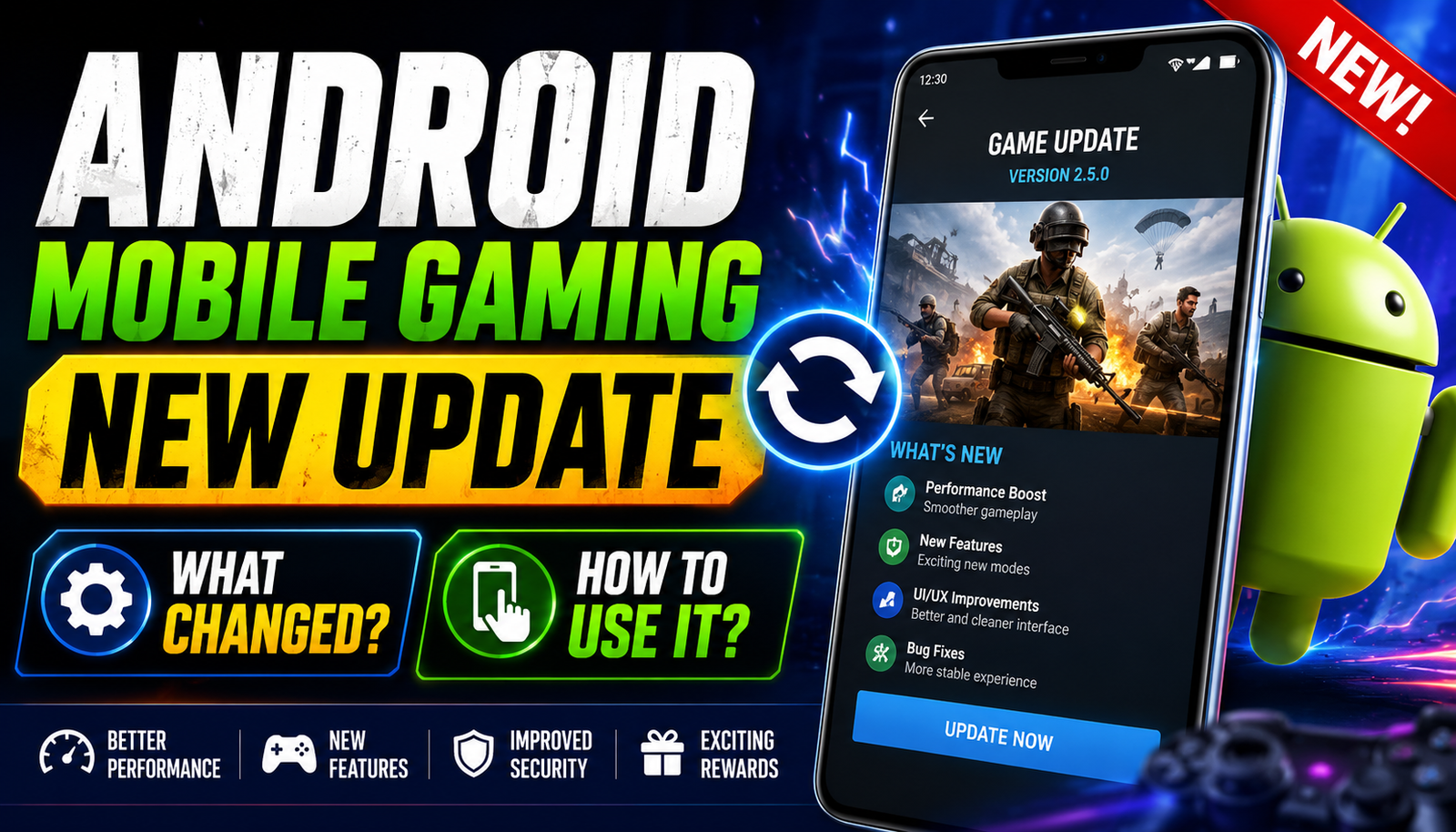
This article does not identify a specific phone model, Android build, game version, or update changelog. “Android mobile gaming update” can mean a system update, Google Play system component, manufacturer Game Mode, GPU driver, or an individual game patch, and each has a different source of truth.
Record the phone model, Android and security-patch version, game package and version, available storage, current graphics settings, network, temperature, and the exact symptom before changing anything. Then read the official phone-maker and game release notes instead of attributing every difference to one update.
Back up or link game progress through the supported account method, charge the phone, use a stable connection, and keep enough storage for download and installation. Do not install unofficial game clients, “proxies,” modified APKs, graphics tools, or boosters to recover performance.
The troubleshooting workflow below uses reversible checks: restart, verify official updates, test default settings, check heat and storage, review permissions, compare one graphics option at a time, and contact official support when account or purchase data is affected.
Related Resource
Unverified external domain: The download link opens proxyserverfreefire.com.in, not Google Play, Android support, a phone-maker page, or an official game publisher page. Do not enter game credentials, bypass regional or network controls, install a certificate/profile/APK, or pay for “update” access through it.
1. Identify which component actually changed
On recent Android versions, new gaming related features usually arrive through small patches rather than one huge upgrade. You might see a monthly security update that quietly adds better input latency for Bluetooth controllers, or a Google Play update that changes how game ads or instant play titles behave. Phone makers like Samsung, Xiaomi, OnePlus, and others also ship their own Game Mode tweaks.
Common changes include new game dashboards, better screen recording tools, more strict battery controls, expanded notification blocking, and sometimes higher default graphics presets for supported games. The exact feature list varies by device and region, so do not worry if you do not see every option mentioned here. Focus on what is visible on your phone.
2. Use model-specific settings and official notes
Many players miss new features because brands hide them in separate menus. After installing the latest patch, always check these areas in your phone settings:
- Settings then Notifications then Do not disturb or Focus modes
- Settings then Battery or Battery and performance
- Settings then Advanced features or Special features then Game Mode or Game Booster
- Google Play Games app for new overlay or profile options
On some phones, you must open a game first, then swipe from the top or side to reveal a floating game toolbar. That is where new performance profiles and recording buttons usually live.
3. Compare Game Mode features without assuming equivalence
Different brands call their gaming suites by different names. Here is a quick comparison of what you typically get. Exact options and names may differ slightly on your device, and features can change with each Android mobile gaming update.
| Brand suite | Where to find it | Main strengths | Common drawbacks |
|---|---|---|---|
| Samsung Game Launcher or Game Booster | App drawer or Settings then Advanced features | Good performance modes, quick FPS overlay, notification control | Some aggressive battery limits can drop FPS in long sessions |
| Xiaomi Game Turbo | Special features section or Security app | Per game tuning, touch response boost, network priority | Advertisements in some regions, more complex to configure |
| OnePlus Gaming Mode or GPA | Settings then Utilities or Special features | Simple UI, fewer distractions, good thermal control | Fewer advanced overlays, depends a lot on Android version |
| Google Game Dashboard | Settings then Apps then Game settings | Clean overlay, quick recording, YouTube Live integration | Limited device support, fewer hardcore tuning options |
4. Diagnose a problem with a before-and-after record
Imagine this situation. You install a new Android mobile gaming update in the evening. The next morning, PUBG Mobile suddenly stutters every few seconds and your ping feels unstable. Before the update, the game was smooth on the same Wi Fi network. This is a common complaint, especially after major Android version jumps.
In many cases, the update introduced a new battery or thermal policy that quickly limits CPU speed once the device warms up. The fix is not to uninstall the game, but to check if your phone now has a per game battery or performance profile. Setting the game to performance mode and disabling extra battery savers during play often restores stable frame rates.
5. Reversible performance checks after an update
Step 1: verify official store, system, and game versions
Open the Play Store, search for Google Play Games and Google Play services, and update both if needed. Some phones also have a separate graphics driver component called GPU driver or Game driver in system updates. Keeping these updated can fix crashes after a big patch.
Step 2: return Game Mode to a known baseline
Open your phone gaming suite and look for a performance slider. Set demanding titles like Genshin Impact or Call of Duty Mobile to performance or balanced mode. For light puzzle games, you can keep a battery saving profile. This mix gives you both good performance and reasonable battery life.
Step 3: review permissions before clearing data
After a system update, some games may lose storage or microphone access. If voice chat or screenshot saving stops working, go to Settings then Apps then your game then Permissions. Re enable needed permissions. Only grant what is actually used, to reduce privacy risk.
6. Examples of settings that may appear
Example 1: New game recording toggle
A recent Android build on several devices added a floating record button in the game overlay. This makes it easier to capture short clips for social media without opening a separate recorder app. The downside is that recording can cut 5 to 15 frames per second in heavy games, and it increases temperature quickly. Use it for short highlights, not full ranked sessions.
Example 2: Smarter notification blocking
Some updates now offer game specific focus modes. For example, when you open Mobile Legends, the phone can automatically mute social app pop ups but still allow calls from selected contacts. This is useful for streamers or players who do not want random banners covering the minimap. The risk is that you forget that focus mode is on and miss important work messages, so always check the quick toggle after playing.
7. Avoid data loss, overheating, boosters, and unofficial files
- Leaving every new enhancement on for all games, which drains battery and may overheat budget phones.
- Using unsafe third party performance apps from unknown sites, which can inject ads or malware instead of real optimizations.
- Forgetting to test online games on both Wi Fi and mobile data, some updates change default network routing and cause packet loss on one connection type.
- Ignoring storage warnings, updates sometimes push higher resolution textures that fill low storage phones and lead to crashes.
A good rule is to enable new features one at a time. Play a single match or stage, observe performance and temperature, then decide if you want to keep that option.
8. When a managed or critical device needs staged testing
If your phone is crucial for work or you play competitive ranked matches daily, consider waiting a week after a major Android version jump. Monitor gaming forums and your favorite game community to see reports about new bugs, input lag, or anti cheat conflicts. Game developers sometimes need a few patches to fully support a new Android release.
On the other hand, minor security and Google Play system updates are usually safe to install quickly, because they often include important fixes and incremental improvements to the gaming stack. Just remember to keep your data backed up, especially if you install games from several accounts or outside the main store.
One measured change at a time
An Android mobile gaming update can either make your games feel smoother and more responsive or suddenly cause stutters and crashes. The difference comes from how well you adapt to the new tools the update introduces. By checking your Game Mode options, tuning performance profiles for each game, and rechecking permissions and notification settings, you can get the benefits with fewer headaches.
Take ten minutes after each noticeable update to walk through the settings covered in this guide. Test your most demanding game, watch battery and temperature, then adjust. If something feels worse, look for new toggles that appeared in your overlay or settings, and do not hesitate to wait on major OS version jumps if your usual games are not yet fully compatible.
Common questions after Android gaming changes
Does every Android phone get the same gaming features in updates
No, features vary by brand, model, region, and Android version. Two phones on the same Android number can still have different Game Mode tools.
Why did my game start lagging after the update
Updates often change battery, CPU, and GPU behavior. Check your gaming suite and battery settings for new power saving options that might be limiting performance.
Is it safe to update Android while I have many games installed
In most cases yes, but always back up game data if possible. Link games to official accounts so you can restore progress if something goes wrong.
Should I use third party booster apps after a gaming update
It is usually better to rely on built in Game Mode tools. Third party boosters from random sources can add ads, collect data, or break system behavior.
How often do Android mobile gaming updates arrive
Major OS updates usually appear once per year, but security, Google Play, and brand gaming suite updates can arrive monthly or even more often.
Thank you for reading. If this guide helped, keep an eye on our blog for more latest tech news, practical Android tips, useful apps, AI tools, and future gaming update breakdowns.