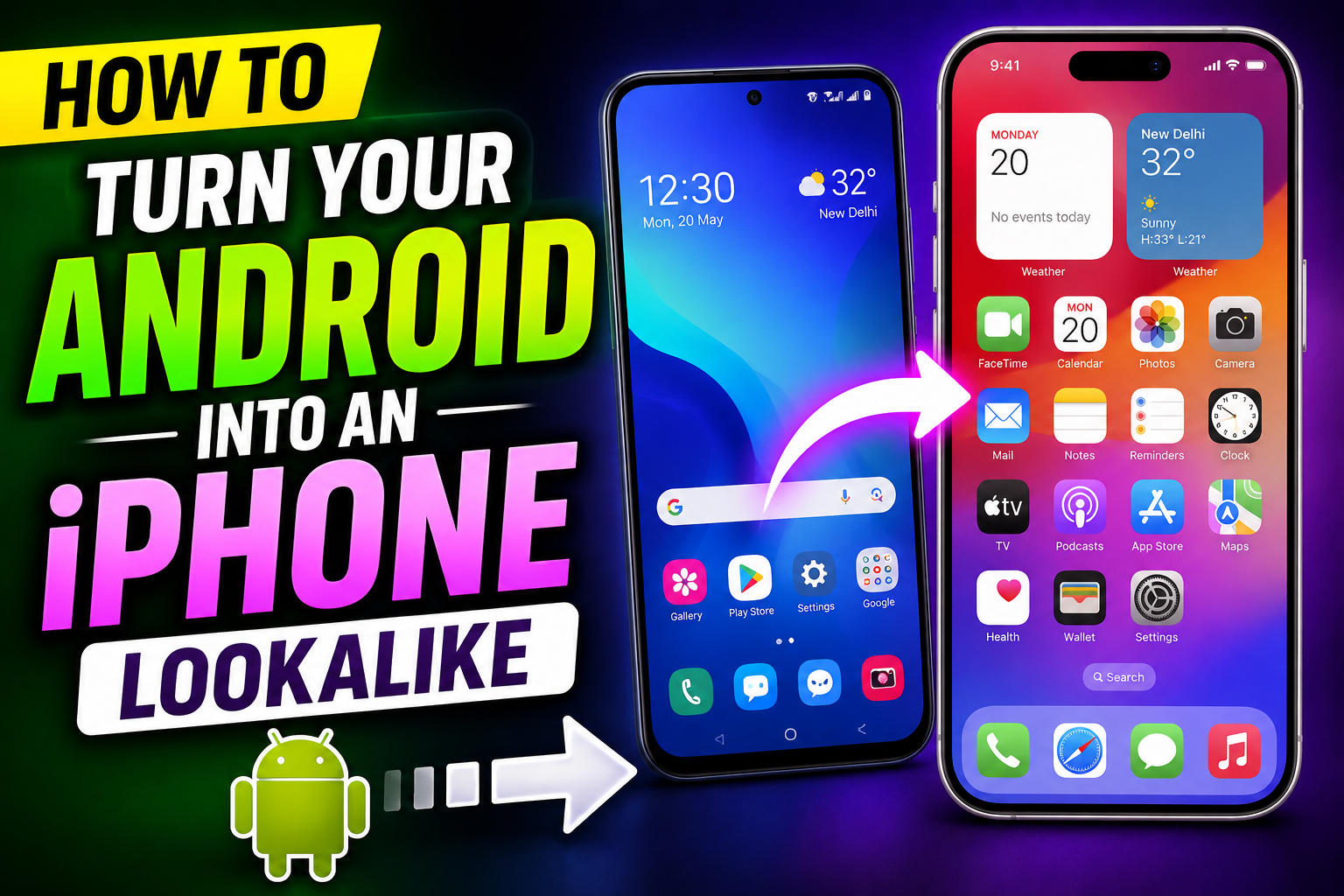
An Android phone can imitate parts of the iPhone visual style with a launcher, icons, widgets, wallpapers, and optional notification or control-centre overlays. These changes do not install iOS, add Apple-only services, or make the device an iPhone.
Begin with a launcher from a verified Play Store developer and save the current home-screen arrangement. Add one component at a time so it is easy to identify battery drain, intrusive ads, broken gestures, or notification problems and return to the original setup.
Lock-screen, Dynamic Island, notification, or control-centre apps may request notification access, display-over-other-apps, accessibility, or background operation. Those permissions can expose sensitive screen activity, so grant only what a clearly understood feature needs and remove the app if the request is excessive.
This non-root workflow covers reversible appearance changes, permission checks, performance limits, and restoration steps. Menu names differ across Samsung, Xiaomi, Pixel, and other Android versions.
Related Resource
Third-party WhatsApp link: The button above opens a WhatsApp channel post, not an Apple or Android system page. Verify every recommended app independently on Google Play and never install a configuration profile or APK solely because a channel supplies it.

Visual changes possible—and features that remain Android
Before you start, it helps to set realistic expectations. You can copy the look, many animations, and some shortcuts of iOS, but you cannot change the actual operating system. That means system updates, Apple only apps, and tight iCloud integration will never be identical on Android.
Here is a quick comparison of what is possible without root on most phones.
| iOS Feature | Can Android Copy It | How Close It Gets |
|---|---|---|
| Home screen layout and icons | Yes | Very close with iOS launchers and icon packs |
| Control Center toggles | Mostly | Separate app can mimic layout and swipe gesture |
| Lock screen style and notifications | Partly | Similar clock and notification look, but not exact behavior |
| FaceTime, iMessage, AirDrop | No | Third party chat apps are alternatives but not the same |
| System updates and settings menu | No | Some theming possible but the underlying system remains Android |
Start with one reversible launcher
The biggest change comes from your launcher, the app that controls your home screen and app drawer. To turn your Android into iPhone style, you need a launcher that copies the grid, dock, and icon labels of iOS as closely as Play Store rules allow.

Popular choices include launchers that use names like iOS launcher, Phone 15 launcher, or iLauncher. Check ratings, last update date, and reviews instead of downloading the first result. Avoid clones that show aggressive pop up ads or ask for strange permissions like call logs.
Typical setup steps are simple.
- Install the launcher from Play Store only.
- Open it once, accept basic storage permission for wallpapers.
- When asked to choose default home app, select the new launcher and mark Always.
- Adjust grid size to 4 by 6 or 4 by 7 to match iPhone style spacing.
Real world example, many users pick an iOS 17 style launcher mainly for the app library swipe and simple folder design. After a week, some keep it and some go back to stock because of occasional lag on low end phones, so test it for a few days before deleting your old layout.
Add icons and widgets without hiding essential apps
A launcher alone still uses your old icon shapes. To push the illusion further, install an icon pack that uses rounded square shapes that match recent iOS versions. Many launchers include their own iOS style icon pack, otherwise search for iOS icon pack in Play Store and test one or two.
Once installed, open the launcher settings, find theme or icons, and apply the new pack. Some third party icons will not match exactly, so a few apps keep their original look. You can usually long press an icon, choose edit, and assign a custom icon from the pack for these cases.
For widgets, iOS style home screen apps often include clock, weather, and calendar widgets that copy the Apple style. Place a medium weather widget and a small calendar widget, then turn off duplicate widgets from your old theme so the screen does not look messy.
Audit permissions for overlays and notifications
Many people love the iPhone control panel that slides from the top right. You can add a similar control center using dedicated apps. Search for control center iOS in Play Store. Look for apps that are updated frequently and clearly explain what data they collect.
During setup, these apps usually ask for Accessibility permission so they can appear over other apps, and for notification access if they handle notifications. Read these prompts carefully. If the app wants location or contact access for a simple toggle panel, that is a red flag.
Configure the swipe area to top right and disable conflicting gesture navigation if your phone triggers its own shade at the same time. On some Samsung phones, you may need to lower the system sensitivity of pull down gestures inside settings to avoid overlap.
Treat lock-screen and island overlays as sensitive
Recent trends bring iPhone style lock screens and Dynamic Island bubbles to Android. There are lock screen apps that copy the big clock font and notification banners of iOS, and Dynamic Island style apps that show a floating pill around the camera cutout.
A short case style example, a user with a budget Xiaomi phone installed an iOS lock screen replacement and a Dynamic Island notification bubble. For music playback, the pill showed track info and play pause controls very close to an iPhone look. However, battery optimization killed the bubble app often, so they had to exclude it from battery saving inside system settings for reliable behavior.
If you use a third party lock screen, make sure the phone still supports secure unlock with fingerprint or PIN every time. Never use a lock screen app that suggests disabling your system lock method. That would weaken security just for style.
Choose defaults by function, not appearance alone
To really feel closer to iOS, change a few default apps to ones that resemble Apple tools. For mail, you can replace Gmail with an app that has a more minimal inbox view. For notes, use apps that mimic Apple Notes folder and pinned notes structure.
Set Safari like browsers as default if you like that feel, for example a Chromium based browser with simple bottom address bar. Change the camera shortcut on the lock screen if your phone allows it, or at least keep the camera icon on the dock like on iOS.
Just remember, some Apple services have no true replacement. FaceTime can be replaced by WhatsApp or Google Meet, and iMessage can be replaced by Signal or Telegram, but your friends still need the same apps, so communicate before you switch.
Restore gestures, notifications, speed, and battery
When people try to turn their Android into iPhone they usually hit the same issues. The most common one is lag on older phones because the launcher and visual effects add extra load. If your phone has 3 GB RAM or less, choose a lighter launcher and avoid live wallpapers.
Another problem is aggressive advertising inside some free iOS style apps. If full screen ads appear every time you unlock the phone, uninstall that app immediately and look for a less intrusive one, even if it has fewer features. Privacy is another concern, so regularly check which apps have Accessibility and notification access in settings and remove access from tools you no longer use.
Keep the makeover reversible
You can turn your Android into iPhone visually with a good launcher, icon set, control center, and lock screen tweaks, and for many people that is enough to enjoy the iOS look without buying new hardware. The key is to stay realistic about what is cosmetic and what is deeply tied to Apple servers.
Take your time, change one part of the interface at a time, and live with it for a few days. If a tweak slows the phone or drains the battery, roll it back and try a simpler option. Style should not cost you stability or security. When done carefully, you can enjoy an almost iPhone style experience while keeping the freedom of Android.
Common questions about iPhone-style Android setups
Can I fully install iOS on my Android phone
No, you cannot install real iOS on Android hardware. You can only mimic the appearance and some behavior using apps and themes.
Is it safe to use iOS style launchers
Launchers from the Play Store with good ratings and clear privacy policies are usually safe. Avoid ones from unknown sites or apps that ask for unnecessary permissions.
Will my phone become slower
There can be some slowdown, especially on low end devices. Reduce animations, avoid heavy widgets, and remove any iOS style app that causes lag.
Can I get iMessage and FaceTime on Android
No, official iMessage and FaceTime are only on Apple devices. You can use cross platform apps like WhatsApp, Telegram, or Signal instead.
How do I go back to my original Android layout
Open system settings, go to Apps, choose Default apps, and set your original launcher or home app again. Then uninstall the iOS style launcher if you no longer need it.
Thank you for reading this guide. If you found it helpful, stay connected with our blog for more latest tech news, useful Android apps, AI tools, and practical how to updates.