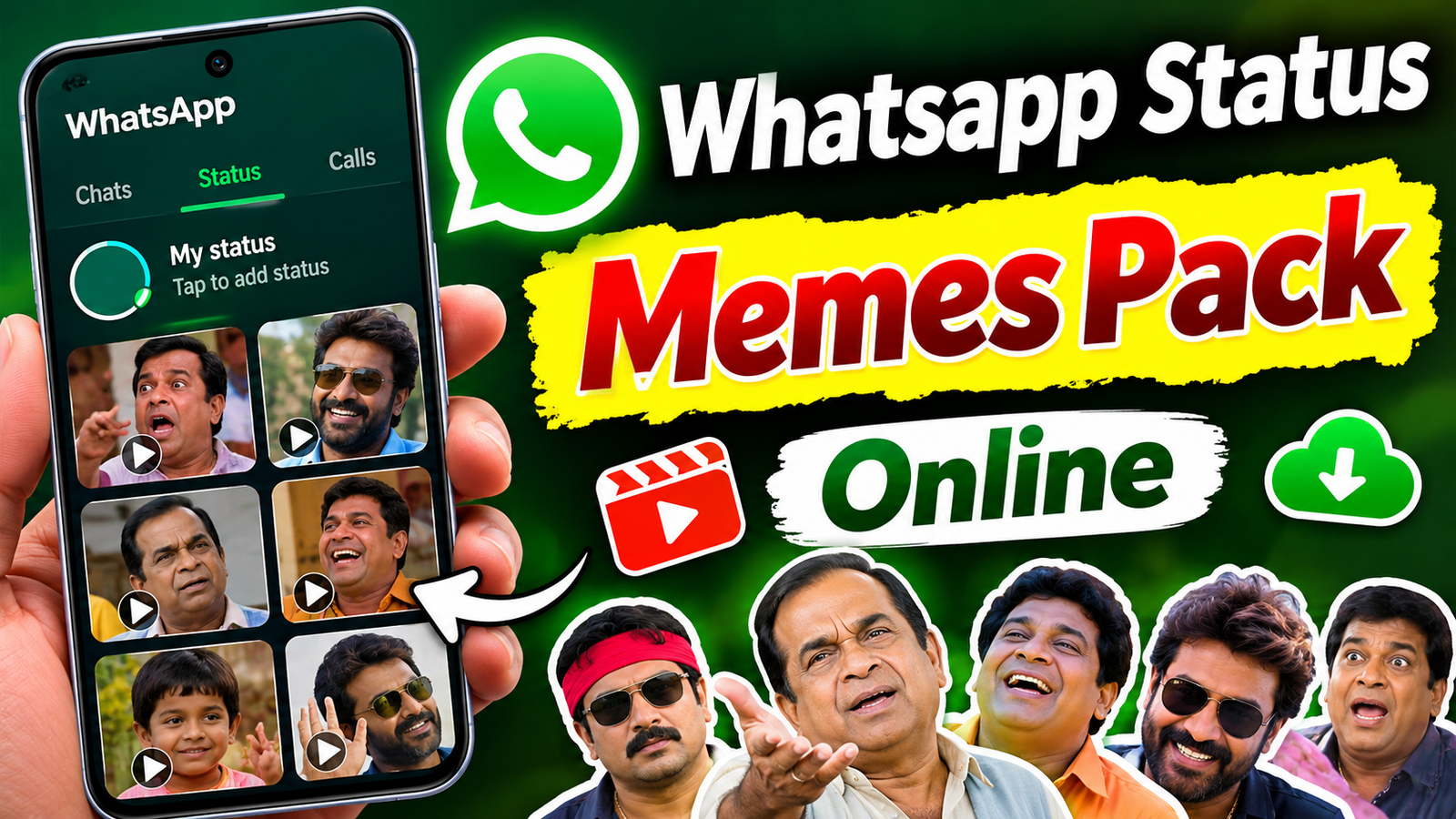
If you share memes on WhatsApp Status every day, the real struggle isn’t finding one funny image. It’s having a ready stash of memes that are easy to post, not buried in 3,000 random downloads, and not offensive enough to get you muted by half your contact list.
This guide walks through a practical workflow to create a WhatsApp Status meme pack online, keep it synced to your phone, and use it without annoying your friends or risking account issues.
1. What People Usually Do Wrong With Status Memes
Before building a proper meme pack, it helps to know where people go wrong:
- Saving memes randomly into Downloads, Screenshots, WhatsApp Images, and multiple gallery folders. Result: you can’t find that perfect meme when you need it.
- Forwarding everything from WhatsApp groups straight to Status. That often includes low quality, forwarded many times content (and sometimes harmful or misleading stuff).
- Posting 20+ memes in a row and turning Status into a spam reel your contacts either mute you or skip everything you post.
- Ignoring privacy and copyright and sharing memes with faces of real people, watermarks from creators, or screenshots from private conversations.
A dedicated online first workflow fixes most of this: you choose memes in one place, organize them by topic, sync only what you want to your phone, and then post strategically.
2. What WhatsApp Status Meme Pack Online Actually Means
When people search for a WhatsApp Status memes pack online, they usually want one of two things:
- A ready made collection of memes, sorted and easy to post.
- A way to create and manage their own pack from the web (laptop or desktop) instead of hunting on the phone.
This article focuses on the second option your own, curated status meme library because:
- It’s cleaner and easier to manage long term.
- You avoid shady meme pack download sites that can inject malware, trackers, or deceptive ads.
- You can control tone, quality, and privacy.
3. Set Up Your Meme Pack Workspace (Online)
You don’t need any special meme pack app. A basic combo works well:
- Cloud storage: Google Drive, OneDrive, or Dropbox.
- Simple online image editor (optional): Canva, Photopea, or any browser based editor for adding captions or cropping.
3.1 Create a dedicated folder structure
In your cloud storage, create a main folder, e.g. WhatsApp Status Memes, and then subfolders such as:
- Reaction (facepalm, laughing, shocked, etc.)
- Work/Study
- Tech & Geek
- Weekend & Mood
- Wholesome / Positive
- Inside Jokes (if you post for a specific group of friends)
Keep it simple enough that you’ll actually use it. You can always merge or split categories later.
3.2 Curate memes (without scraping illegally)
When building your library:
- Use original meme pages (Instagram, Twitter/X, Reddit, etc.) as inspiration, not as a source to mass download everything.
- Save only memes you understand and agree with avoid politically sensitive, hateful, or targeted harassment content.
- Watch for watermarks: If a meme has a creator’s handle/logo, don’t crop it out. Either keep the credit or skip that meme.
Whenever possible, download memes using the platform’s own tools (e.g., saving an image directly via browser) rather than using shady third party mass downloader sites.
4. Prepare Memes for WhatsApp Status (Format & Size)
WhatsApp Status supports images, GIFs, and short videos, but there are some practical limits:
- Image format: JPG or PNG is fine. Keep file sizes reasonable (often < 1 2 MB per image) for faster uploads on mobile data.
- Aspect ratio: Vertical or nearly vertical works best. Something close to 9:16 (e.g., 1080×1920) fills the screen nicely.
- Text size: If you add your own captions, use large, high contrast text that’s readable on small screens.
You can batch fix memes using an online editor:
- Open 5 10 images in your editor of choice.
- Crop them to a vertical size if they’re too wide.
- Adjust brightness/contrast if needed so text remains readable in dark/light modes.
- Export and re save into the relevant cloud folder.
5. Sync Your Online Meme Pack to Your Phone
Once the pack is in the cloud, you need it on your phone in a way that doesn’t clutter everything else.
5.1 Install the matching cloud app
On your Android or iOS device:
- Install the app for the cloud service you used (Google Drive, OneDrive, Dropbox, etc.) from the official app store.
- Sign in with the same account you used on desktop.
- Navigate to your WhatsApp Status Memes folder.
5.2 Use offline access for frequently used folders
If your storage app supports it, mark a few subfolders as Available offline or similar. This helps when your data is slow or unstable.
However, don’t mark everything offline on very limited devices. Hundreds of large memes can eat storage quickly.
6. Post Your Meme Pack to WhatsApp Status
Now comes the fun part: using the pack without spamming everyone.
6.1 From cloud app to Status
- Open your cloud storage app and find a meme you want to post.
- Download or save it to device (usually a single tap icon).
- Open WhatsApp > go to the Status tab.
- Tap My Status (or the camera icon).
- Select the meme from your gallery. Edit if you want (stickers, extra text, drawing).
- Tap the send arrow to publish it.
You can also share some files directly from the cloud app to WhatsApp if it offers a native Share > WhatsApp option, but downloading first gives you more control over editing.
6.2 Don’t turn your meme pack into spam
A few practical posting rules:
- Limit yourself to a small number of memes per day (for example, 3 5), unless you know your audience genuinely enjoys longer chains.
- Mix memes with personal content so your Status doesn’t feel like a random meme channel.
- Avoid sensitive topics: hate speech, harassment, doxxing, or graphic content can not only offend people but may violate platform policies.
- Use the My contacts except… feature for edgier humor that some people might not appreciate.
7. Refresh and Maintain Your Meme Pack
Stale memes are almost as bad as no memes. Set a simple maintenance habit:
- Weekly: Add 5 10 new memes to your folders from your favorite creators or communities.
- Monthly: Remove old, overused, or no longer funny memes.
- As needed: Create a Archive folder for memes you’re bored of but not ready to delete.
If your library grows big, consider simple naming or tagging patterns (e.g., adding 2024 11 or office joke to filenames) to make search easier.
8. Safety, Privacy, and Legal Considerations
Memes feel casual, but there are still lines you shouldn’t cross.
- Don’t share private content: No screenshots of private chats, internal company documents, or images of people who haven’t agreed to be shared.
- Be careful with minors: Avoid sharing memes using images or videos of children, especially if they are identifiable.
- Respect creators: Don’t remove watermarks or crop out credits. When possible, support original meme creators on their platforms.
- Watch local laws and platform rules: Some countries and platforms treat extremist, hate, or abusive memes as serious violations.
9. Quick FAQ
Can I use third party WhatsApp meme pack apps?
Many apps bundle random content with heavy ads, tracking, or low quality images. Prefer building your own pack and only install apps from trusted developers with clear privacy policies.
Is it safe to post copyrighted memes?
Most memes reuse copyrighted material, but casual sharing is often tolerated. However, that doesn’t give you full legal rights. Avoid using memes commercially and respect takedown requests or platform reports.
How many memes per day is too many on Status?
There’s no official number, but if you regularly post more than 10 15 back‑to‑back updates, many contacts will simply mute you. Test and read the reactions you get.
Can I sync my meme pack across multiple phones?
Yes. As long as you log into the same cloud storage account on each device, your folders stay synced. Just be careful with storage and privacy if you share devices.