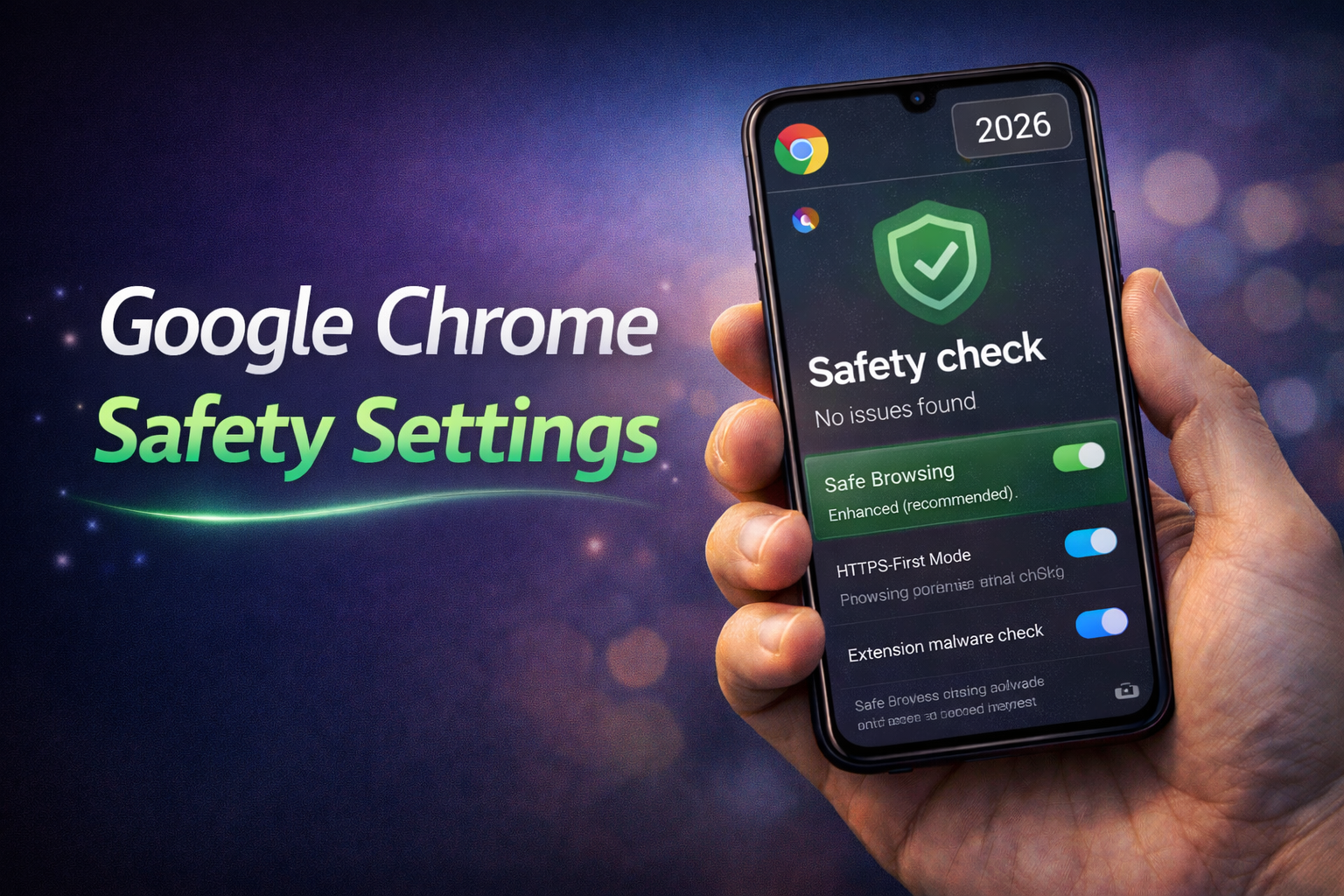
Online security has become more important than ever, especially with increasing cyber threats, data tracking, and malicious websites. In 2026, Google Chrome includes advanced safety settings that help users protect their data, browsing activity, and personal information. Many of these features run in the background, but understanding and configuring them properly can significantly improve your online safety.
Chrome is no longer just a browser—it acts as a security layer between you and the internet. With built-in protection systems, it can block harmful websites, warn about unsafe downloads, and prevent tracking attempts.
Why Chrome Safety Settings Matter
Most users ignore browser security settings, which is a mistake. Cyber threats like phishing, malware, and data tracking are common, and basic browsing without protection can expose sensitive information.
For example, visiting a fake website that looks like a banking page can lead to stolen login credentials. Similarly, downloading files from untrusted sources can install harmful software on your device.
Chrome’s safety settings are designed to reduce these risks by detecting suspicious activity and warning users before damage occurs.
Key Safety Features in Chrome 2026
Chrome offers multiple layers of security that work together to protect users.
Safe Browsing Protection
Safe Browsing is one of the most important features. It warns users when they try to visit dangerous or deceptive websites. Enhanced protection mode provides real-time security checks and faster threat detection.
HTTPS-First Mode
This feature ensures that Chrome connects to secure versions of websites whenever possible. If a website does not support secure HTTPS, Chrome alerts the user before proceeding.
Password Manager and Leak Detection
Chrome’s built-in password manager stores login details securely and alerts users if their passwords are found in data breaches. This helps users take quick action and update compromised passwords.
Site Permissions Control
Users can control what each website can access, such as camera, microphone, location, and notifications. Restricting unnecessary permissions reduces privacy risks.
Pop-up and Redirect Blocking
Chrome blocks unwanted pop-ups and redirects that often lead to spam or malicious websites. This keeps browsing clean and safe.
Important Safety Settings You Should Enable
To maximize protection, users should manually check and enable certain settings.
• Turn on Enhanced Safe Browsing for stronger protection
• Enable HTTPS-First Mode for secure connections
• Use strong and unique passwords in the password manager
• Disable unnecessary site permissions
• Keep Chrome updated to the latest version
For example, enabling Enhanced Safe Browsing can warn you instantly about dangerous links. Similarly, restricting camera access prevents websites from misusing your device.
Privacy Controls in Chrome
Apart from security, Chrome also provides privacy-focused settings.
Users can clear browsing data such as history, cookies, and cached files. This helps remove tracking data stored by websites.
Third-party cookie blocking is another useful feature. It limits how advertisers track your activity across different websites.
Incognito mode allows users to browse without saving history or cookies locally. However, it does not make you completely anonymous, which many users misunderstand.
Common Mistakes Users Make
Many users assume that default settings are enough, which is not always true. Ignoring updates, reusing weak passwords, and allowing unnecessary permissions can weaken security.
For example, using the same password across multiple sites increases risk if one site is compromised. Another common mistake is clicking on unknown links without checking their authenticity.
One of the most important security features in Google Chrome is Safe Browsing. This feature protects users from dangerous websites, malware, and phishing attacks. In 2026, Chrome offers enhanced Safe Browsing modes, including standard and advanced protection. Advanced protection provides real-time threat detection by checking URLs against Google’s constantly updated database. It can warn you before you visit harmful websites or download suspicious files. Enabling this feature is highly recommended for anyone who wants an extra layer of protection while browsing.
In 2026, online security has become more important than ever as people spend a significant part of their daily lives browsing the internet. From online banking and shopping to social media and work-related tasks, web browsers play a crucial role in handling sensitive information. Among all browsers, Google Chrome remains one of the most widely used due to its speed, simplicity, and powerful features. However, many users are unaware of the built-in safety settings that can protect them from cyber threats. Understanding and properly configuring these settings can make a big difference in keeping your data secure.
Another essential setting is Privacy and Security controls. Chrome allows users to manage cookies, site permissions, and browsing data. Cookies are small files stored by websites, and while they can improve user experience, they can also track your online activity. By going into Chrome settings, you can block third-party cookies, clear browsing data regularly, and control which sites can access your location, camera, and microphone. These controls help you maintain better privacy and prevent unauthorized access to sensitive information.
Password management is another area where Chrome has significantly improved. The built-in password manager securely stores your login credentials and can automatically fill them in when needed. It also alerts you if your passwords have been compromised in a data breach. In 2026, Chrome includes stronger encryption and password checkup tools that encourage users to create strong, unique passwords. Using this feature reduces the risk of account hacking and makes it easier to manage multiple accounts safely.
Two-factor authentication (2FA) is another powerful way to secure your online accounts. While Chrome itself does not enforce 2FA, it supports integration with various authentication methods. When enabled on your accounts, 2FA requires an additional verification step, such as a code sent to your phone or generated by an authentication app. This adds an extra layer of security, ensuring that even if someone obtains your password, they cannot access your account without the second verification step.
Chrome extensions can enhance functionality, but they can also pose security risks if not managed properly. It is important to install extensions only from trusted sources like the Chrome Web Store. In 2026, Chrome provides better control over extensions by allowing users to review permissions and restrict access. You can disable or remove extensions that seem suspicious or unnecessary. Keeping extensions updated also ensures that any security vulnerabilities are patched.
Another useful feature is automatic updates. Google Chrome regularly releases updates to fix bugs and security issues. These updates are installed automatically in the background, ensuring that your browser is always protected against the latest threats. However, it is still a good idea to check for updates manually from time to time to ensure everything is up to date.
Secure DNS is a relatively newer feature that enhances browsing privacy. It encrypts your DNS queries, preventing attackers or third parties from seeing which websites you visit. Enabling Secure DNS in Chrome settings can protect you from certain types of cyberattacks and improve overall browsing security. You can choose from different DNS providers depending on your preference.
Another important setting is site isolation. This feature ensures that each website runs in its own process, preventing malicious sites from accessing data from other tabs. It is especially useful in protecting against advanced attacks like Spectre. Chrome enables this feature by default in most cases, but users can verify and manage it through advanced settings.
Managing downloads is also crucial for security. Chrome scans downloaded files for potential threats and warns users if a file appears unsafe. Always pay attention to these warnings and avoid downloading files from unknown or untrusted sources. This simple habit can prevent malware infections and protect your device.
In addition to these built-in features, practicing safe browsing habits is equally important. Avoid clicking on suspicious links, verify website URLs before entering sensitive information, and be cautious when using public Wi-Fi networks. Combining these habits with Chrome’s security settings creates a strong defense against online threats.
In conclusion, Google Chrome offers a wide range of safety features that can help users protect their data and privacy in 2026. From Safe Browsing and password management to Secure DNS and extension control, each feature plays a vital role in ensuring a secure browsing experience. By taking a few minutes to configure these settings and staying aware of potential risks, you can browse the internet with confidence and peace of mind.
FAQs
Are Chrome extensions safe?
They are safe if downloaded from trusted sources and properly managed.
Is Google Chrome safe to use in 2026?
Yes, Chrome is one of the safest browsers available, especially when its security features are properly enabled.
What is Safe Browsing in Chrome?
It is a feature that protects users from dangerous websites, malware, and phishing attacks.
Should I block third-party cookies?
Yes, blocking them can improve privacy and reduce tracking by websites.
Does Chrome store passwords securely?
Yes, Chrome uses encryption and offers tools to check for compromised passwords.
How often should I update Chrome?
Chrome updates automatically, but you should check periodically to ensure you have the latest version.