A professional-looking Reel depends more on a repeatable workflow than on one “best” editor. Choose an app that can trim precisely, preserve vertical framing, mix clean audio, create readable captions, manage colour consistently, and export without unexpected quality loss on your phone.
Before installing, verify the current official store listing, developer, subscription terms, watermark rules, cloud or AI processing, media permissions, supported formats, and export limits. App names, regional availability, prices, and free-plan features can change.
Test an editor with the same 20–30 second sample on your actual device. Record import time, preview smoothness, caption accuracy, heat, storage use, export time, final resolution, frame rate, audio sync, and whether the platform recompresses the upload.
The comparison below treats CapCut, VN, Adobe’s mobile options, LumaFusion, InShot, and Canva as different workflow choices—not guaranteed rankings. Client work also requires licensed music, fonts, templates, stock assets, and consent for every person shown.
Related Resource
Third-party Telegram link: The Download Now button opens a Telegram channel rather than an official app-store page for any editor discussed here. Verify each app, subscription, template, and download through its developer or authorised store.

Compare mobile editors by workflow and limits
| App | Platforms | Best For | Key Pro Features | Main Drawbacks |
|---|---|---|---|---|
| CapCut | Android, iOS | Fast social edits | AI captions, auto cut, strong templates | Heavier branding, cloud reliance |
| VN Video Editor | Android, iOS | Clean manual control | Multi track timeline, no watermark, LUTs | Fewer trendy templates |
| Adobe Premiere Rush / Clip style app | Android, iOS | Brand clients and teams | Cross device sync, color control | Subscription needed for serious use |
| LumaFusion | iOS, select Android tablets / phones | Advanced editing on mobile | Multiple video tracks, keyframing, pro audio | Learning curve, paid app |
| InShot | Android, iOS | Simple but polished reels | Fast reframing, text and stickers | Watermark unless paid, fewer pro tools |
| Canva Video | Android, iOS, web | Branded social packs | Templates, brand kit, stock assets | Less precise for frame accurate work |
Build a test around your phone and publishing needs
Before installing every app you see on TikTok, start by listing the tasks you perform daily. For most reel creators that is trimming, reframing to 9 by 16, adding music from a safe source, placing readable captions and exporting in the correct codec and bit rate. Any app that hides these basics behind confusing menus will slow you down.
Second, match the app to your device strength. Mid range Android phones often struggle with heavy effects and AI features, especially on long timelines. An app like VN or InShot usually runs lighter than something loaded with real time AI filters. iPhone users on older models may also need to avoid multilayer 4K timelines if the app feels laggy.
Third, check the pricing model carefully. Some tools allow export only with a visible watermark on the free plan, or limit higher resolutions. For a professional reel, a watermark from the editing app looks unpolished unless it is part of your planned branding. If you decide to subscribe, treat it like a real business cost and monitor whether it speeds up your process.

What each editor is suited to
1. CapCut for social-first editing
CapCut is still the most common choice for creators who publish on Reels and TikTok. The timeline feels approachable, but recent versions add useful pro tools like AI based rough cuts, auto captions in many languages and separate keyframe control for scale and position. You also get sync templates for trending sounds, which helps when creating multiple versions of one idea.
Real world example, a food creator records handheld clips in a busy restaurant. CapCut can stabilize slightly shaky shots, add captions that follow the spoon or plate using simple motion tracking and export multiple aspect ratios for Reels and YouTube Shorts from the same project. The downside is some features lean on online processing, so weak or unstable connections can slow the workflow.
2. VN for timeline-based mobile editing
VN is popular with editors who want something closer to a mini desktop timeline. It allows several video and audio tracks, has precise keyframes and lets you import LUT files for repeatable color looks. It also exports without watermark on most current builds, which is rare for a mostly free app in 2026.
For a talking head reel, you can keep an A roll track for your main shot, a B roll track with cutaways and a separate track for text boxes. This makes it safer to adjust captions without disturbing clip timing. The app is less focused on viral templates, so you rely more on your own style, which many brand managers actually prefer.
3. Adobe mobile tools for managed creative workflows
Adobe keeps updating its mobile video editor family, and the exact name in your region may show as Premiere Rush or a Clip style tool. The key advantage comes from integration with Creative Cloud. If you cut a rough reel on your phone, you can send the project to a laptop with Premiere Pro for final polish, or the other way around.
This workflow is helpful for small agencies. An assistant can prepare a vertical rough cut on an Android device right after a shoot, then a senior editor cleans it up in the desktop suite. The downside is the subscription and sign in requirements, which are overkill if you only post quick Reels a few times per month.
4. LumaFusion for a deeper mobile timeline
LumaFusion is not yet available on every Android phone, but it runs on several modern Samsung and flagship devices, plus current iPhones and iPads. It is a paid app, but it offers multiple video tracks, advanced color tools and strong audio mixing. For creators who treat Reels as serious portfolio pieces, this type of precision can be worth the up front price.
For example, a dance studio that records multi camera choreography can stack three angles, cut on the beat, adjust exposure independently for each shot and add a clean master audio track from the studio system. This level of control is hard to manage in simpler apps where everything sits in a single line.
5. InShot for short, direct edits
InShot remains a favorite for small business owners who just want their vertical content to look neat without studying editing theory. The app offers simple controls to change canvas size, blur side bars, zoom, rotate and add clean text. Color filters and stickers are basic but tastefully arranged for typical social posts.
The main limitation is the watermark that appears on free exports, as well as some feature gates. For occasional reels, a small subscription might be reasonable, but heavy creators should compare the long term cost against more advanced options that also charge monthly.
6. Canva for template-led brand layouts
Canva is not a traditional nonlinear editor, but its mobile video tools are growing quickly. For reels that need strong branding, like weekly tips where your logo, colors and fonts must stay identical, Canva helps by storing a brand kit and reusable layouts. You drag in new clips, replace text and keep transitions consistent.
It is weaker for frame accurate actions, rapid jump cuts and complex audio mixing. A good hybrid pattern is to cut a sharp base reel in VN or CapCut, then bring that final video into Canva for branded frames and cover thumbnails before posting.
A repeatable vertical-video workflow
Step 1, shoot for vertical and stable audio
Record in vertical orientation with at least 1080p resolution and a consistent frame rate, usually 30 frames per second for social. If your app supports it and your audience has modern devices, 60 frames per second can make motion look smoother. Use an external microphone when possible. Bad audio ruins more reels than slightly soft footage.
Step 2, import and organize clips
Open your chosen editor, create a 9 by 16 project and import only the clips you actually plan to use. Dumping your entire camera roll into one timeline wastes time and can crash weaker phones. Many apps allow you to favorite clips in the gallery first, which helps cut away junk before editing.
Step 3, cut the story before adding fancy elements
Do a simple rough cut, trim pauses and remove mistakes. Do not touch filters, transitions or text yet. Your goal is a clean sequence that holds attention. Aim to hook viewers in the first two seconds with a strong visual or bold statement. Only when the base story works should you layer captions and effects.
Step 4, add captions, text and light color
Use built in auto captions where available, but always proofread since names and slang are often transcribed incorrectly. Keep text high contrast, usually white or bright on a darker shadow box, and away from the top and bottom safe zones where app interface elements will cover it. Apply light color correction to fix exposure and white balance before adding heavy filters.
Step 5, export with safe settings
For most platforms in 2026, 1080 by 1920 resolution, H.264 or H.265 codec and a bit rate around 8 to 12 megabits per second is a practical balance between quality and file size. Some apps call this high or very high. Avoid repeatedly exporting and reimporting the same clip across different apps, since each generation can add compression artifacts.
Example: a one-phone weekly production cycle
Imagine a fitness coach who wants three professional looking reels per week. On Monday, they record all talking head tips in one session, plus some B roll of exercises. That same day they create a CapCut or VN project, line up three separate timelines and cut the main structure for all episodes while the details are still fresh.
On Tuesday, they add captions and simple color tweaks, then export drafts. Wednesday is for quick review, thumbnail design in Canva and scheduling inside Instagram or a social tool. Because the workflow is stable and uses only trusted apps from the official store, the coach avoids last minute crashes, watermark surprises or quality loss, and can focus on content instead of troubleshooting.
Export, licensing, caption, and storage mistakes
- Downloading mod or cracked versions of popular editors, which can introduce malware or privacy risks.
- Editing on almost full storage, which increases the chance of failed exports or corrupted projects.
- Using extreme filters that shift skin tones in unnatural ways, which often looks cheap on client work.
- Stacking too many transitions simply because they exist, rather than letting cuts follow the beat or speech.
- Ignoring platform safe zones, so important text ends up hidden behind the interface of Instagram or TikTok.
Choose from a measured device test
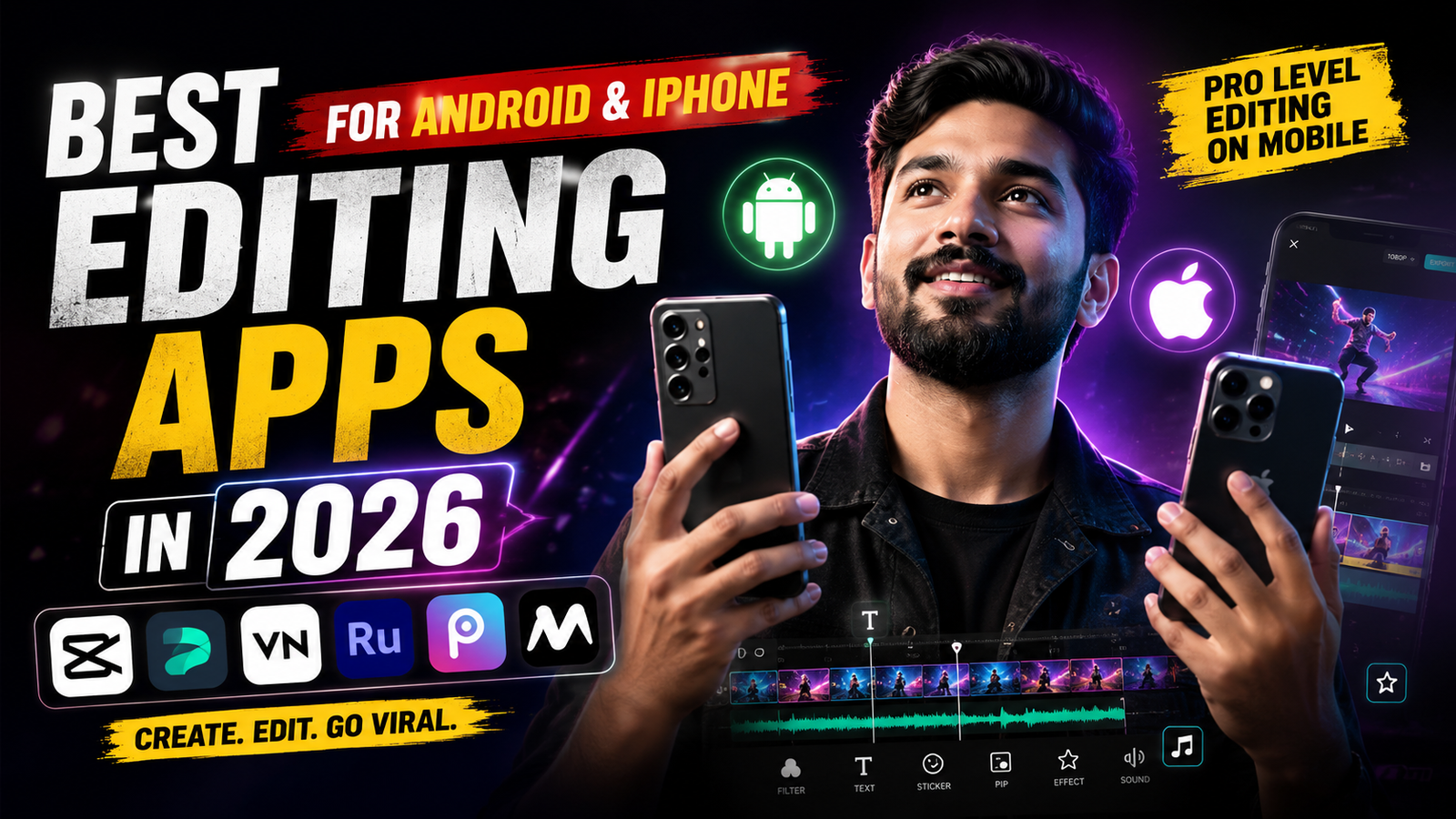
The best editing apps for Android and iPhone in 2026 depend more on your daily workflow than on marketing claims. CapCut and VN cover most needs for fast, clean reels. Adobe tools and LumaFusion suit teams and advanced creators who treat mobile as part of a larger production pipeline. InShot and Canva remain helpful for simple, branded vertical content.
If you are not sure where to start, install one light app like VN and one template driven app like CapCut from the official store, then edit the same short reel in both. Pay attention to speed, export quality and how confident you feel while cutting. The app that lets you publish three consistent reels per week with minimal stress is usually the right one