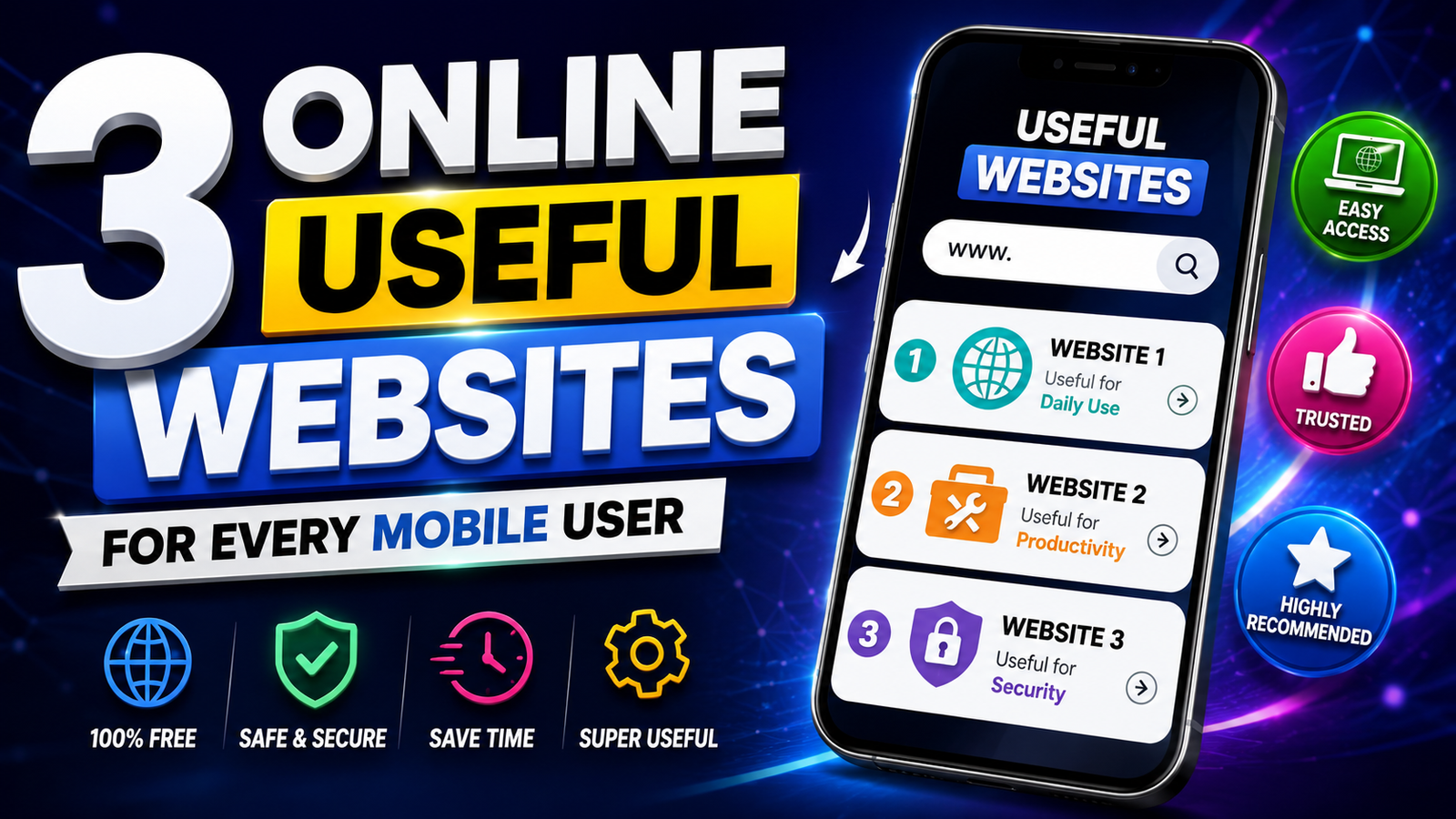
Google Drive, WeTransfer, and Notion solve different mobile-browser tasks: storing files under an account, sending a temporary transfer link, and organising notes or projects. None is a universal replacement for local backups, secure messaging, or a full desktop workflow.
Choose the service from the task and the sensitivity of the data. A class PDF and a public preview video may be suitable for cloud sharing, while identity documents, private client files, passwords, and financial records need stronger access controls or a different method.
Open the official domain directly, confirm the recipient and link permissions, and remove access when sharing is finished. Free storage, transfer limits, expiration periods, and mobile features can change, so check the service’s current terms rather than relying on an old screenshot.
The sections below explain one realistic use for each website, mobile-browser steps, account and link risks, and a comparison that helps avoid installing an unnecessary app.
Related Resource
Third-party WhatsApp link: The button above opens a WhatsApp channel post and is not the official site for Google Drive, WeTransfer, or Notion. Open each service from its verified domain and do not enter an account password through a channel-provided sign-in page.

Google Drive for account-based file storage
Google Drive is one of the most useful websites for every mobile user who wants to keep photos and documents backed up. It gives you online storage that you can open from your phone, tablet, or computer with the same Google account. The amount of free storage can change over time, but it usually covers basic needs if you manage it well.
Why it is useful on mobile
- Backs up photos and documents so you do not lose them when you change or reset your phone
- Lets you share large files with a link instead of compressing them on WhatsApp
- Opens common formats like PDF, Word, and images in the browser without extra apps
Quick setup steps on phone browser
- Open drive.google.com in your mobile browser and sign in with your Google account
- Tap the plus icon and choose Folder for better organization, for example Work, College, Bills
- Upload a few important files first, such as ID scans or invoices, and check they open correctly
- Use the three dot menu on any file to share by link, then choose Viewer only for safety
Example: organising course files without losing the local backup
A student with a budget Android phone often receives lecture PDFs and project files in WhatsApp. Internal storage gets full and the phone becomes slow. By moving old PDFs and photos to Google Drive folders, then deleting local copies, the device storage stays free. When exams come, the student opens drive.google.com and downloads only the needed files.
Privacy and safety tips for Drive
- Avoid public sharing for sensitive documents like ID cards
- Use link sharing only when needed, and remove access later from the Share settings
- Turn on two step verification on your Google account for better protection
WeTransfer for time-limited file delivery
WeTransfer is useful when you want to send big videos or folders from your mobile without registering a new account. The free version usually allows files up to a few gigabytes, which is more than enough for most clips or photo sets. The exact limit can change based on WeTransfer policy, so always check the number shown on the upload page.

How it helps mobile users
- Sends large files without compressing them heavily in messaging apps
- Works from the browser, so you do not have to install anything for one time use
- Creates a shareable link that stays active for a limited period, so storage is not permanent
Steps to send a file from your phone
- Open wetransfer.com in your mobile browser and accept the basic terms
- Tap Add your files and pick videos or images from your gallery or file manager
- Choose Get a link instead of email if you just want a quick sharing link
- Wait for the upload, then copy the link and paste it into chat or email
Example: sending a client preview with an expiry plan
A freelance designer edits a sample product video on a mid range phone. The final preview is around 600 MB, which is too large for email and hard to send on chat without quality loss. The designer uploads it to WeTransfer, gets a link, and sends it to the client on WhatsApp. The client streams or downloads the full resolution copy before confirming final edits.
Limitations and cautions
- Transfer links expire after some days, so save important files elsewhere too
- Do not use WeTransfer as your only backup location, it is mainly a delivery tool
- Avoid uploading highly confidential items, or encrypt files before sharing
Notion for structured notes and task lists
Notion is an online workspace where you can create notes, task lists, and simple databases. For mobile users it replaces multiple small apps like to do lists, bookmarks, and habit trackers. The free tier is normally enough for single users, but advanced features may require a paid plan depending on their latest offers.
Why Notion works well on phones
- Runs in a mobile browser at notion.so, so you can test it before installing the app
- Supports pages inside pages, good for organizing projects or study topics
- Syncs across devices instantly when you sign in with the same account
Simple first setup on mobile
- Go to notion.so and sign up with email or a third party login
- Create a main page such as Daily hub, then add subpages for Tasks, Ideas, and Expenses
- Use templates like To do list or Reading list so you do not have to build from zero
- Add the site to your home screen from browser options for quick access
Example: separating client tasks from personal notes
Someone running a small side business from their phone keeps order details in random chats and screenshots. Tasks are forgotten and payments become hard to track. With Notion, one page stores client list, another tracks delivery dates, and another contains presets for reply messages. Over time this cuts mistakes and saves time when customers repeat orders.
Things to keep in mind
- Notion can feel heavy on older phones if your pages are very large, keep them lean
- It needs a stable connection for the best experience, offline support in the browser is limited
- Avoid putting passwords or banking details inside any note tool, use a proper password manager instead
Compare storage, transfer, and workspace tools
| Website | Main use on mobile | Account needed | Best for | Key caution |
|---|---|---|---|---|
| Google Drive | Cloud storage and backup | Yes, Google account | Long term file storage and sharing | Check sharing settings for private documents |
| WeTransfer | Large file transfer | No for basic use | Sending big videos or folders quickly | Links expire and it is not a real backup |
| Notion | Notes and task management | Yes, Notion account | Organizing projects, study, and work | Can feel complex, start with small simple pages |
Match the service to the data and task
You do not need to use every online tool you read about. For most people, starting with one or two of these three is enough. Ask yourself what problem hurts more today, low storage, difficult file sharing, or poor organization of notes and tasks. Then introduce the matching website slowly into your routine.
- If your gallery is always full, begin with Google Drive and basic backups
- If clients or friends never receive your large videos, add WeTransfer to your sharing tools
- If you forget tasks or lose ideas, try a single Notion page called Today and update it daily
Over time you will create your own workflow. You may combine all three, for example keep long term files in Drive, send short term copies with WeTransfer, and track everything in Notion. Just remember to clean old data sometimes, and always use official sites and app stores when you move from browser to app.
A safer browser-tool checklist
These three useful websites for every mobile user focus on problems that appear almost every day, storage, sharing, and organization. Google Drive protects your important files, WeTransfer moves large items without stress, and Notion keeps your tasks and notes in one organized space.
You do not need advanced skills to start. Open each site once, try the simple steps listed above, and see which one feels natural. If you find them helpful, you can later explore more advanced features like shared folders, templates, and integrations.
The most important thing is to avoid unsafe clones or random download links. Always type the official address in your browser, or install apps only from trusted stores. That way you enjoy the benefits without risking your data.
Common questions about mobile web tools
Can I use these websites without installing any app
Yes, all three work in a mobile browser. The apps can be more comfortable, but you can test everything first just by visiting the official sites.
Do these websites work on both Android and iPhone
They run in any modern browser, so they work on Android, iOS, and even basic laptops. App features can differ slightly between platforms.
Will they use a lot of mobile data
Uploading and downloading large files or videos can consume a lot of data. Whenever possible, use Wi Fi for heavy operations like backups or long transfers.
Is it safe to store personal documents online
Reputable services use strong security, but no platform is perfect. Use strong passwords, enable two factor login where possible, and avoid storing very sensitive data unless you understand the risks.
Which website should I try first as a beginner
If you are unsure, start with Google Drive. Basic storage and sharing helps almost every mobile user, even with very simple usage.
Thank you for reading. If you found this guide helpful, follow our blog for more latest tech news, useful apps, AI tools, and practical mobile tips that fit real everyday use.