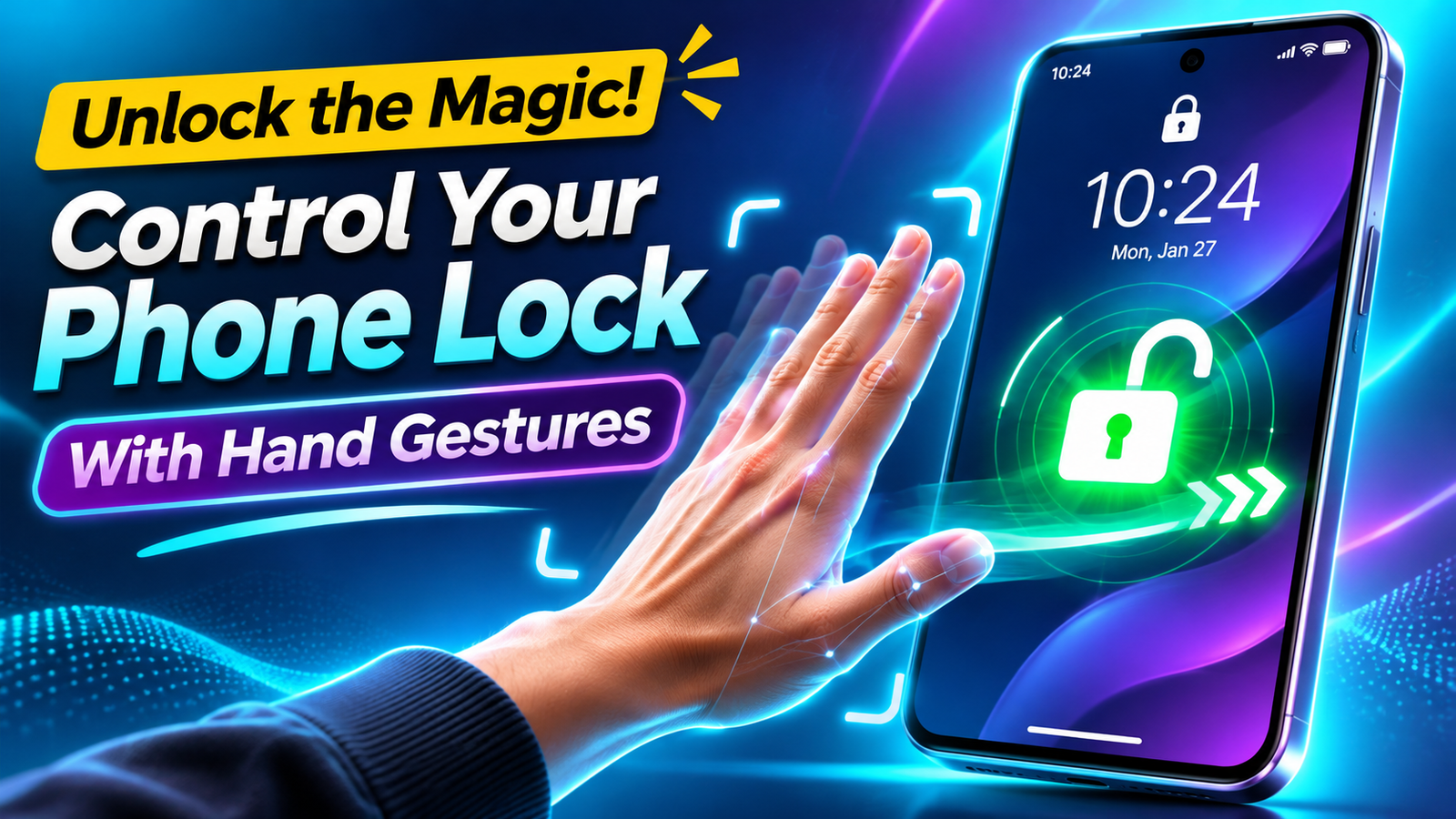
Your lock screen is supposed to protect you, not just look cool. Gesture lock apps promise you can unlock your phone with a wave or a custom hand sign, like you’re casting a spell over your screen. Fun idea but how does it work, and is it safe to use every day?
This guide walks through what gesture lock screens actually do, how to try them on Android, and the security and battery trade‑offs you should think about before trusting them with your data.
What Hand Gesture Lock Really Means
Gesture locking usually falls into two categories:
- On screen gestures: You draw a shape or pattern on the screen (for example, a star or letter) instead of tapping a PIN. This is closer to a fancy pattern lock.
- Camera based hand gestures: The front camera or sensors try to recognize a physical hand sign or motion in front of the phone to unlock or wake the device.
On most phones today, this is not a built‑in primary security feature. It’s usually handled by third‑party apps that sit on top of your normal lock screen. That means:
- Your real security is still your system PIN, pattern, or biometric.
- The gesture layer is more of a shortcut or visual effect.
- If the app crashes or is killed in the background, you fall back to the regular lock screen.
For most readers, gesture lock is best treated as a convenience or personalization tweak, not a replacement for proper security.
Before You Start: Read This Security Checklist
Before installing any gesture lock app, work through this quick list:
- Keep your core lock strong. Set a decent PIN (6+ digits) or a solid pattern that isn’t a simple L or line.
- Enable biometrics if available. Fingerprint or face unlock from your phone’s built‑in settings is usually safer and better tested than third‑party gesture tricks.
- Only use official app stores. Avoid gesture lock APKs from random websites; they can capture notifications, screen content, or worse.
- Check permissions carefully. Most gesture lock apps will ask for screen overlay, accessibility, camera, and notification access. Only grant what’s strictly needed.
- Assume it can’t be as secure as the system lock. If you carry work email, banking, or 2FA codes, treat gesture lock as cosmetic, not mission‑critical security.
How Gesture Lock Apps Work Under the Hood
Most gesture lock apps combine a few Android features:
- Draw over other apps: To show their own lock screen while hiding your home screen.
- Accessibility service: To detect when the screen turns on, react to buttons, and stay running.
- Camera or proximity sensor: For hand waving or shape recognition in front of the device.
- Background service: To keep the lock active even after you close the app.
The app usually doesn’t bypass the core system lock. Instead, it adds an extra wall on top. When you unlock that wall with your gesture, the app simply stops drawing its overlay, revealing the already unlocked system behind it.
This is why some banking apps or work profiles may not trust gesture locks they only trust the system level lock that Android or iOS controls directly.
Setting Up a Gesture Lock Screen on Android
As of now, this is mainly an Android topic. iOS is far more locked down and doesn’t really allow full third‑party lock screen replacements.
1. Choose a Reputable Gesture Lock App
On your Android phone:
- Open the Google Play Store.
- Search for terms such as gesture lock screen or hand gesture lock.
- Look for apps that:
- Have recent updates (within the last 6 12 months).
- Have a decent rating with written reviews that mention your Android version.
- Clearly state what data they collect and why.
2. Grant the Right Permissions (Nothing Extra)
After installing your chosen app:
- Open the app and follow the initial setup wizard.
- When prompted for permissions, you’ll usually see:
- Draw over other apps (to display its custom lock screen).
- Accessibility service (to react to lock/unlock events).
- Camera access (for actual hand gesture recognition).
- Only enable what the app explains clearly. If it asks for unrelated permissions (like contacts, microphone, or SMS) without a good reason, reconsider using it.
3. Create Your Gesture or Hand Sign
The setup flow usually asks you to define your magic gesture:
- On screen gesture: You draw a unique shape on a grid or blank area 2 3 times to register it. Avoid simple letters (like L or O) that someone can easily guess.
- Camera based gesture: You might:
- Show your hand in front of the front camera from different angles.
- Select from pre‑defined gestures (wave, V sign, thumbs‑up).
Good apps will force you to set a backup unlock method usually your regular PIN or pattern so you’re not locked out if gesture detection fails.
4. Test It Before You Rely on It
Before using gesture unlock as your daily method, run a quick test cycle:
- Lock your screen and wake it up again.
- Use your new gesture three or four times from different angles and lighting conditions.
- Turn off the room lights or step outdoors in bright sun and test again.
- Restart your phone and confirm the app still launches properly.
If it fails often or feels flaky, don’t depend on it. Stick with biometrics + PIN as your primary lock.
Real World Pros and Cons of Gesture Lock
| Aspect | Pros | Cons |
| Convenience | Can unlock without touching the screen in some setups; fun and quick when it works. | Fails in low light or odd angles; sometimes requires multiple tries. |
| Security | Acts as an extra layer on top of your real lock in some cases. | Not as battle tested as system PIN/biometrics; gestures can be observed or imitated. |
| Battery | Minimal impact for basic on‑screen gestures. | Camera based detection can drain battery and heat up the phone. |
| Compatibility | Works on many Android versions without rooting. | Some OEM power‑saving modes kill the service; may conflict with banking or work apps. |
| Privacy | No extra data risk if permissions are limited. | Needs overlay and sometimes camera access; risky if the developer is not trustworthy. |
Common Mistakes to Avoid
- Using gesture lock as your only protection. Always keep a strong system PIN or pattern; never disable it for a novelty feature.
- Choosing an obvious gesture. Simple shapes or common hand signs are easy to guess if someone has watched you unlock once or twice.
- Ignoring lockout options. Make sure the app locks again after a short timeout and after screen off not just when you remember to lock it.
- Overlooking app ads and overlays. Some free gesture lock apps pile on ads right on the lock screen, which is annoying and can trigger accidental taps.
- Installing from random APK sites. This is one of the worst places to experiment with lock screen utilities. Stick to the official store and well‑known developers.
Is Hand Gesture Unlock Right for You?
Gesture lock makes the most sense if:
- You enjoy customizing your phone and don’t mind occasional quirks.
- Your main security is still your phone’s built‑in PIN, pattern, or biometrics.
- You understand that magic gestures are more of a visual shortcut than a hack‑proof barrier.
If your device holds sensitive work files, financial apps, or 2FA tokens, keep gesture lock as a secondary layer at most. For many readers, the safest combination is:
- Strong system PIN or pattern.
- Fingerprint or face unlock from system settings.
- Optional gesture layer purely for fun or quick access removed immediately if it misbehaves or shows too many ads.
Quick FAQ
Can I use hand gestures to unlock an iPhone?
Not in the same way. iOS doesn’t allow full third‑party lock screen replacements. You can use raise to wake and Face ID, or accessibility gestures, but not full camera based hand sign locks from third party apps.
Are gesture lock apps safe?
They can be reasonably safe if you choose a reputable, recently updated app, grant minimal permissions, and keep your core lock screen enabled. They are not as trustworthy as system level PIN and biometrics for sensitive data.
Will gesture lock drain my battery?
On screen gesture overlays use little power. Camera based detection can be heavier because it keeps the camera and background services active more often. Watch your battery stats after installing.
Can someone copy my gesture by watching me?
Yes, especially for visible hand signs or simple shapes. That’s another reason not to use gesture lock as your only protection and to avoid obvious gestures.