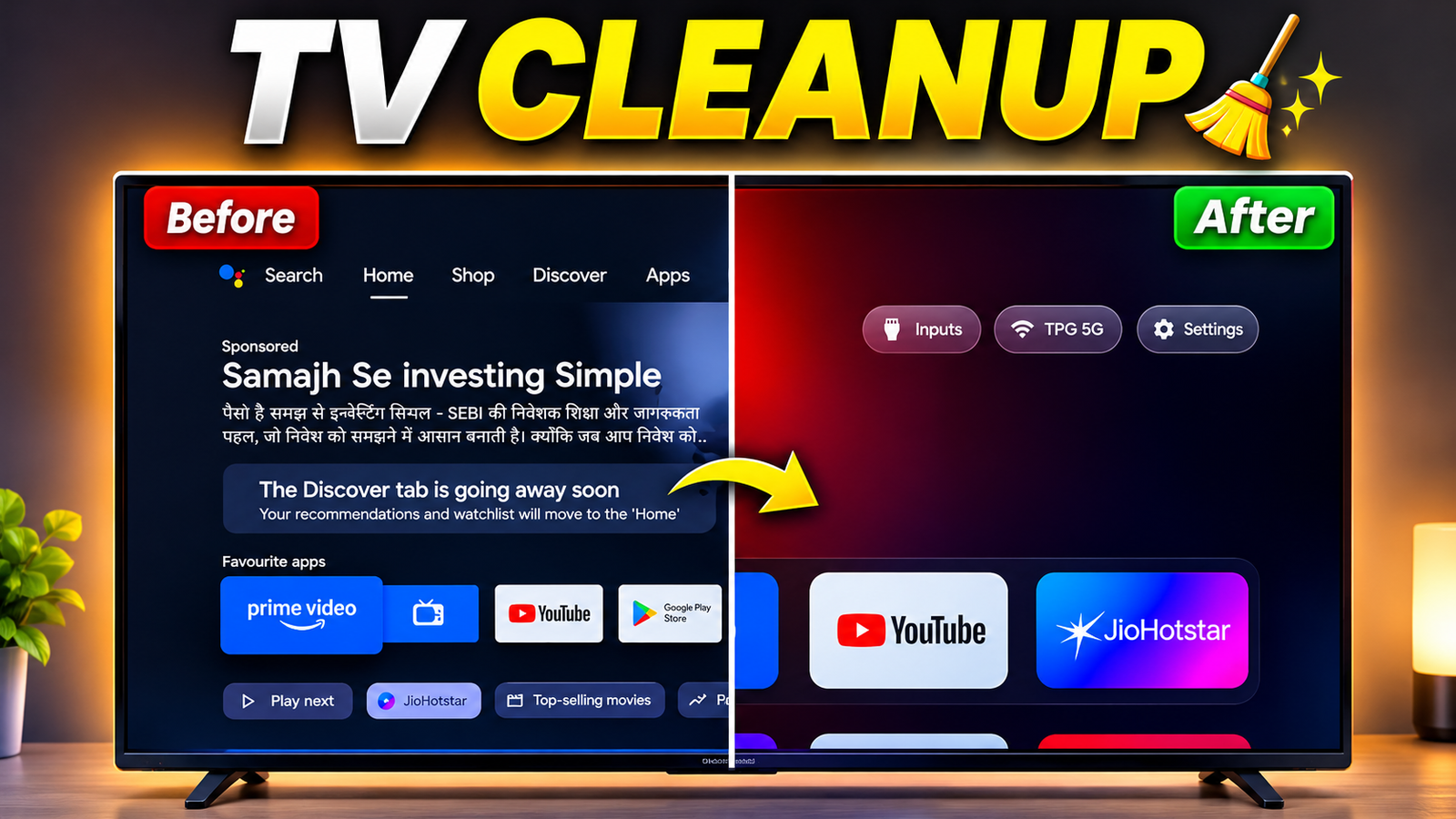
A lot of TV cleaning tricks promise miracles: press a secret remote code and your smart TV suddenly runs like new. In reality, most slow TVs are bogged down by full storage, too many apps, and never being properly rebooted.
This guide walks through a practical speed up cleaning routine that works on most smart TVs (Android TV, Google TV, Samsung Tizen, LG webOS, and similar). No shady apps, no risky resets just realistic maintenance you can repeat every few months.
Why Your Smart TV Feels Slow
Before we touch any settings, it helps to understand what usually makes a TV lag:
- Storage nearly full: Too many apps, cached data, recordings, or downloads.
- Apps piling up in the background: Streaming apps left open for weeks.
- No real restart: Many TVs only go into standby when you press the power button.
- Old firmware: Bugs and performance issues that a system update could fix.
- Heavy visual effects: Animations and motion processing can make menus feel sluggish.
The cleaning trick is really a short maintenance workflow that tackles these points in a sensible order.
Three steps. Your coding assistant does the typing.
Step 1: Do a True Restart, Not Just Standby
First, force your TV to actually reboot. This clears temporary memory and closes background services.
Option A: Software restart
On many smart TVs you’ll find a restart option:
- Android TV / Google TV: Long press the power button on the remote > choose Restart, or go to Settings > System > Restart (names can vary slightly).
- Samsung (Tizen): Settings icon > Support > Device Care > Self Diagnosis > Restart (on some models you can also long press the power button until the Samsung logo appears).
- LG webOS: Hold the volume down + power buttons on the remote until the TV restarts, or use Settings > General > Reset & Restart options depending on model.
Option B: Power cycle the TV
If you can’t find a restart option:
- Turn the TV off with the remote.
- Unplug it from the wall for about 30 60 seconds.
- Plug it back in and power on.
You should notice small improvements already, especially if the TV had been left in standby for weeks.
Step 2: Clear App Cache and Temporary Data
This is the core cleaning step. We’re not deleting your accounts or watch history just cached files that can grow large or corrupted.
On Android TV / Google TV
- Press Settings (gear icon) on the remote.
- Go to Apps or Apps & notifications.
- Choose the app that feels slow (e.g., YouTube, Netflix, Prime Video).
- Select Clear cache.
If an app is still misbehaving, you can also try Clear data / Clear storage, but note this will usually sign you out and reset app preferences.
On Samsung (Tizen) TVs
Newer Samsung models have a quick memory clear option:
- On the remote, press and hold the Power button until the TV turns off and the Samsung logo appears. This performs a soft reset that clears memory.
- For app specific issues, go to Home > Apps, highlight the app, then choose Reinstall or Update if available.
Not every Samsung model exposes a full clear cache UI. Firmware updates may change the path slightly.
On LG webOS TVs
- Press the Settings button.
- Navigate to Support or All Settings > General.
- Look for Storage or Memory Optimizer on newer models and run it.
- For problem apps, delete and reinstall them from the LG Content Store.
Clearing cache does not harm the TV; it simply forces apps to re download temporary files.
Step 3: Uninstall Apps You Don’t Actually Use
Storage pressure is a huge performance killer. If your TV has 8 16 GB of storage, a handful of heavy apps and some game installs can clog it fast.
Remove unused apps (general steps)
- Open the app list or home screen.
- Highlight the app you rarely use.
- Open its options (usually via long press, OK + menu, or a dedicated options key).
- Select Uninstall or Remove.
Keep the core streaming apps you rely on, plus one or two extras. If you occasionally need niche apps (e.g., seasonal sports services), install them when needed and remove them later.
Tip: Some preinstalled apps cannot be removed. Don’t waste time trying to force them off; just focus on what you can uninstall.
Step 4: Check for System Updates
Performance bugs and app compatibility issues can be fixed by firmware updates. This is a critical but often skipped part of the speed up routine.
- Android TV / Google TV: Settings > Device Preferences / System > About > System update.
- Samsung: Settings > Support > Software Update > Update Now.
- LG: Settings > All Settings > Support > Software Update.
Allow the TV to download and install updates, then reboot. Expect this to take several minutes and avoid cutting power during the process.
Step 5: Tweak a Few Settings That Slow the TV
Once the basics are cleaned up, a few setting changes can make menus and streaming feel faster.
Reduce motion and processing features
Heavy processing can make lower end CPUs struggle. You can usually find these under Picture or Advanced settings:
- Turn down or disable motion smoothing, TruMotion, Motion Plus, or similar.
- Reduce noise reduction or digital clean view if your TV feels laggy when changing channels or sources.
This won’t magically speed up the app launcher, but it reduces the overall work the TV does while video is playing.
Disable auto start apps where possible
Some TVs let you control which apps launch or stay active in the background. Look for settings like:
- Autoplay video previews on the home screen.
- Start TV with last used app versus Start with home screen.
- Ambient modes that run animated screens when idle.
Turning off these flourishes can make the system feel lighter.
What Cleaning Apps and Remote Codes Can’t Do
You’ll see videos suggesting you type some secret code on the remote or install a cleaner app from a third party store. Be cautious:
- No app can upgrade weak hardware. If the TV has a slow CPU and little RAM, tricks only go so far.
- Third party cleaner apps can be unsafe. Side loaded APKs on Android TV from untrusted sources may include malware or adware.
- Hidden service menus are risky. Many service codes are for technicians; changing values there can void warranties or cause display issues.
The simple routine you did above restart, clear cache, uninstall bloat, update firmware, and adjust heavy settings is about as far as you should go without professional support.
When It’s Time to Add an External Streaming Device
If your TV still feels painfully slow after a full clean up, the bottleneck is probably hardware, not dirt in the software.
In that case, using an external streaming box or stick is often cheaper than replacing the TV:
- Streaming sticks / dongles: Chromecast with Google TV, Fire TV Stick, Roku, etc.
- Boxes: Apple TV, NVIDIA Shield, and similar.
These usually have stronger processors and more frequent app updates, while your existing TV works as a display.
FAQ: Quick Answers About TV Speed Up Cleaning
Does clearing cache delete my accounts or watch list?
No. Clearing cache only removes temporary files. Clearing data or storage can sign you out and reset settings, so use that with care.
How often should I do this cleaning routine?
For most people, every 2 3 months is enough. Heavy users who game on the TV or install lots of apps might benefit from a monthly check.
Is it safe to unplug the TV to restart it?
Unplugging for a short time is generally fine as long as you’re not in the middle of a firmware update. Whenever possible, use the built in restart option first.
Will a factory reset make my TV fast again?
Factory reset can help if the software is badly corrupted, but it wipes all apps and settings. Try the maintenance steps above first; treat a reset as a last resort.
Are there official TV booster apps I should install?
Most major TV brands don’t offer separate booster apps. Any tool promising huge speed gains should be viewed skeptically, especially if it comes from outside the official TV app store.