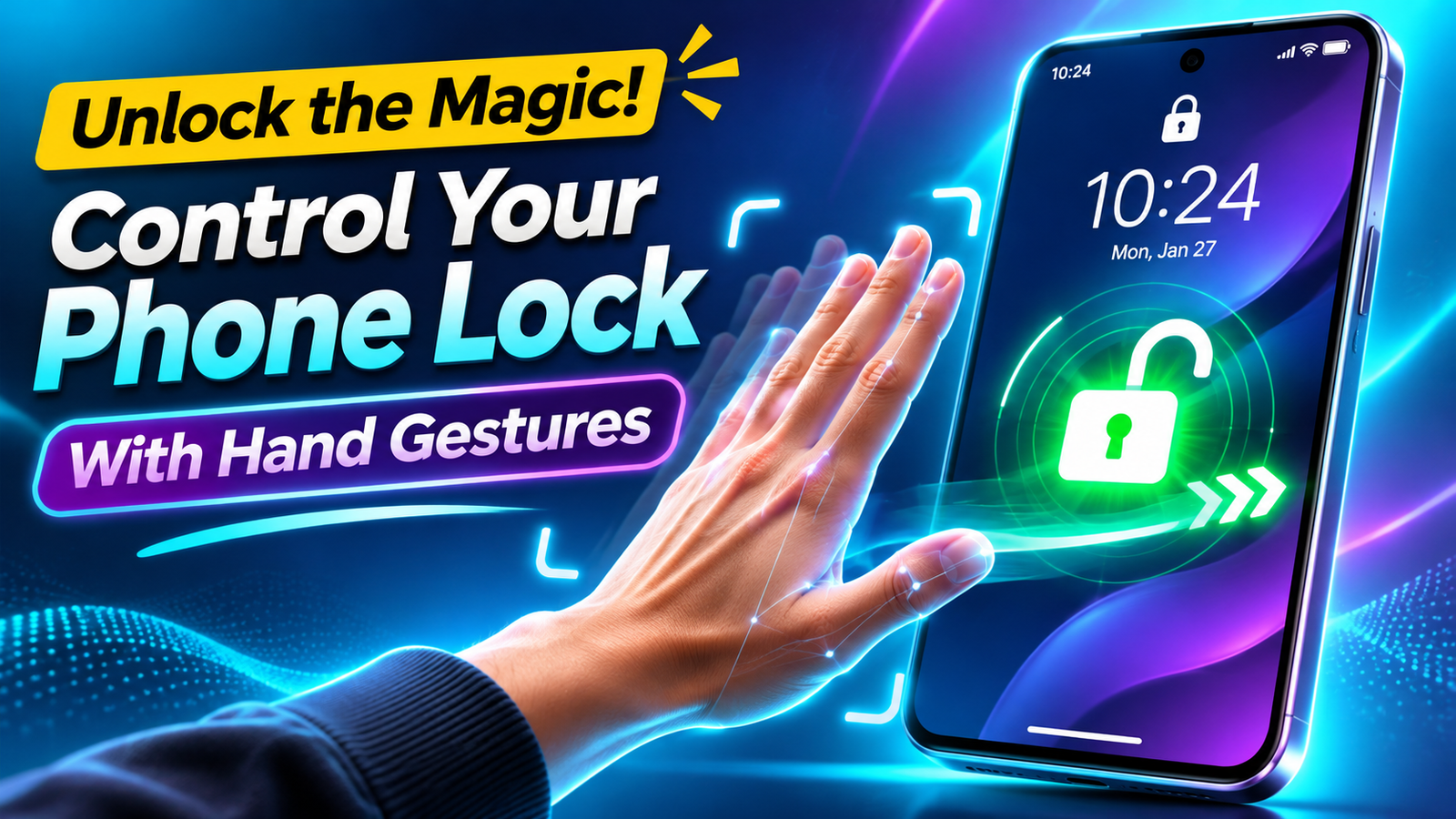
That lock screen effect where a person pops out in front of the clock or overlaps other photos isn’t just for promo screenshots. With the right settings, you can build your own depth wallpaper using multiple images on both iPhone and Android.
This guide explains how the effect works, what you can realistically do on each platform, and step‑by‑step workflows using built‑in tools and a couple of well‑known photo apps.
What People Mean by the Depth Wallpaper Multiple Images Trick
1. Vivo / iQOO — Original Flip Cards
Tilt-based photo switching
Supported OriginOS 6 models
- Open Settings.
- Select Home screen, lock screen & wallpaper.
- Tap Themes → Flip Cards.
- Select Customize.
- Add 2–4 photos from Gallery.
- Choose a Transition Effect.
- Tap Apply.
- Lock the phone and tilt it Left/Right to change the photos.
2. Samsung — Multiple Photos Wallpaper
- Open Settings → Wallpaper and style.
- Tap Change wallpapers → Gallery.
- Select multiple photos (supported modelsలో గరిష్ఠంగా 15).
- Tap Done.
- Choose Lock screen and apply.
ఇప్పుడు screen wake చేసినప్పుడు selected wallpapers మారుతూ కనిపిస్తాయి. కానీ మొబైల్ని Tilt చేస్తే ఫోటోలు మారే Vivo Flip Cards animation ఉండదు. Samsung India+1
3. Redmi / Xiaomi / POCO — Wallpaper Carousel + Depth Effect
Multiple Images కోసం:
- Open Settings → Lock screen.
- Select Wallpaper Carousel (available modelsలో).
- Enable Wallpaper Carousel.
- Open Carousel Settings.
- Look for Add local photos / Gallery.
- Select your images and apply.
Screen ON చేసినప్పుడు images rotate అవుతాయి. Xiaomi Trust Center+1
Depth Effect కోసం:
- Long-press the Lock screen.
- Tap Customize.
- Select a compatible lock screen style.
- Choose a photo.
- Enable Depth of field, if available.
- Tap Done → Apply.
Note: Depth Effect, Carousel రెండూ వేర్వేరు features. Xiaomi Community+1
4. OnePlus — Flux Themes Depth Wallpaper
- Open Settings.
- Go to Home screen, Lock screen & style.
- Select Flux Themes.
- Choose a supported theme.
- Add a photo or compatible Motion Photo.
- Enable Depth Effect, if available.
- Apply to the Lock screen.
OxygenOS 15/16లో AI Depth, Motion Photo wallpaper options ఉన్నాయి. కానీ Vivo మాదిరి multiple images tilt ద్వారా switch చేయడం కాదు. OnePlus Community+1
5. OPPO / Realme — Lock Screen Carousel
OPPO ColorOS 15/16:
- Open Settings → Wallpapers & style (ColorOS 16లో Home screen, Lock screen & style).
- Select Wallpapers.
- Choose your photo.
- Tap Apply → Carousel wallpapers, if shown.
Realme:
- Open Settings.
- Search for Lock Screen Magazine.
- Enable it if available.
- Select available wallpaper categories or carousel settings.
- iPhone depth effect wallpaper: iOS can detect a subject in your photo and layer interface elements (like the time) behind it. Some users stack this with photo widgets or collages so it looks like multiple images have 3D depth.
- Android / third‑party 3D wallpapers: Launchers and wallpaper apps fake depth using parallax, portrait cutouts, and layered PNGs. You combine several images into a custom background that moves as you tilt the phone.
There’s no single button called Depth wallpaper with multiple images. You combine:
- A good subject photo (clear person or object in the foreground).
- One or more background images or textures.
- An app or system feature that can separate the subject from the background and apply depth or parallax.
Before You Start: What You Need
On iPhone
- iPhone XR or newer is recommended for consistent depth wallpapers.
- iOS 16 or later for the built‑in Depth Effect toggle on the lock screen.
- A portrait‑style photo where:
- The subject is centered or slightly off‑center.
- The full head/shoulders are visible (not cut off).
- The background is simpler than the subject (strong contrast).
- Optional: a collage or editing app like Canva or Picsart to blend multiple images into one layered wallpaper.
On Android
- Any relatively recent Android phone.
- A live / 3D wallpaper or photo editing app such as:
- Wallpapers by Google (for basic parallax).
- 3D Photo / Parallax Wallpaper apps (names vary by region and update).
- Canva, Picsart, or similar for making a layered static image.
Method 1: iPhone Depth Wallpaper with a Layered Collage
This method builds the multiple images into one file, then lets iOS apply the depth effect to your main subject.
Step 1: Build Your Multi‑Image Background
- Open a photo editing app that supports layers (e.g. Canva, Picsart).
- Create a new design with your phone’s exact resolution if possible. If not, choose a portrait canvas, for example 1080 × 1920.
- Import your main subject image (the one you want to pop out).
- Add 1 3 secondary images:
- Position them behind the subject (stack their layers under the subject layer).
- Apply blur or opacity to keep focus on the subject.
- Avoid putting important faces or text near the very top center where the clock will be.
- Export the final composition as a single image (JPG or PNG).
Step 2: Enable Depth Effect on the Lock Screen
- Go to Settings > Wallpaper and tap the lock screen preview, or long‑press on the lock screen and choose Customise.
- Tap the wallpaper area and choose the image you just created.
- Pinch to zoom and reposition. Make sure the main subject’s head or upper part is not cut off.
- Look for the Depth Effect toggle at the bottom right:
- If it’s available, turn it on.
- If it’s greyed out, try:
- Zooming out slightly.
- Moving the subject slightly lower so the clock sits behind it.
- Choosing another version of the image with clearer separation.
- Tap Done to save.
You now have a multiple images wallpaper where iOS still treats the main person or object as the foreground for the depth effect.
Method 2: Use Photo Widgets for a Fake Multi‑Image Depth Look
iOS doesn’t natively stack several depth‑enabled images on top of each other. However, you can cheat the effect using widgets.
The idea:
- You keep a single depth wallpaper as the background.
- You add photo widgets or small image widgets that cycle or show other pictures.
Workflow (high‑level, as it varies by app):
- Install a reputable photo widget app from the App Store (search for photo widget and pick one with recent updates and clear privacy info).
- Choose which images the widget should show and the refresh style (static / slideshow).
- Set your depth wallpaper using Method 1.
- On the home screen, long‑press, tap +, add your chosen photo widget, and position it so it looks integrated into your depth wallpaper.
This doesn’t create true multi‑layer depth between the widget and wallpaper, but visually it can look like a complex 3D collage when done carefully.
Method 3: Android Multi‑Image Depth and Parallax
Android doesn’t have Apple’s lock screen depth effect, but it allows more flexible wallpaper and launcher customization. You typically combine a layered image with a parallax/3D app.
Step 1: Create a Layered Wallpaper
Use the same collage approach as on iPhone:
- Open Canva, Picsart, or similar.
- Create a portrait canvas (start with 1080 × 2400 for many modern devices, then crop if needed).
- Place your subject photo and 1 3 background images.
- Add depth using:
- Blur on the farthest background image.
- Drop shadows under your subject.
- Gradient overlays to darken corners (helps icons and time stay readable).
- Export the final wallpaper.
Step 2: Add 3D or Parallax
You have three common options:
| Option | How it works | Pros | Cons |
| Built‑in parallax (if available) | Some OEM skins add a subtle motion effect to static wallpapers. | No extra apps, usually low battery impact. | Very mild effect, not true layer depth. |
| Live / 3D wallpaper app | App cuts foreground and moves layers at different speeds when tilting. | Strong 3D feel, customizable. | Can use more battery and sometimes show ads. |
| Launcher with custom scroll effect | Wallpaper moves slightly across home screens. | Simple, combines with other tweaks. | Depth only noticeable when swiping between pages. |
Because naming and features change often, install only well‑reviewed apps from the official Play Store, check the permissions they request, and avoid anything promising free premium hacks or similar.
Common Mistakes That Break the Depth Effect
- Subject cut off at the top: On iPhone, if the head or top of the subject touches the status bar area, Depth Effect may disable itself.
- Too busy background: When your collage has many overlapping photos with similar colors, the system may struggle to detect a clear foreground subject.
- Text blocking the clock: Large titles or quotes at the top center will fight visually with the time and can look messy.
- Low‑resolution images: Blurry or upscaled shots can look fine as a home screen but fall apart on a lock screen where the clock overlaps.
- Battery drain from heavy 3D apps: Some Android live wallpapers update constantly. If your phone already struggles with battery life, use static depth wallpapers instead of fully animated ones.
Safety and Privacy Notes
- Lock screen photos are visible to anyone who wakes your phone. Avoid highly personal images or anything you wouldn’t want seen in public.
- Check app permissions: Wallpaper and editing apps usually need storage access. They do not need SMS, call logs, or contact access for this use‑case.
- Avoid shady APKs or mod versions of paid wallpaper apps. They often contain malware, intrusive ads, or tracking.
FAQ
Why don’t I see the Depth Effect toggle on my iPhone?
Your device might be on an older iOS version, the image may not have a clear subject, or the composition might block the clock. Try a different portrait photo and update to the latest iOS version supported by your device.
Can I have multiple depth layers on iOS (subject, then another photo, then clock)?
Not in a fully dynamic way. iOS currently treats the detected subject as a single foreground layer. To fake multiple layers, bake them into one collage and let iOS handle only the main subject.