Phone time controls work best when they target a specific behaviour, such as short-video use during study hours or gaming after bedtime. A vague goal to use the phone less is difficult to measure, while a schedule or daily app limit produces a clear rule that can be reviewed and adjusted.
Android Digital Wellbeing and Apple Screen Time already provide app timers, downtime schedules, focus modes, and usage reports on supported devices. Start with those built-in controls before giving a third-party utility accessibility, device-admin, overlay, or notification permissions.
A strict lock can create problems if it blocks maps, calls, authentication apps, banking, school tools, or emergency information. Build an essential-app exception list, keep the recovery method secure, and test the schedule for a short period before enabling a long unattended lock.
This guide explains built-in controls, third-party options, setup decisions, parent/child considerations, and common bypasses. The objective is a practical routine that reduces distraction without making the phone unreliable when it is genuinely needed.
The existing button opens a time-password screen-lock app in Google Play. A changing lock-screen password is different from an app-usage timer, so review the listing carefully and confirm that this is the exact function shown in the creator’s video before installing it.
Different meanings of a mobile time lock
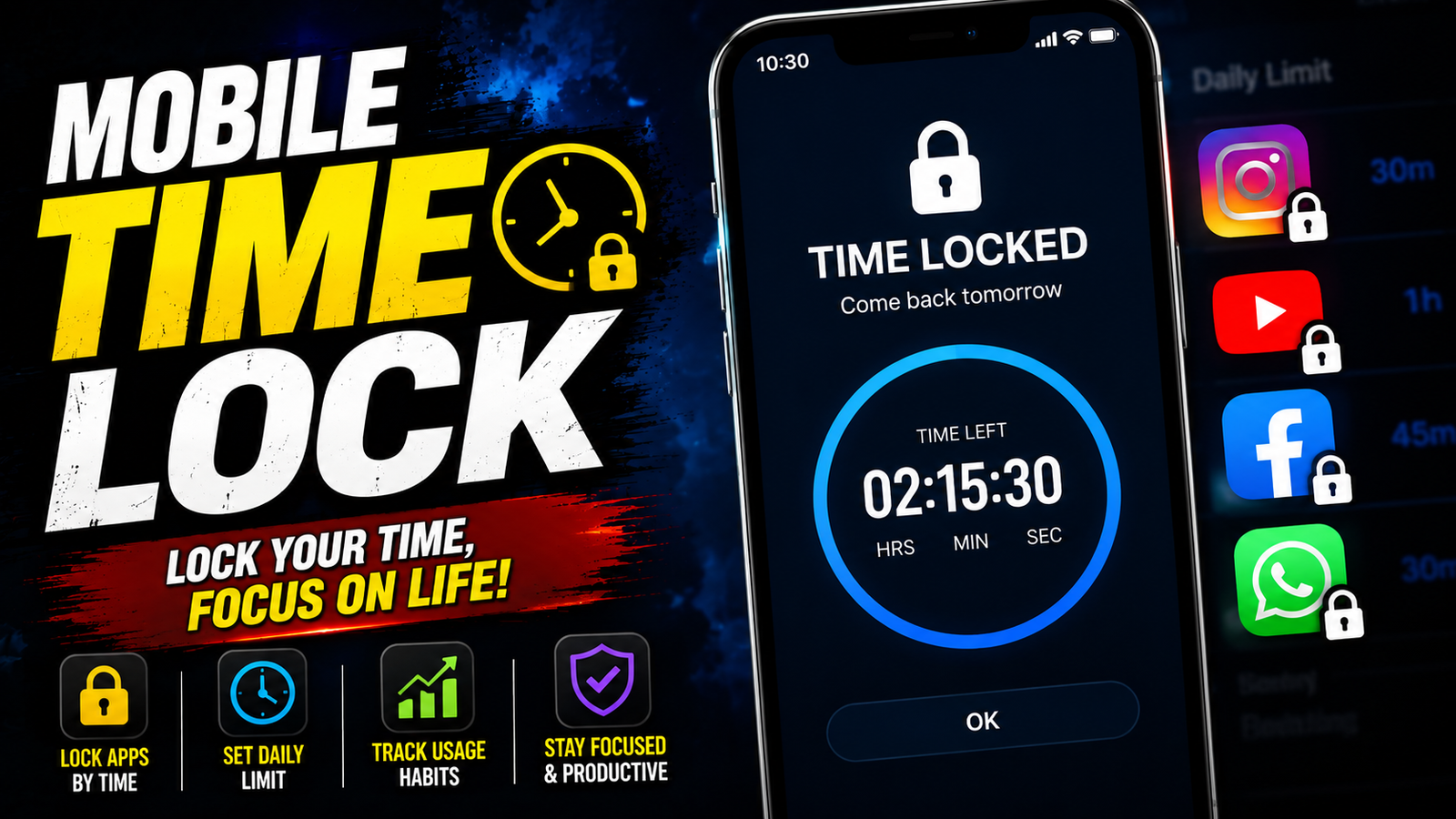
A mobile time lock is any tool that restricts your phone or specific apps after a set amount of usage or during chosen hours. It might dim the screen, block launches, or show a full screen lock message until the block period ends. The idea is simple, if the phone will not open your usual time wasting apps, you are less likely to fall into a scroll loop.

Typical reasons people set up a mobile time lock include exam prep without chat apps, night time sleep without late notifications, deep work hours without social media, and kid profiles that work only during homework free time. A good setup reduces regret time, but still lets you reach family, maps or emergency tools.
Start with built-in Android and iPhone controls
Most modern phones already ship with some version of a time lock feature, though names and menus can vary depending on Android version or brand skin.
Official App Listing

Android options
- Digital Wellbeing on many Android phones includes app timers and focus modes that pause chosen apps once the daily limit is hit.
- Bedtime mode can turn the screen grayscale and mute alerts at night, which indirectly reduces usage.
- Some brands like Samsung or Xiaomi also add custom focus or productivity modes under Settings.
A simple starter setup is to open Digital Wellbeing, set daily app timers for your top three distractions such as short video, social network, mobile game, then add a focus mode that pauses them entirely during work hours.
iPhone options
- Screen Time in Settings lets you set daily limits for app categories or individual apps.
- Downtime blocks almost all apps during chosen hours and only allows specific contacts and apps through.
- Always Allowed lets you keep calls or maps available even when limits are active.
Many parents rely on a Screen Time passcode that only parents or account owners know. One common mistake is sharing that code casually, then wondering why the child usage report looks suspiciously low.
Compare built-in controls with third-party locks
If the built in tools feel too soft or too easy to bypass, dedicated mobile time lock apps can be stricter. Names change over time and availability may differ by country, but the feature sets are often similar to the examples below.
| Type | Typical Features | Good For | Things To Watch |
|---|---|---|---|
| Focus and productivity timer apps | App blocking, Pomodoro timers, stats, blocklists and allowlists | Students, freelancers, office work blocks | May need constant access permission, can be bypassed if not locked properly |
| Parental control suites | Daily usage limits, schedule, content filters, location, web reports | Child phones and shared family tablets | Some charge monthly, privacy policy quality varies by vendor |
| Hard lock apps | Full device lock during sessions, strict timers, emergency contact shortcuts only | People who want almost no way to cheat during deep work | If misconfigured, you might lock yourself out when you need banking or ride apps |
When you pick any mobile time lock app, always check who built it, the last update date, reviews that mention reliability and battery impact, and whether the app asks for more permissions than it really needs. Install only from official stores and avoid modified packages from random sites.
Create a schedule that still allows essential access
The exact menus differ between devices, but this workflow fits most setups, either using built in tools or a third party app.
- List your non negotiable apps such as calls, messages, maps, health apps. These must stay accessible even when locked.
- Identify your top three distractions. Usually a video app, one social platform, and a casual game or news feed.
- Start with light limits. For example, 45 minutes total per day for each social app and one focused work block of 60 minutes per morning.
- Add a simple PIN or passcode protection to prevent quick changes to the settings. Store the code safely and avoid using your standard screen lock PIN.
- Enable notifications control inside the time lock tool. Many people keep opening apps only because of constant alerts.
A realistic way to test your setup is to run it for three days, note where it feels too strict or too weak, then adjust once. Constantly editing limits every hour quickly turns into an excuse to bypass your own plan.
Examples of focused and family schedules
Example one, a university student used a mobile time lock to cut gaming during exam month. They set a two hour allowed window each evening for games and blocked game launches from 9 in the morning to 6 in the evening. At first they hit the lock screen many times a day, but within a week, reaching for the game during class felt pointless and the habit dropped.
Example two, a parent set up time limits for short video apps on a shared phone used by a teenager. Daily usage was capped to 60 minutes with a hard night block from 10 in the evening. The parent kept calls and a homework app always allowed. After one rough weekend of complaints, the teenager started planning their watch time more carefully, instead of constant short clips all day.
A useful case study style pattern appears with remote workers. One typical setup uses three focus sessions during the workday. A morning 90 minute deep work session with all social and chat apps locked, a 60 minute midday block, and a final 45 minute afternoon session. Email stays accessible only during short breaks. Most people who try this report fewer context switches and feel less drained by the end of the day.
The key detail in all these examples is balance. The mobile time lock does not try to ban fun completely. It moves entertainment into planned windows so that focus time is protected and rest time is still enjoyable.
Lockout and bypass mistakes to avoid
- Setting extreme limits on day one such as zero minutes for all social apps can trigger frustration and quick uninstall. Start moderate and tighten later if needed.
- Leaving a secret backdoor like a second unprotected browser or a different video app that is not covered by the limit. Review your installed apps and add them to the same rules.
- Forgetting emergency access. Always keep phone calls, SMS, and local emergency numbers reachable. Some hard lock apps allow an emergency contact list screen for this purpose.
- Not protecting the time lock settings. If settings can be changed freely, you are likely to adjust them whenever temptation rises. Use a separate passcode or family account control.
- Ignoring reports. Many tools show daily or weekly charts. A quick review each Sunday can reveal new problem apps that slowly eat time.
Permissions, recovery, and privacy checks
A mobile time lock app often needs powerful permissions, such as accessibility access, usage access, or device admin control, in order to block other apps. This gives the tool a lot of visibility into your activity. Always read the permission list carefully and check the vendor privacy notes before you grant access.
If you are setting this up for a child phone, be open about what you are tracking and why. Secret monitoring almost always backfires and can damage trust. Also remember that no time lock replaces basic digital education about healthy app use, it is only a support tool.
A time-control setup that can last
A solid mobile time lock setup turns your phone from a constant interrupter into something closer to a tool again. You choose clear times for work and for fun, and the phone enforces that choice when your willpower is low. The best approach is usually to start with built in controls, then move to a stricter app if you discover you really need it.
Pick one or two changes from this guide, such as a nightly Downtime or a focus mode for study, and run them for a week before you add more. With small, realistic steps and honest limits that fit your lifestyle, a mobile time lock can be the quiet background guard that keeps your attention where you actually want it to be.
Common questions about phone time controls
Does a mobile time lock completely turn off my phone
Usually no. Most tools block selected apps or most apps during chosen hours, while keeping calls and critical tools available. Only a few hard lock apps go close to a full device lock.
Can I override a time lock if there is an emergency
Yes, in most setups. Either there is a passcode to change settings or a small list of always allowed apps and contacts that work even during blocked hours.
Will a mobile time lock ruin my battery
Lightweight focus tools and built in features normally have a small battery impact. Heavy parental control suites can use more power. Check your battery stats after a few days and adjust if it looks high.
Are kids able to bypass time lock apps
Tech savvy kids sometimes find tricks, like installing a different browser or using web versions. Keep all app installs behind a parent account and review app lists often.
Which is better, built in screen time tools or third party apps
Built in tools are simpler and usually safer for privacy. Third party apps can be stricter and more flexible. Many people start with built in options and only add a third party tool if they still cannot control usage.
Thank you for reading. If you found this helpful, stay tuned and follow our blog for more latest tech news, useful apps, AI tools, and practical mobile tips and updates.