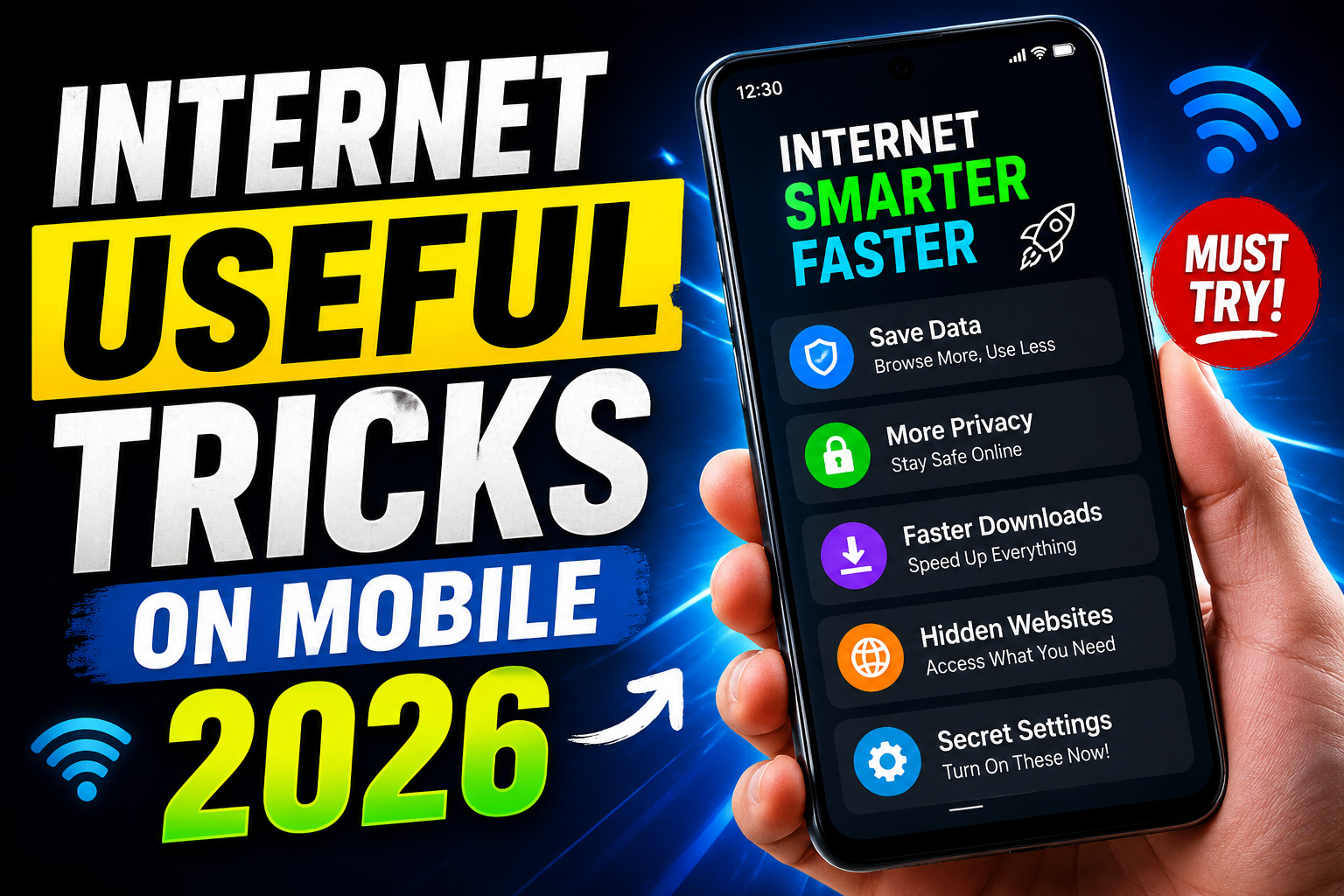
Mobile internet settings are not universal: Android brands, iOS versions, carriers, browsers, and managed work devices expose different controls. Use the phone’s Settings search and the platform or manufacturer’s support page rather than forcing a menu path that is missing.
The highest-value checks are measurable: review per-app data use, restrict unnecessary background traffic, verify Wi-Fi networks, update the browser and system, use a password manager or passkeys where supported, and limit the information shared with websites and AI tools.
A Wi-Fi QR code still contains access credentials and should be shared only with intended guests. Private DNS can improve DNS privacy but does not create a full VPN, and a VPN moves trust to its provider rather than making all browsing anonymous or safe.
The nine checks below explain the benefit, limitation, and rollback for each setting. Record current behaviour first so data use, speed, battery, compatibility, and privacy can be compared after one change.
Related Resource
Third-party Telegram link: The DOWNLOAD NOW button opens a channel, not an Android, Apple, carrier, browser, DNS, VPN, or security-provider page. Do not install profiles, certificates, VPN files, APKs, or configuration changes solely because a channel supplies them.
1. Measure data use before enabling Data Saver
Most people try to control internet usage app by app, but modern social apps change settings often. A more reliable trick is to use the system level data saver and then allow full data only for the few apps that really need it.
On recent Android versions, you can usually find this under Settings then Network and internet then Data saver. On iOS, look for Low Data Mode inside Wi Fi and Mobile Data settings. Names change slightly by brand, but the idea is the same, background data is restricted and many apps lower quality automatically.
Practical example, if you travel daily by bus and scroll short videos during that time, data saver forces the app to load at lower resolution and stops heavy pre loading. It will not fix every app, but when combined with turning off auto play on mobile data, many users see several gigabytes saved each month.
2. Share guest Wi-Fi without exposing it broadly
Sharing Wi Fi by reading out a long password is slow and also risky in public places. A cleaner internet trick on mobile in 2026 is to generate or scan a QR code for quick connection.
Many Android phones have a Share option next to your current Wi Fi network that shows a QR code which your guest can scan from their camera. On iOS, devices can share Wi Fi with nearby Apple devices logged into contacts with a simple tap. If your router app supports it, you can also create a guest network QR code with limited speed and time.
One small case style example, a small cafe owner can print a laminated QR code for guest Wi Fi. Customers scan with their phone camera and join in seconds without staff repeating the same code, and without exposing the private admin Wi Fi password at all.
3. Test web, lite, and full-app data use
A big hidden decision on mobile is which version of a service you use. Full apps are powerful but often heavy, lite apps are lighter but may miss features, and web versions save storage but sometimes feel slower.
For things like social networks, shopping, and email, checking which variant actually matches your usage can save both data and battery. Below is a quick comparison that you can use as a reference when choosing.
| Type | Data usage | Storage need | Best for | Common drawback |
|---|---|---|---|---|
| Full app | High | High | Daily heavy users | More background traffic |
| Lite app | Medium to low | Low | Budget phones and limited data | Missing advanced features |
| Mobile web | Medium | Very low | Rare or occasional access | Sometimes weaker notifications |
Real world example, many users keep both a full social app and still open the mobile site in the browser, which doubles cookies and cache. Removing the app and using the web shortcut only can clean up storage and reduce tracking, as long as you do not depend on instant notifications.
4. Understand what encrypted DNS protects
Private DNS is a quiet feature that can improve privacy without installing extra apps. When supported by your carrier and region, it encrypts DNS lookups so your browsing choices are slightly harder to monitor or tamper with on public networks.
On many Android phones, go to Network and internet then Advanced then Private DNS. You can set a provider hostname from trusted public DNS services that offer encryption. On iOS, similar behavior is controlled by encrypted DNS profiles or supported VPN apps. Always choose well known providers and avoid random links that claim faster internet without clear details.
This trick does not make you anonymous, but when combined with HTTPS and a good browser, it reduces cheap tracking by some network level tools that rely on visible DNS traffic.
5. Save readable pages for weak connections
Reader mode is still one of the most underrated mobile internet tricks in 2026. It strips ads and layout from long articles and keeps mainly text and images. This can turn a heavy news site into something readable even on weak 3G or crowded public Wi Fi.
Modern browsers like Chrome, Edge, Safari, and some privacy browsers support a reading view or simplified page. You can usually trigger it by tapping an icon in the address bar when the browser detects a long article. Many also offer Save offline or Add to reading list that downloads the page so you can read it in airplane mode.
A nice workflow, when you have strong Wi Fi at home, queue up several guides or study materials in offline mode. During commute where mobile data is unstable, open the saved pages and read without buffering or extra charges.
6. Evaluate a VPN provider and split-tunnel risk
VPN use on mobile has grown, but sending every bit of traffic through a VPN can slow streaming and increase battery drain. If your VPN app supports split tunneling, use it to pick which apps go through the VPN and which connect directly.
For example, you can send browser, email, and banking apps through the VPN, while leaving music streaming or local services direct for better speed. Not every region allows VPN usage and some apps block connections from certain VPN servers, so you should choose a service that is transparent about these limits and follows local law.
Also avoid free unknown VPNs that log heavily or inject ads, especially ones that ask for permissions not related to network use, such as access to SMS or contacts.
7. Protect sign-ins with trusted password tools or passkeys
A common mistake in 2026 is saving passwords in random notes apps or screenshots. Most major platforms now include a built in password manager with support for passkeys, which are login credentials that use device security instead of traditional passwords.
On Android with Google services, or on iOS with iCloud Keychain, you can store strong passwords, autofill them in apps, and start using passkeys on sites that support them. This reduces the temptation to reuse the same weak password everywhere and speeds up sign in, especially on websites opened through mobile browser.
Before installing a third party password app, check what your system already provides. Mixing two or three managers at once often leads to wrong autofill in forms and more confusion when you need to reset something.
8. Keep private and confidential data out of AI prompts
Many phones in 2026 ship with AI assistants inside the keyboard, browser, or system app. Used the right way, these tools help you draft emails, summarize long articles, or translate quick messages. Used carelessly, they can send sensitive text to remote servers without you really noticing.
Good practice is to use AI for general tasks, public content, or learning, and avoid pasting full legal contracts, ID numbers, or very personal chats. Always read the privacy description of the AI feature inside your keyboard or browser, and where possible, keep AI access limited to the apps where you really need it rather than turning on every suggested integration.
A simple example, let the AI summarize a long tech review before you buy a gadget, but do not paste your full card details or full bank statements into chat windows for advice.
9. Use safe shortcuts to frequently reviewed settings
The last trick is about daily discipline. Instead of digging into settings every time, build a small control panel on your home screen with toggles and shortcuts that manage how your phone connects to the internet.
On Android, you can add widgets or shortcuts for data usage, hotspot switch, VPN toggle, and browser private tab. Some manufacturer skins also let you pin Data usage summary or Battery saver as a widget. On iOS, use Control Center customization and widgets for low data mode, hotspot, and focus profiles that restrict background activity.
A mini case style scenario, a freelancer who works between home, office, and cafe can keep one screen with three focus or profile buttons, Work, Travel, and Home. Each profile adjusts Wi Fi, mobile data limits, and notification behavior, so they rarely forget and stream HD video on mobile data when a stable Wi Fi is available.
A monthly mobile-network review
Small changes in how your phone talks to the internet can bring more benefit in 2026 than simply buying another data pack. Starting with system level data saver, smarter Wi Fi sharing, and choosing the right app variant already makes your connection lighter and more predictable.
If privacy is your concern, combine private DNS, a reputable VPN with split tunneling, and the built in password manager before jumping into multiple third party tools. For productivity, reader mode, offline pages, and a focused home screen control panel will probably give faster results than yet another social app.
Pick two or three tricks from this guide that match your current pain point and apply them today. You can always return and add more once you feel the difference in speed, stability, and peace of mind.
Common questions about mobile internet settings
Which mobile internet trick gives the fastest visible benefit?
For most people, turning on system data saver and disabling video auto play on mobile data gives the quickest and most visible change in both speed and monthly usage.
Is private DNS safe to use on my phone?
Private DNS from well known providers is generally safe, but you should always enter provider hostnames manually from official documentation and avoid random links or unknown services.
Do I really need a VPN on mobile in 2026?
You do not need a VPN for every task, but it is useful for public Wi Fi, travel, and when handling sensitive browsing. Choose a reputable paid option and use split tunneling if supported.
Are lite apps always better for data saving?
Lite apps usually use less data, but they can miss features and sometimes show more basic interfaces. They are best for budget phones, slower networks, or secondary accounts.
Can I trust AI features built into my keyboard or browser?
Many built in AI tools are fine for simple tasks, but you should read their privacy details and avoid sending private documents or sensitive personal information through them.
Thank you for reading this guide. If you found it helpful, you can follow this blog for more latest tech news, useful apps, AI tools, and fresh mobile tips that actually work in real life.