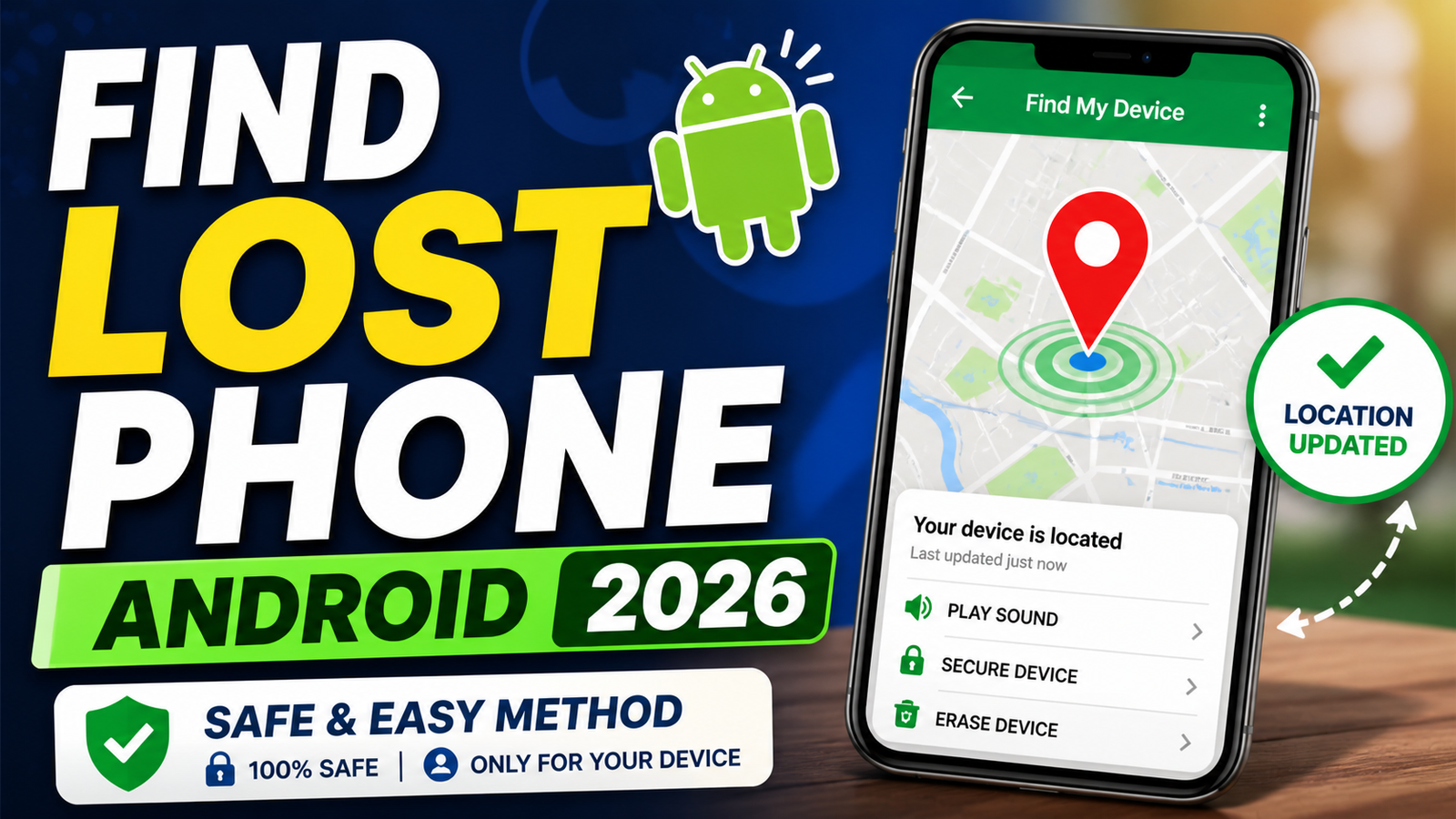
How to Find a Lost Android Phone in can be useful in an urgent situation, but it must be configured before the phone is unavailable and tested on the exact Android version in use. Menu names and background restrictions differ across Samsung, Xiaomi, OnePlus, Pixel, and other devices.
Use only your own device or a device whose owner has clearly authorised the setup. Location, remote ringing, automation, and accessibility permissions can expose personal information when granted to an untrusted app.
Why Basic Tracking Alone Is Not Enough
Start with Android’s built-in security and device-finding options, protect the Google account with a strong password and recovery method, and test the workflow without sharing OTPs or disabling device protection.
Step 1: Setting Up Google Find My Device
Start with the basics. Open your phone settings and enable Find My Device. Make sure location access is turned on and set to high accuracy. Your Google account should be properly synced, and mobile data should stay active. Find My Device To be honest, many users ignore location accuracy settings. If it’s set to battery saving mode, your phone may show an incorrect or delayed location. Keeping it on high accuracy improves your chances of recovery significantly.
Step 2: Creating an Automated System with MacroDroid
Above App here Button Click to Redirect Telegram Channel This Is Tech News Channel Play Store MacroDroid Link and ShortCut Templete Files Provided
Now comes the smarter layer. MacroDroid allows you to create an automated shortcut that reacts instantly when triggered. Instead of manually searching for your phone, your phone sends information back to you automatically.
In this setup, a trigger is created using a specific SMS command. When your phone receives a message like “miss you android,” it activates a series of actions. This is not hacking or bypassing any system. It’s simply using automation features already available on your device in a smart way.
How the Trigger Works
The trigger listens for a specific message. Once the exact text is received, the automation starts immediately. This ensures only someone who knows the command can activate it, making the system both simple and secure.
How the Actions Work
Once triggered, multiple actions run in sequence. The phone adjusts its volume settings, forces a location update, and then sends an SMS containing useful details like battery level, network status, and location. After that, it can share live location and even place a call to a trusted number.
This layered setup is important. If one method fails, another still works. For example, if GPS takes time to update, the shared location or follow-up message still gives useful data.
Why This Method Works Better in Real Life
Think practically. If your phone is misplaced at home, you can trigger a call and find it quickly. If it’s lost outside, you receive location details instantly. If the phone reconnects to a network later, the automation still activates and sends updates.
On the other hand, relying only on manual tracking is risky. If your phone is offline when you try to locate it, you get nothing. Automation solves that gap by responding automatically whenever the trigger condition is met.
Important Permissions You Should Enable
This is where most people fail. Automation apps need proper permissions to work correctly. SMS access, location access, phone state, and background activity must all be enabled. If even one is missing, the system may fail when you need it most.
Battery optimization is another hidden issue. Many Android devices restrict background apps to save power. If MacroDroid is restricted, your automation won’t run. You must allow it to run freely in the background.
Alternative Safe Ways to Track Your Phone
Even though automation is powerful, you should always keep backup options. Using Find My Device from another phone or browser is still one of the most reliable methods. You can also enable location sharing with a trusted Google account for additional safety.
Another practical option is keeping your data backed up. While this doesn’t help you recover the phone, it ensures you don’t lose important information if recovery fails.
Final Thoughts
The difference between recovering your phone and losing it permanently comes down to preparation. Most people depend on luck, but a smart setup removes that uncertainty. Combining Google Find My Device with MacroDroid gives you both reliability and speed.
In fact, this approach is not complicated once you understand the logic. You are simply setting a condition and telling your phone how to respond. That’s it. No advanced skills required, just proper setup and testing.
At the end of the day, your phone cannot protect itself unless you configure it properly. So instead of waiting for a problem, set up your system now. Because when you actually lose your phone, it’s already too late to start learning.
Practical verification notes for this guide
Confirm the source: Check the exact app, website, developer, and destination shown on the current official listing. Similar names and copied logos are not proof that two services are connected.
Test the core action: Use a spare file, sample photo, or non-sensitive account first. Record what the tool changes, which permissions it requests, and whether the result can be reversed.
Review the output: Inspect accuracy, privacy, accessibility, export quality, and any watermark or usage restriction. Do not publish an output solely because it looks correct at first glance.
Plan an exit: Know how to remove access, disconnect the account, delete uploaded data, restore the original, and contact the provider if the service does not behave as expected.