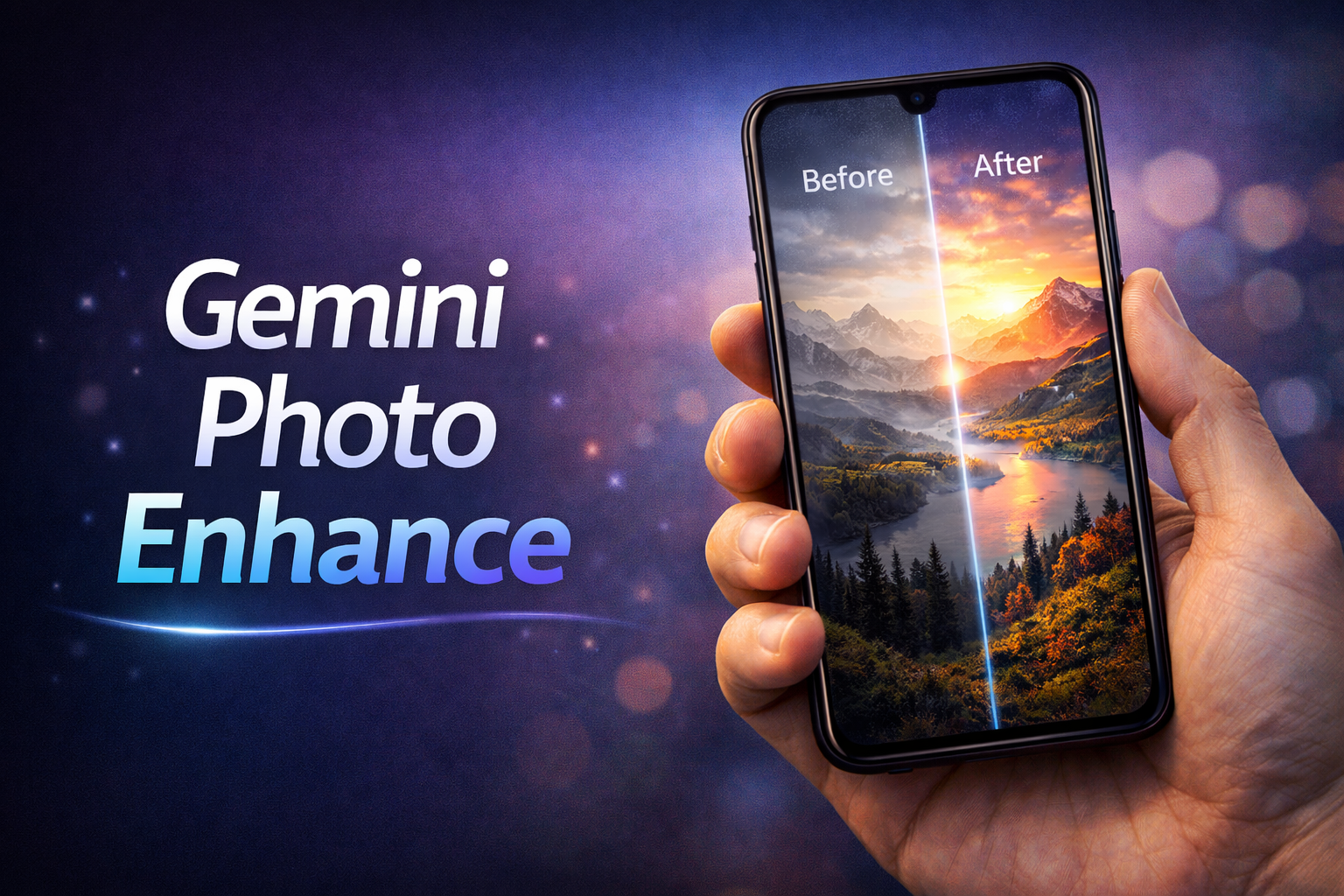
If you’re chasing “best photo quality enhancing websites,” stop assuming one tool will magically fix every bad image. Most people upload garbage-quality photos (low resolution, motion blur, over-compressed) and expect miracles. That’s not how it works. Different tools solve different problems—upscaling, sharpening, face restoration, or color correction. Use the right one for the job or you’ll get fake-looking results.
The first solid option is Let’s Enhance. This is built for increasing resolution without destroying details. It uses AI to reconstruct missing pixels instead of just stretching the image. Example one: if you have a 720p Instagram photo and want to convert it to 4K for YouTube thumbnails, this tool does it cleanly. Example two: if you downloaded an old compressed wallpaper and it looks pixelated on a big screen, this can upscale it while maintaining clarity.
Next is Remini, which is brutally effective for faces but terrible for landscapes. It specializes in facial reconstruction. Example one: if you have a blurry selfie, it sharpens facial features like eyes and skin texture. Example two: if you scan an old family photo, it can rebuild faces that look completely washed out. But don’t use it for general images—it over-processes and makes things look artificial.
Then comes Fotor, which is more balanced. It’s not the most powerful, but it gives control over brightness, contrast, sharpness, and AI enhancement in one place. Example one: if your photo is dull and underexposed, you can fix lighting and colors manually. Example two: if your image looks flat, you can tweak clarity and HDR effects to make it pop without overdoing it.
Another strong option is VanceAI Image Enhancer. This is useful when you need batch processing and multiple enhancement modes. Example one: if you run a content page and need to enhance 20–30 images quickly, this saves time. Example two: if you’re working with anime or digital art, it has dedicated models that improve edges and colors better than generic tools.
Finally, Deep Image AI is good for professional-level upscaling and noise reduction. Example one: if you shoot photos in low light and get grainy results, this reduces noise while keeping detail. Example two: if you want to print images, it prepares high-resolution outputs suitable for large formats.
Here’s the reality most people ignore: no tool can fully fix a badly taken photo. If your image is out of focus or heavily compressed, AI will guess details, not recover them. That’s why you sometimes see weird skin textures or unnatural edges.
If you want actually good results, follow this instead of blindly uploading photos. First, always start with the highest resolution image you have. Second, don’t stack multiple enhancers—one good pass is better than three bad ones. Third, choose tools based on your goal: faces, upscaling, or color correction.
If you want, tell me your exact use case—YouTube thumbnails, Instagram reels, old photo restoration—and I’ll tell you exactly which tool to use and how to get the best output without wasting time.

Hi, I’m Dev Singh, the creator of Infobiofusion. I share simple and practical guides on mobile tools, online utilities, and useful tech tricks. I personally test tools on real devices and explain them in a clear, easy-to-follow way so you can quickly find what actually works.