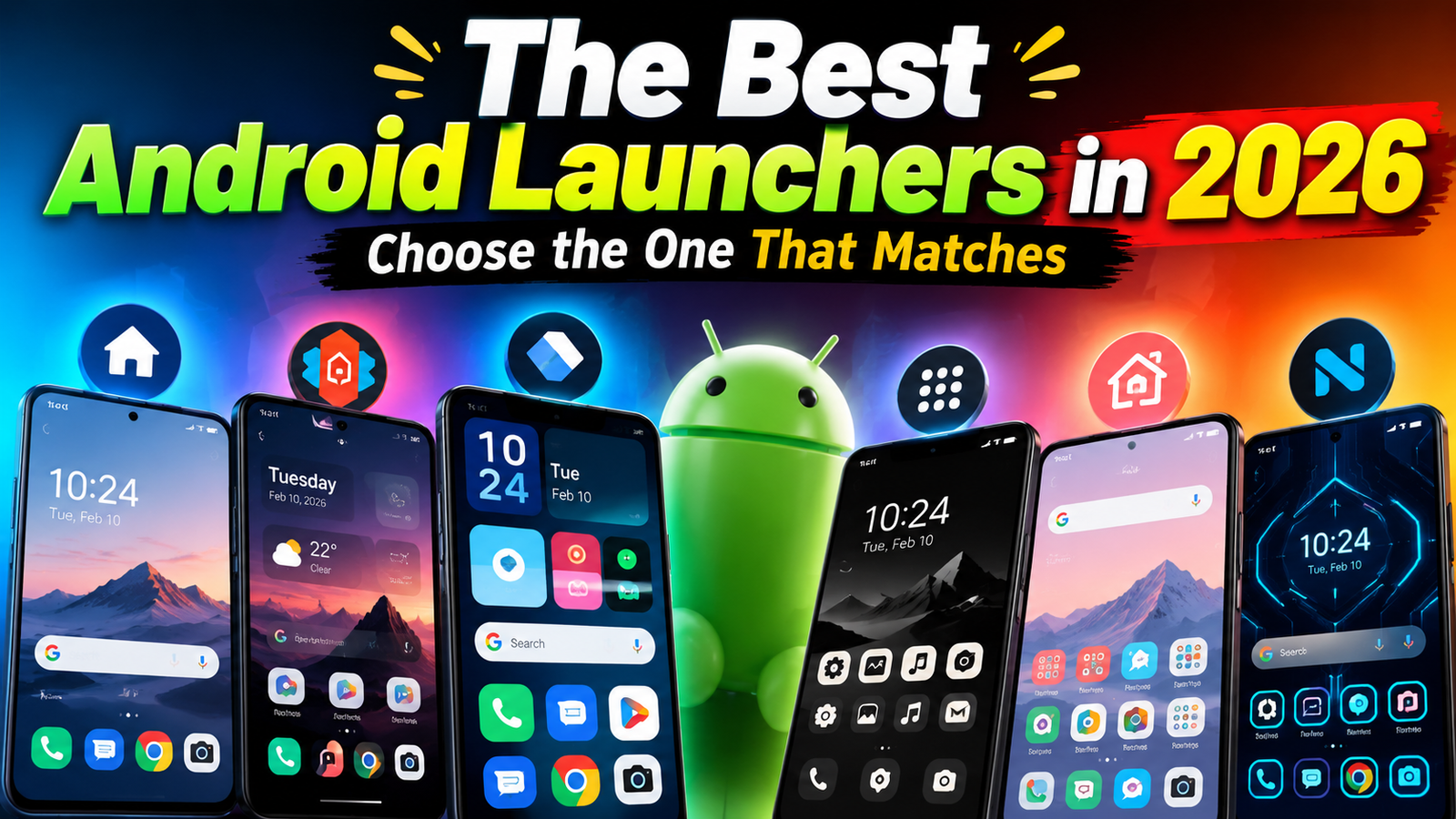
If your Android phone feels messy, slow, or full of distractions, the problem is often not the phone itself but the launcher you’re using.
In 2026, stock launchers are better than they used to be, but third‑party launchers still offer cleaner layouts, smarter gestures, and deeper customization. The catch: each launcher has trade‑offs like notification quirks, battery impact, or learning curve.
This guide walks through the best Android launchers by real use cases minimalist, power user, productivity, and phone for parents/kids so you can pick one that actually fits your daily habits.
Before installing anything, decide the main problem you want to solve. A quick checklist helps narrow choices:
- My phone feels slow or cluttered. Look for lightweight or minimalist launchers with simple layouts.
- I want crazy customization. You’ll want deep control over gestures, icons, grids, and backup options.
- I just want to find apps and contacts quickly. A search‑first or feed‑style launcher makes sense.
- I’m setting up a phone for a less technical user. Consider simple or smart category launchers.
- I hate constant ads and data tracking. Prioritize launchers with clear privacy policies and no ad modules.
Keep that one main goal in mind while you read the comparisons below otherwise it’s easy to chase features you’ll never actually use.
MOBILE LAUNCHER APP
Quick Comparison: Popular Launchers in 2026 by Main Strength
| Launcher | Main Strength | Best For | Key Drawback |
| Nova Launcher (v7+) | Deep customization, gestures, backups | Power users, long‑time Android fans | Overwhelming settings, some features behind paid version |
| Niagara Launcher | Minimal, one‑handed app list | Minimalists, smaller phones, older users | Less visual customization, different from stock layout |
| Smart Launcher 6 | Automatic app categories, clean grid | People who hate managing folders | Occasional ads/upsell in free tier |
| Microsoft Launcher | Productivity & Microsoft ecosystem | Office users, Windows 11 owners | Heavier on resources, more background sync |
| POCO / HyperOS Launcher (stock‑style) | Lightweight, close to OEM experience | Budget devices, users who want simple tweaks | May need sideloading on non‑Xiaomi devices |
1. Nova Launcher: Classic Power Tool for Heavy Customizers
Best for: Users who like tweaking every detail icon size, grid layout, gesture controls, dock style, and more.
Nova has been around for years and remains one of the few launchers that balances deep customization with relative stability.
What it does well
- Highly configurable home screens, docks, and app drawer.
- Gesture actions (e.g., swipe down for notifications, double‑tap to lock).
- Backup and restore layouts between phones useful if you switch devices often.
- Works with most icon packs available on Play Store.
Real‑world drawbacks
- New users can be lost in the settings menus; expect a setup period.
- Some advanced options are paywalled in Nova Prime (usually a small one‑time fee).
- On some OEM skins (especially heavy Chinese ROMs), gesture navigation conflicts may occur test thoroughly before committing.
Setup tip: Start from a preset layout instead of tweaking everything at once. Then adjust gestures and the app drawer over a few days based on what actually bothers you.
2. Niagara Launcher: For People Who Want Less on Their Screen
Best for: Minimalist home screens, older devices, or users who mostly launch apps by name.
Niagara flips the traditional grid layout into a clean list with an A Z scrollbar on the right edge. It’s designed to be used one‑handed, even on large phones.
What it does well
- Very lightweight; often feels snappier on mid‑range or older devices than OEM launchers.
- Reduces clutter by hiding rarely used apps behind search.
- Built‑in favourites row and notification previews for chosen apps.
Real‑world drawbacks
- The non‑grid layout can be jarring if you love multiple widget pages.
- Limited complex widget setups compared to Nova or stock launchers.
- Some customization and calendar/weather features require a paid tier.
Setup tip: Add only your top 8 10 most used apps as favourites and keep the rest in the main list. This keeps the home screen focused and fast to scroll.
3. Smart Launcher 6: Automatic Categories for People Who Hate Organizing
Best for: Users who never maintain folders and can’t find apps after a few months.
Smart Launcher scans your apps and groups them into automatic categories like Social, Tools, Games, and Media. The home screen can stay icon‑light while the app drawer remains structured.
What it does well
- Automatic grouping saves time, especially after installing many new apps.
- Home screen layouts are tidy and adaptive to different screen sizes.
- Quick search for apps and web content from one place.
Real‑world drawbacks
- Automatic categories are not perfect you may need to manually fix misclassified apps.
- Free version may show occasional ads or prompts to upgrade.
- More background activity compared to bare bones launchers.
Setup tip: After installation, spend 5 10 minutes re‑categorizing the top 20 apps you use most. That small investment makes the automatic system much more accurate long‑term.
4. Microsoft Launcher: For Work and Windows‑Centric Users
Best for: People deeply into Microsoft 365, Outlook, To Do, and Windows 11 integration.
Microsoft Launcher turns your home screen into more of a productivity hub with calendar, tasks, and news feeds tied to your Microsoft account.
What it does well
- Glanceable widgets and feeds for calendar events, emails, and to‑dos.
- Good integration with Windows PCs via Microsoft account.
- Built‑in parental control hooks for family accounts (features may vary by region).
Real‑world drawbacks
- Heavier on RAM and battery than minimalist launchers.
- Requires signing into Microsoft services for best experience, which increases data sharing.
- News feed may surface sponsored content; needs manual tuning.
Setup tip: In settings, explicitly disable news sources you don’t want and limit the number of feeds on the main page. This keeps distractions down and performance more stable.
5. Stock‑Style or OEM Launchers: When You Just Need a Light Touch
Best for: Users who mainly want small tweaks like an app drawer, icon pack support, or better folder management without massive changes.
On some phones, you can install OEM‑style launchers (e.g., POCO, HyperOS, or third‑party Pixel style launchers) that mimic a clean, stock Android look.
What they do well
- Usually lightweight and close to standard Android behaviour.
- Simple options: icon packs, grid size, maybe a themed search bar.
- Less risk of bugs with system navigation and animations compared to very heavy custom launchers.
Real‑world drawbacks
- Feature set is limited; power users will quickly hit walls.
- Some are only officially available on the manufacturer’s devices.
- Unofficial APKs from random sites raise security and privacy risks.
Safety note: If a launcher is not officially on the Play Store or your OEM’s own store, avoid downloading it from third‑party APK sites. A malicious launcher can read notifications, app names, and in some cases access more data than you expect.
How to Switch Launchers Safely and Avoid Common Mistakes
Changing your home screen is low‑risk if you do it carefully. A few practical steps:
- Check Android compatibility first. Read the Play Store description for minimum Android version and known issues with your brand (Samsung, Xiaomi, etc.).
- Back up your current layout if possible. Many OEM launchers offer a backup option in Home Screen settings. If not, grab screenshots for reference.
- Install from official sources only. Use Google Play or your device’s official app store. Avoid modded or pro unlocked versions.
- Set as default and test for a few days. Go to Settings → Apps → Default apps → Home app and pick the new launcher. Live with it 3 4 days before deciding.
- Watch battery and performance. If you notice lag or battery drain, check Android’s battery usage stats. Some launchers keep extra background processes running for feeds and news.
- Clean up notification permissions. If a launcher asks for more permissions than expected (e.g., access to SMS, call logs), pause and reconsider. Many launchers work fine with only basic access.
Privacy and Security Tips for Launcher Apps
A launcher sits on top of almost everything you do on your phone, so treat it like a core system component, not just another app.