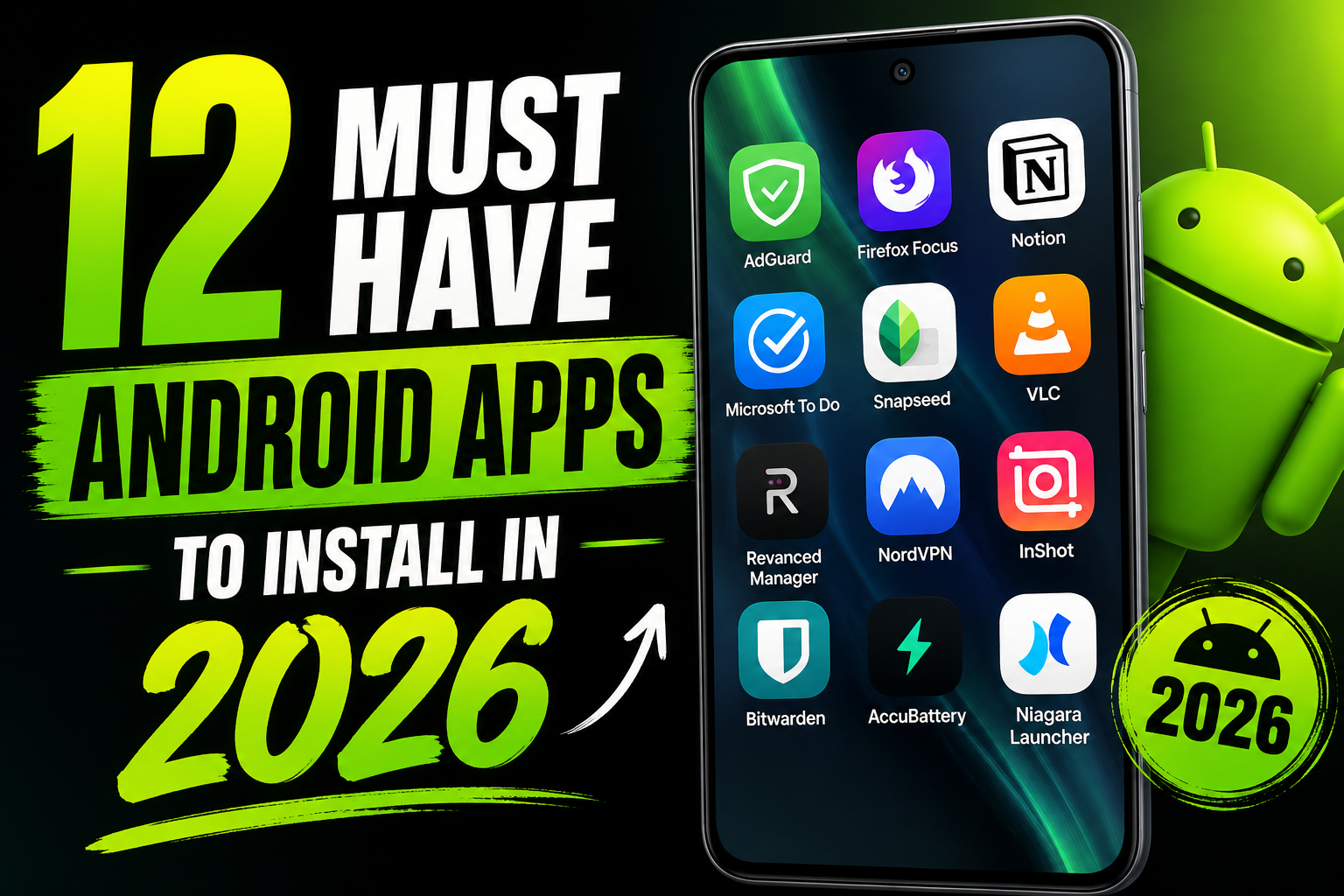
No Android app is “must-have” for every user. Install only when a defined task is not already handled well by the phone, and compare the benefit with storage, battery, notifications, permissions, subscription, account, and data-sharing costs.
This roundup is a category checklist—not proof that every named app is currently available, supported, or suitable in every region. Verify the official developer and distribution source, recent update, Android compatibility, data-safety declaration, ads, purchases, account deletion, and recent reviews before installation.
Begin with one need, test one app for a week, and remove it if it duplicates built-in functions or requests access unrelated to the task. Security, VPN, keyboard, automation, gallery, health, and third-party media apps deserve extra scrutiny because they may see sensitive activity.
Back up important data before cleaners or automation changes, keep a password-vault recovery plan, do not treat sleep estimates as medical diagnosis, and avoid sideloading a media client merely to bypass a platform’s service rules.
Related Resource
Third-party WhatsApp link: The DOWNLOAD NOW button opens a channel, not Google Play or an official developer page for the apps below. Do not install an APK, configuration, profile, or “premium” modification supplied through a channel without independent verification.
Compare twelve app categories before installing
| App | Main use | Key strength | Watch out for |
|---|---|---|---|
| Google Files | Storage and cleanup | Smart offline cleaning and file search | Be careful with what you delete |
| Bitwarden | Password manager | Secure and cross platform | Takes time to set up vault |
| NewPipe or LibreTube | YouTube alternative client | Background and popup playback | Not an official Google app |
| Snapseed | Photo editing | Precise local edits | Interface can feel advanced |
| Tasker or MacroDroid | Automation | Automate routine actions | Needs careful rule testing |
| Microsoft SwiftKey | Keyboard replacement | Accurate predictions and themes | Cloud sync needs privacy review |
| 1Gallery or Simple Gallery Pro | Photo gallery | Private folders and offline use | Hidden vault can be forgotten |
| TickTick | Tasks and reminders | Calendar and habit views | Advanced features behind paywall |
| Proton VPN | Secure VPN | Trustworthy free tier | Speed varies on free servers |
| Samsung Internet or Brave | Web browsing | Good ad and tracker control | Sync works best in same ecosystem |
| Sleep Cycle or Sleep as Android | Sleep tracking | Smart alarm and insights | Requires microphone or watch access |
| Notion or Obsidian Mobile | Notes and knowledge base | Cross device organization | Cloud storage and learning curve |
1. Files by Google for reviewed storage cleanup
Most Android phones in 2026 still ship with a lot of preinstalled apps and small storage on cheaper models. Google Files helps you find large files, old downloads, and duplicate media. The smart suggestions are usually safe, but do not blindly tap delete. Always open the category, preview a few files, and deselect anything important like documents or WhatsApp backups.
2. Bitwarden with a recovery and backup plan
Reusing the same few passwords is one of the most common security mistakes. Bitwarden gives you one encrypted vault that works on Android, desktop, and browser extensions. The realistic friction point is the first week, you must manually change weak passwords on your most important services. Start with email, banking, social, and your main cloud storage, then slowly update the rest.
3. Third-party YouTube clients require source verification
If you watch a lot of YouTube, you know the frustrations of background playback limits and constant suggestions. NewPipe and LibreTube are third party clients that allow background audio, popup windows, and sponsor skipping depending on version. Because they are not from Google, they are usually not in Play Store. Only download from the official project website or a trusted open source directory and understand that your account integration might be limited.
4. Snapseed for local photo adjustments
Phone cameras in 2026 are good, but the default editor is still basic. Snapseed gives you serious tools like curves, selective focus, and healing for unwanted objects. A simple real world example is fixing a dark food photo. You can use the tune image tool to lift shadows, then use selective adjustment on the plate to add a bit of brightness without blowing out the background.
5. Tasker or MacroDroid for reversible automation
Automation is where Android still shines compared to other platforms. MacroDroid is easier for beginners, Tasker is more advanced. A practical use case is saving battery at night. You can create a rule that turns off mobile data and lowers brightness when time is after midnight and the charger is unplugged. Always test new rules in the daytime, so you do not accidentally block important calls or alarms.
6. SwiftKey and keyboard-data considerations
Gboard is solid, but many users prefer SwiftKey for its more aggressive word prediction and layout options. The cloud learned suggestions can feel almost spooky after a week. Before you enable full cloud sync, open the privacy section and decide if you are comfortable sharing typing data. Also try adjusting key size and long press delay, since default settings might feel cramped on very tall phones.
7. Private-gallery claims need encryption and recovery checks
Apps like 1Gallery or Simple Gallery Pro let you hide sensitive albums behind a PIN or fingerprint. This is useful if you share your phone with family or children. One common mistake is hiding important work scans and then forgetting the app password. Store at least one recovery hint somewhere safe, or keep work documents in a separate cloud storage folder with its own login instead of only in a hidden vault.
8. TickTick for tasks when built-in tools are insufficient
TickTick is a popular planner that combines to do lists, calendar view, and simple habit tracking. For example, a student can create three lists labeled Study, Home, and Shopping, then add repeating tasks like review math notes every weekday or pay internet bill on the first of each month. The free tier is enough for personal use, but do not rely on advanced features like timeline view unless you are ready to pay.
9. Proton VPN: provider trust and connection limits
Cafes, airports, and shared networks are still risky in 2026. A reputable VPN encrypts your traffic so local snoopers have a harder time seeing what you do. Proton VPN has a limited free plan, usually with fewer servers. Expect slower speeds at busy times, and avoid turning on any VPN 24 by 7 if you play online games or stream at full resolution, since latency and data usage will increase.
10. Samsung Internet or Brave with reviewed privacy settings
Chrome is convenient, but not always the most private. Samsung Internet and Brave both focus on blocking trackers and annoying ads. On many phones you can set either one as default, then sync bookmarks with desktop versions or export them regularly. Some sites may behave strangely when aggressive blocking is enabled, so learn how to quickly disable shield or content blocking for trusted pages that need it.
11. Sleep tracking for estimates—not diagnosis
Apps like Sleep Cycle or Sleep as Android can log when you fall asleep, wake up, and how often you move, using either the microphone or a connected smartwatch. A common friction is keeping the phone on the bed or near your pillow. That is not ideal for everyone. If you are sensitive about having the microphone active for hours, use a smartwatch integration instead of phone based tracking or skip this category entirely.
12. Notion or Obsidian for different storage models
Notes are no longer just small memos. Notion focuses on cloud based pages with databases, while Obsidian uses local markdown files that can sync through your chosen cloud service. A simple case study style workflow is managing a side project. Create one main page or vault, then add sections for ideas, tasks, meeting notes, and links. Over time, this becomes a searchable brain that you can access on phone and PC.
Use a one-need, one-app, one-week test
You do not need all twelve apps from day one. Start by covering three basics, storage cleanup, password manager, and browser. Then add one tool from each lifestyle area that matches your current situation. If you never edit photos, you can skip Snapseed. If your phone already has a good manufacturer gallery with a locked folder, you may not need a separate private gallery app.
A smaller verified app set is safer
The must have Android apps 2026 are not the flashiest ones in the charts, they are the tools that quietly fix real problems around security, storage, focus, browsing, and sleep. If you pick even four or five from this list and set them up carefully, your phone will feel more organized and less stressful to use.
Take your time when you install each app. Check permissions, disable any aggressive notification spam inside the app settings, and learn at least one or two deeper features instead of just scratching the surface. You can always uninstall what does not fit your daily routine, and keep refining your core toolkit over the next few weeks.
Common questions before installing Android apps
Which one app should I install first from this list
If you have no password manager, start with Bitwarden. Securing your logins has the biggest long term impact compared to any other single app here.
Are all these apps safe for every Android phone
They are popular and generally trusted, but safety also depends on your device brand and Android version. Always install from Google Play when possible and read recent reviews.
Will these apps slow down my phone
Most of them are light, but automation tools, VPNs, and heavy note apps can use extra battery or memory. If your phone is low end, install only what you really use daily.
Do I need to pay for the premium versions
For many users the free tiers are enough. Only pay if a specific feature such as extra VPN locations or calendar integration clearly saves time or improves security for you.
How often should I clean my Android storage
For normal use, a quick cleanup with Google Files once a month is fine. If you record a lot of video or download large games, check storage every one or two weeks.
Thank you for reading. If you found this guide useful, consider following the blog for more latest tech news, carefully picked Android apps, AI tools, and honest updates that actually help you use your devices better.