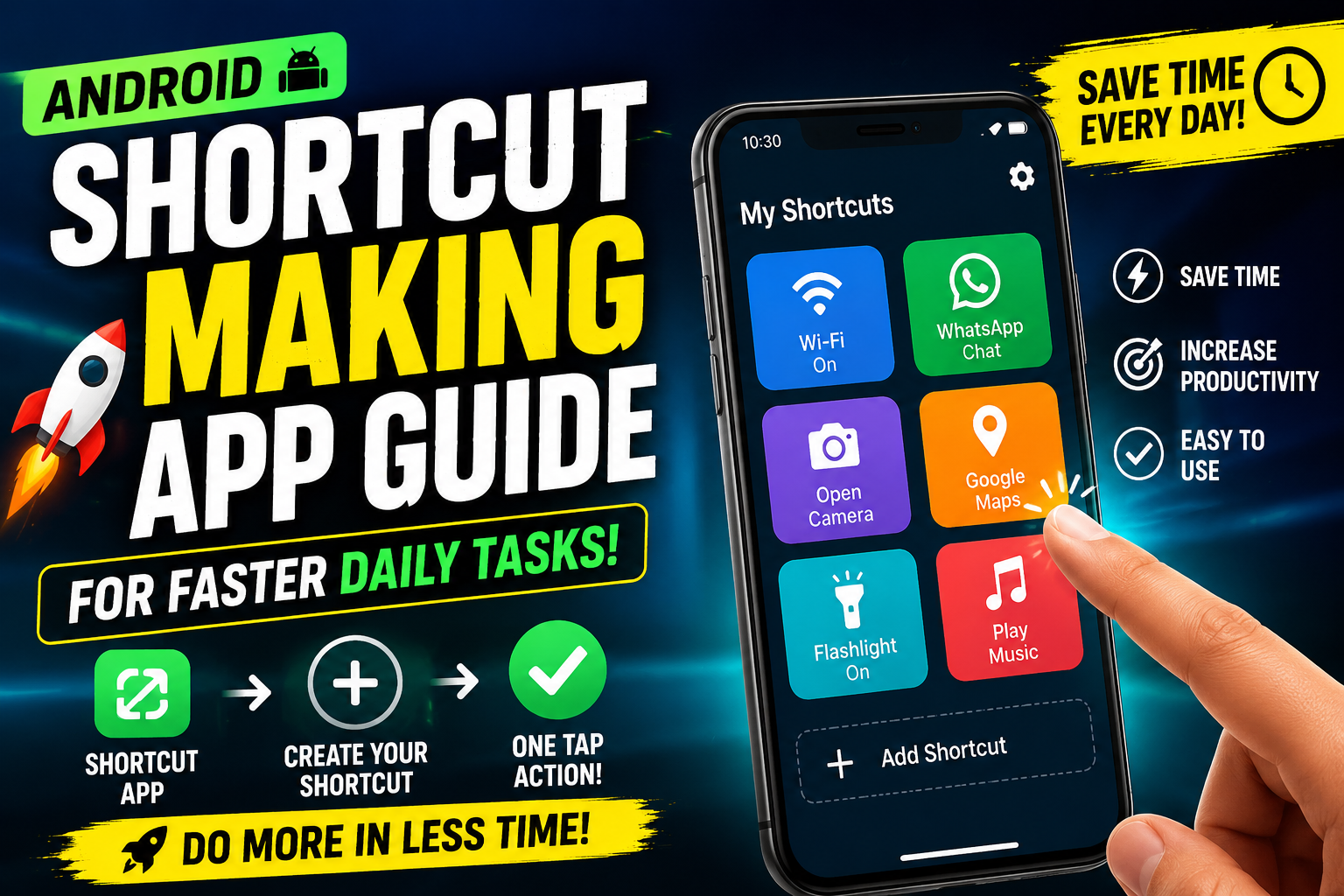
The linked Google Play package is Shortcut Maker. It can create home-screen entries for supported apps, activities, contacts, files, websites, settings, or intents, but available actions vary with Android version, launcher, manufacturer, and the target app’s own permissions.
Start with a harmless shortcut that opens an app or public webpage. Verify the icon, label, destination, and behaviour while the phone is locked and unlocked before creating direct-call, message, file, payment, accessibility, or automation shortcuts.
A shortcut can reveal private contact names, filenames, locations, work tools, or routines to anyone who sees the home screen. Do not place sensitive actions on a shared device, and do not make a shortcut look like a different trusted app, bank, setting, or person.
Shortcut apps may stop working after launcher, app, permission, or system changes. Keep the original route available, document important setups, and treat exported backups as sensitive because they may contain URLs, paths, labels, and intent details.
Related Resource
Linked app: The App Download Link opens the Shortcut Maker package shown in the Google Play URL. Confirm the developer, update date, data safety, permissions, ads, purchases, backup behaviour, and compatibility before installation.
What Shortcut Maker can expose on the home screen
An Android shortcut making app is a utility that creates custom icons or widgets for specific actions. Instead of only launching an app, a shortcut can jump into a deep part of that app, trigger a setting, start a call, open a file, or run a small automation. Most work on any recent Android version, but names of permissions and menus can change by brand and update.
These tools use the standard Android shortcut and widget system. Some rely mainly on static shortcuts, which just perform one fixed action. Others use dynamic shortcuts, which can change based on context, for example recent chats or recent routes. Still others integrate with automation engines so that one icon can launch a whole mini workflow.
App, activity, contact, file, URL, and setting shortcuts
Once you install a shortcut creator, you usually get a long list of possible actions. The exact list varies a lot, so always check the app description before installing. Typical options include the following groups.
- Direct call or message shortcuts for specific contacts
- Navigation shortcuts for saved locations like Home or Work
- App specific actions, such as new note, new calendar event, scan document
- System toggles such as WiFi, Bluetooth, hotspot, flashlight, rotation
- File or folder open shortcuts for downloads or project folders
- Automation routines such as silent mode plus alarm plus brightness change
Example: a student uses non-sensitive study links
A busy student might use an Android shortcut making app to set up icons for Join class Meet link, Open timetable sheet, Upload assignment folder, and Text group leader. Instead of opening multiple apps and searching, they tap one icon for each recurring task, especially during exam time when every second of focus matters.
Example: a delivery worker avoids exposing customer data
A delivery driver can use shortcuts to start navigation to popular areas, call dispatch, open fuel expense sheet, and toggle high brightness. During a long day on the road, this setup cuts down juggling inside the quick settings panel, which also reduces the chance of a wrong tap while rushing.
Static shortcuts, widgets, intents, and automation
You will find many apps with names like Shortcut Maker, Quick Shortcut, or Icon Customizer. Instead of chasing brand names, it helps to compare the style of tool you want. Here is a simple comparison table of common categories you will see in the Play Store.
| Type of shortcut tool | Best for | Key features | Main drawbacks |
|---|---|---|---|
| Basic shortcut creator | Beginners who only want quick links | Create icons for apps, contacts, settings, web links | Limited automation and few design options |
| Icon plus widget customizer | Users who care about theme and layout | Custom icon packs, shapes, labels, some actions | More setup time, can confuse if overdone |
| Automation focused app | Power users and productivity fans | Chains of actions, conditions, scheduled tasks | Steeper learning curve, more permissions needed |
| Launcher with built in shortcuts | Users ready to change full home screen | Gestures, hidden folders, smart categories | May affect system feel and battery slightly |
One-week shortcut audit: value, failure, and privacy
Imagine a freelancer who works from a phone most of the day. They install an Android shortcut making app that supports app actions, contact actions, and a bit of automation. On day one, they map out their routine, client calls, chat app, email, notes, camera for document scans, and banking app.
They create a first row of shortcuts for work actions, New invoice note, Open client folder in cloud storage, Start timer, and Quick camera scan. The second row is communication, Call top three clients, open specific WhatsApp chat, and email draft to the accountant. The third row is admin, open banking app, daily expense sheet, and backup photos folder.
After a week, they notice fewer distractions because they are not browsing the full app drawer every time. They also see which shortcuts they never touch, so they delete those to keep the layout clean. The main friction they hit is accidental taps on powerful shortcuts like mobile banking. To fix that, they change the app settings to require a quick confirmation for sensitive actions.
Create and test one reversible shortcut
The exact buttons differ between apps, but the general process to create a shortcut is very similar. Keep your first one simple so you understand the flow before trying complex automation.
- Install a trusted Android shortcut making app from Google Play Store. Check recent ratings, privacy section, and last update date.
- Open the app and look for a Create shortcut or Plus button on the main screen.
- Choose a category such as Apps, Settings, Contacts, or Activities depending on what the tool offers.
- Select the specific action, for example open camera in video mode, call dad, or open WiFi settings page.
- Customize icon and label if the app supports it. Short clear names like Pay bill or College map are better than long phrases.
- Tap Create or Add to home screen. Some apps will pop Android default shortcut dialog, where you confirm placement.
- Go back to the home screen, tap your new shortcut, and check if it does exactly what you expect.
If the shortcut fails, the app may not have permission to perform that action. Open its settings, check required permissions such as contacts, call, or accessibility, and enable only what is really needed. Avoid random toggles that do not match your use case.
Lock-screen, label, intent, permission, and backup checks
Shortcut creators are powerful because they can touch many parts of your phone. This also means you must treat them with care. A careless install from an unknown source can expose contacts, call history, or usage patterns. Stick to the Play Store, read reviews from the last few months, and avoid tools that ask for every permission when they only advertise basic features.
Some automation heavy apps request accessibility service. This can be legitimate because they need to click or read screen content to trigger actions. If you enable it, review the access regularly in Android settings and disable for any app you no longer use. Never grant this to tools from outside trusted stores.
On battery, simple static shortcuts use almost no power because they only act when tapped. Apps that run background services for monitoring location, time, or app usage can affect standby time. Inside the app, look for options to reduce background checks or limit certain triggers so you keep control over consumption.
Impersonating icons, dead links, direct actions, and clutter
There are a few classic errors that make people think shortcut tools are unreliable when the real issue is setup. Watch for these points.
- Creating too many icons so the home screen feels messy and slow
- Using confusing labels that all look similar in a hurry
- Placing sensitive actions like banking or payment inside easy reach of kids
- Forgetting to update shortcuts when you uninstall or change main apps
- Ignoring backup, then losing a carefully crafted layout after a reset
A simple rule is to treat shortcuts like tools in a small toolbox. Only keep what you use weekly. Archive the rest inside folders or remove them completely. Some launchers and backup apps can export your layout or shortcuts list, which is worth doing before big system updates.
Use shortcuts for navigation—not hidden trust
A good Android shortcut making app turns your phone from a general purpose device into a focused console for your own tasks. By creating direct actions for contacts, settings, routes, or work routines, you remove many small friction points that steal time every day. You do not need root, complex scripts, or a custom ROM to enjoy this, only a bit of planning and a careful setup.
The right approach is to start small with three to five shortcuts that match your real daily habits. Check battery and permission settings, add gentle safety for banking or private actions, and clean up icons that you stop using. Over time, you will build a home screen that feels lighter and more personal than any default layout from the phone brand.
Common questions about Android shortcut makers
Which Android shortcut making app should I install first
For most people a basic shortcut creator from the Play Store with recent updates and clear reviews is enough. Look for one that supports app actions, contacts, and a few system settings before jumping into full automation tools.
Do shortcut apps work on all Android phones
Most tools work on common Android versions, but exact features can vary by brand and skin. Some system toggles might not be available on certain phones, and deep activities from system apps may behave differently after updates.
Will shortcuts slow down my phone
Normal static shortcuts do not slow the device in a noticeable way. Heavy automation apps that run many background checks or location triggers can affect performance a little, so use those features only when you really need them.
Are direct call shortcuts safe
They are safe if you manage screen lock and placement. Avoid keeping direct call or payment actions on the first page where a child or stranger can tap them easily. Folder placement or confirmation prompts reduce that risk.
Can I back up my shortcuts when changing phones
Some shortcut makers and custom launchers include backup and restore functions. Check inside their settings for export options. Also sign in to the same Google account so Play Store can restore compatible apps and widgets on the new device.
Thank you for reading this guide. If you found it helpful, stay connected with our blog for more practical Android tips, useful apps, AI tools, and the latest tech updates that actually matter in daily use.